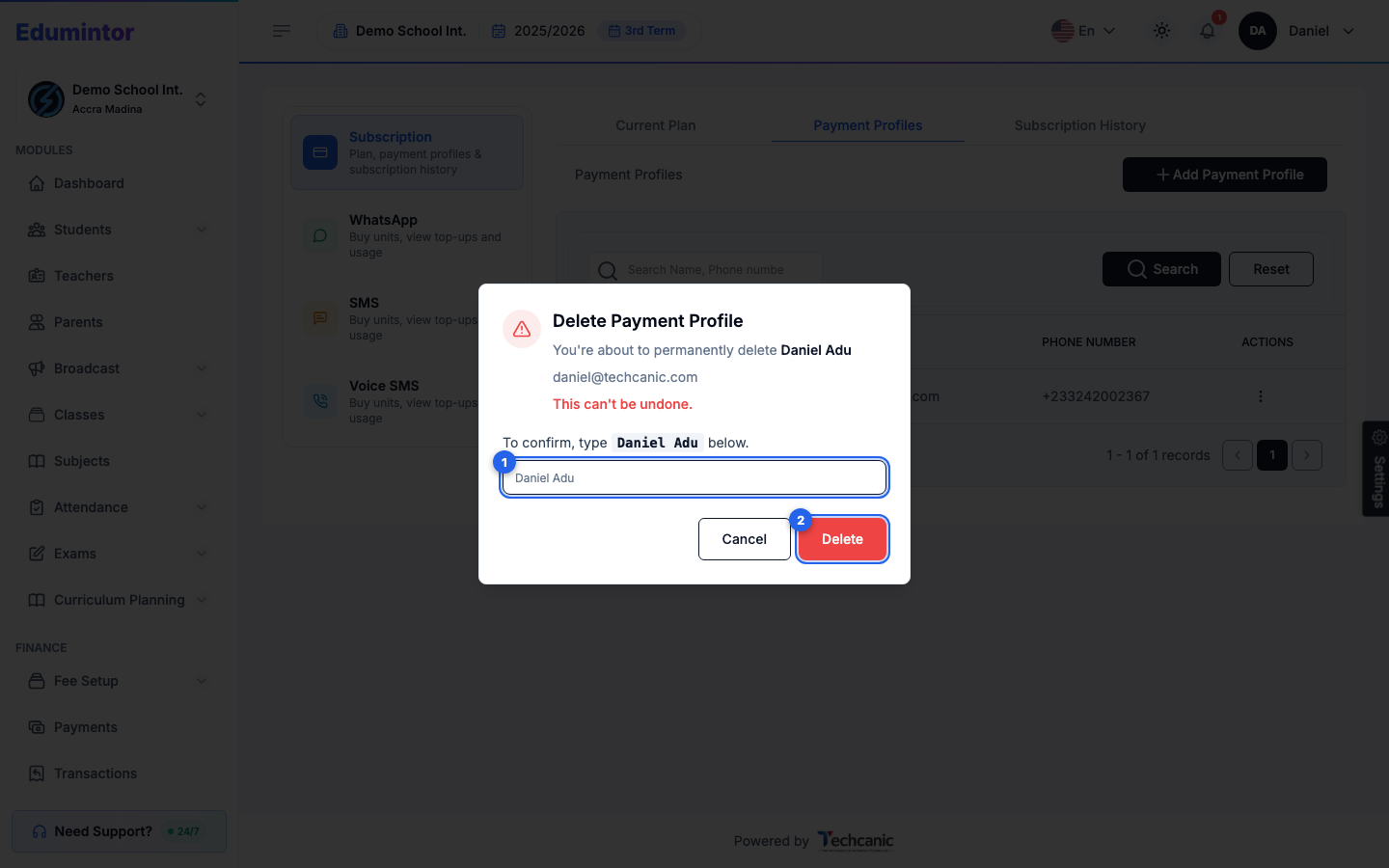
A payment profile is a billing contact's details, kept on file for making payments toward your subscription.
-
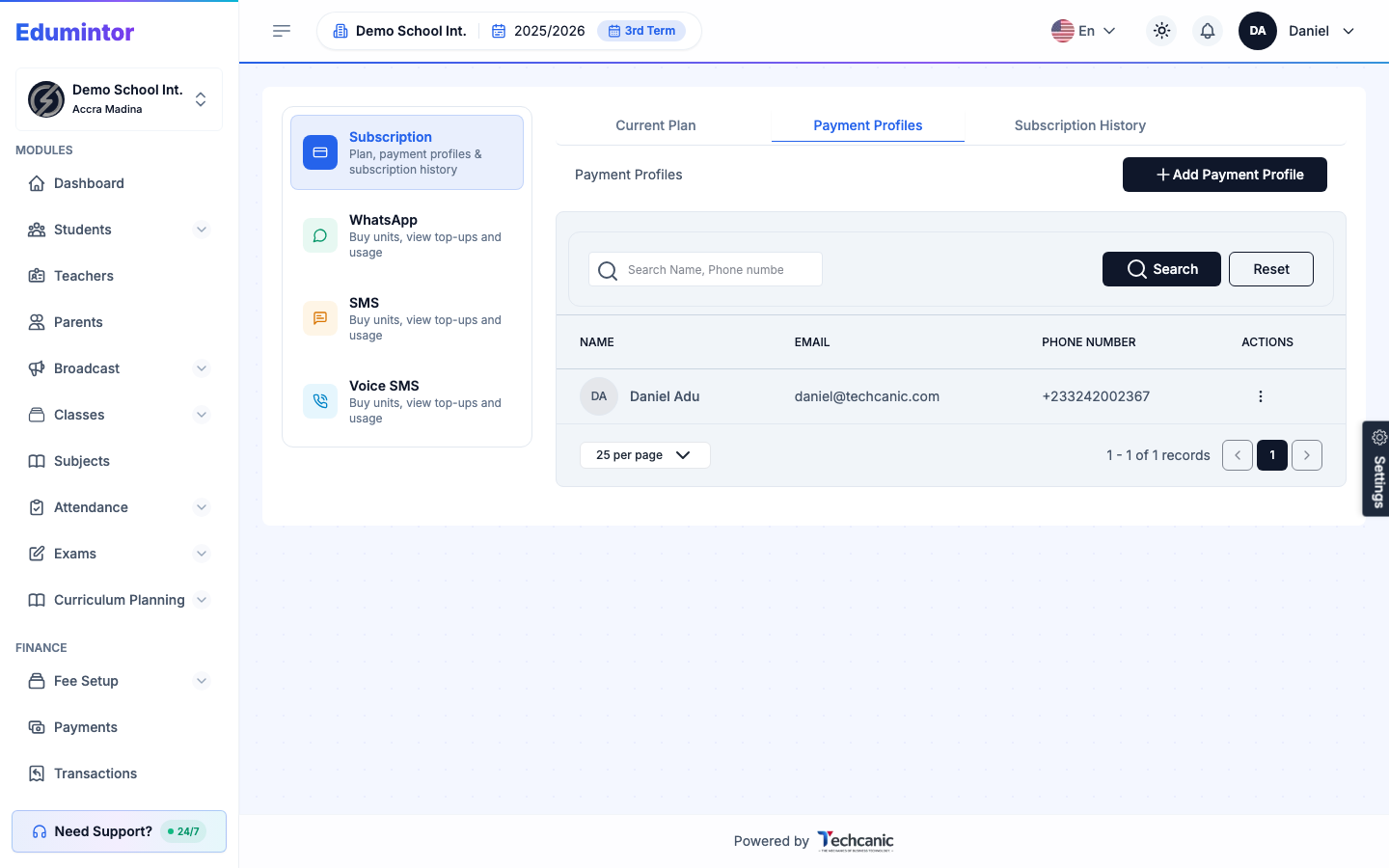
Go to Billing → Subscription, then switch to the Payment Profiles tab.
-
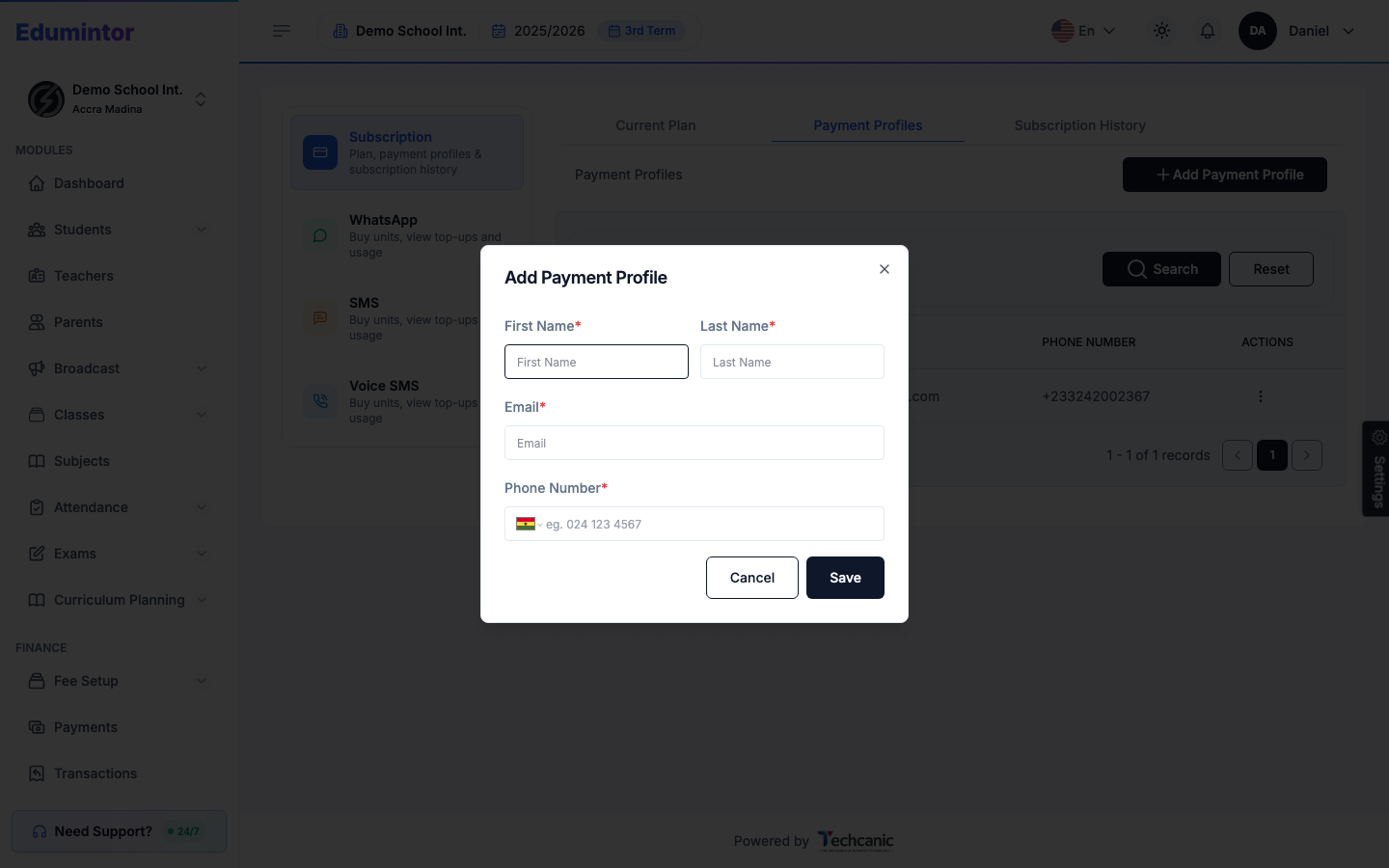
Click Add Payment Profile, fill in the name, email, and phone number, then click Save.
-
To change or remove one, click the ⋮ menu at the end of its row and choose Edit or Delete.
-
If deleting, in the confirmation, type the profile's name exactly as shown (for example Daniel Adu) — the Delete button turns on once it matches — then click Delete. This can't be undone.