-
Go to Exams → Grades Config.
-
Click + Add Grade.
-
Enter the Grade Name (e.g. "A1"), Grade Point, the Mark From/To range, and the Remark (e.g. "Excellent," "Credit," "Fail").
-
Click Create Grade.
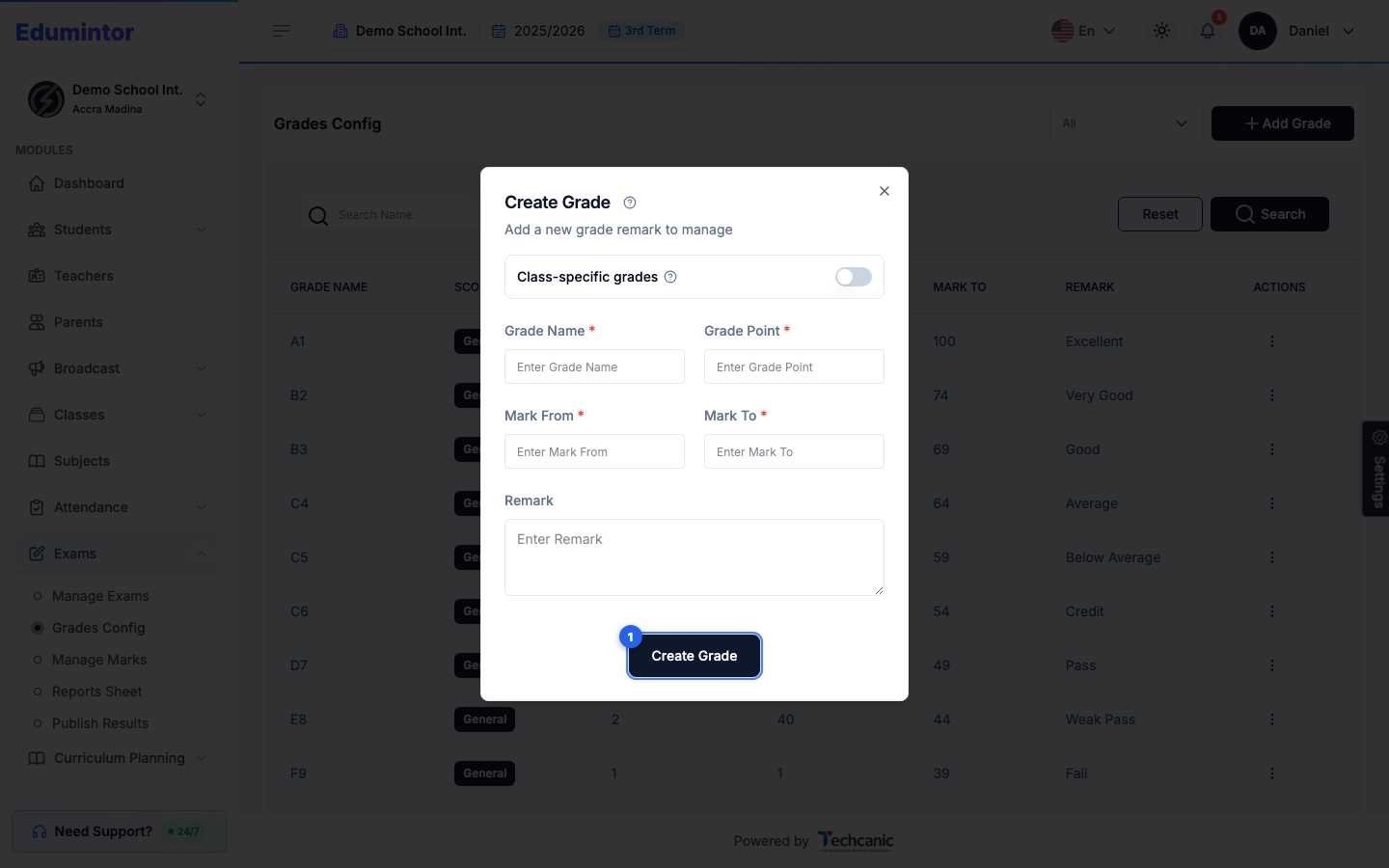
💡 Tip — Toggle Class-specific grades on if this boundary should only apply to a particular class, instead of the school-wide (General) scale. General boundaries apply everywhere a class doesn't have its own class-specific override.
These settings translate raw marks into letter grades and remarks on report sheets.