-
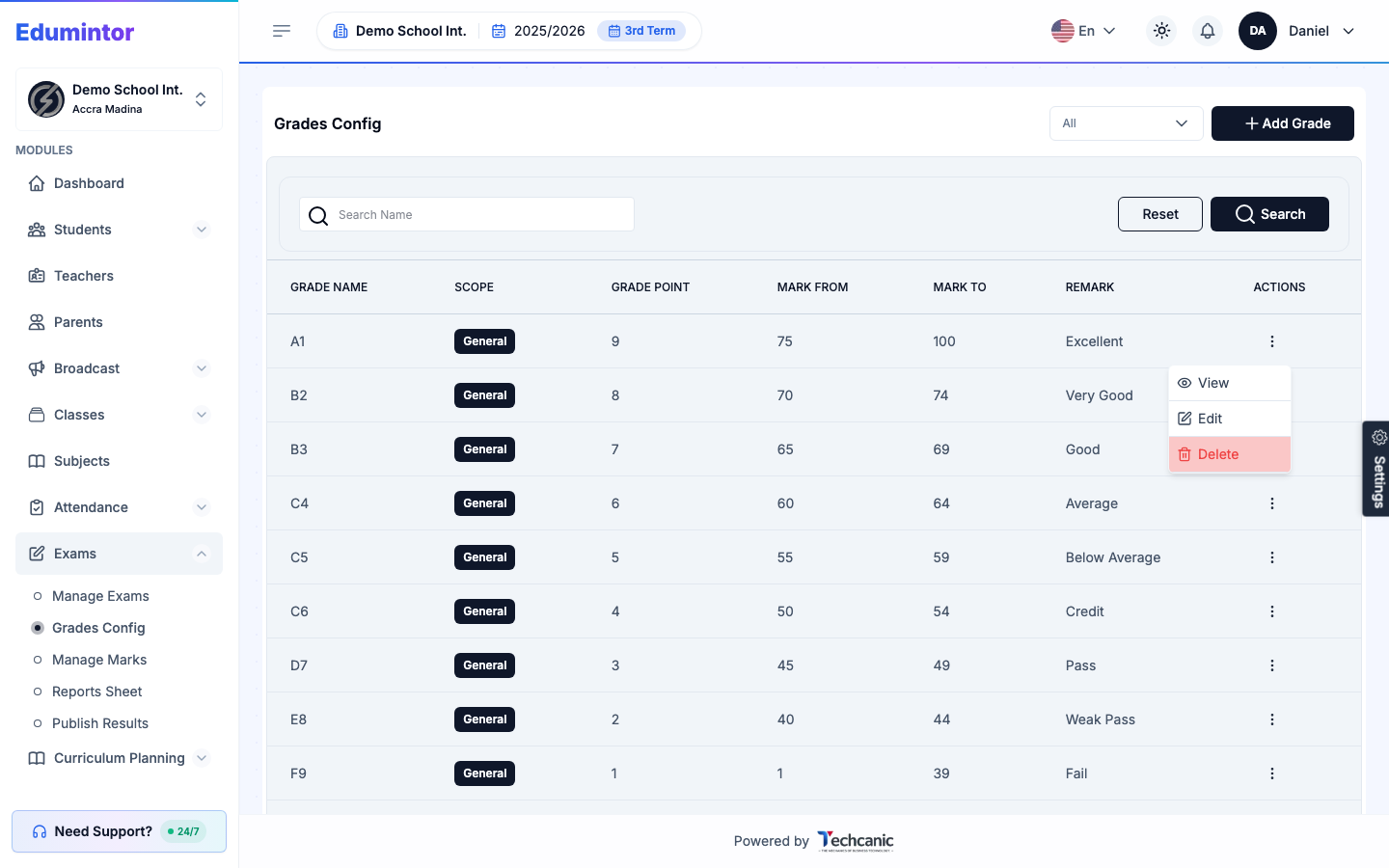
Go to Exams → Grades Config.
-
Find the grade in the list, then click the ⋮ menu at the end of its row.
-
Choose Delete.
-
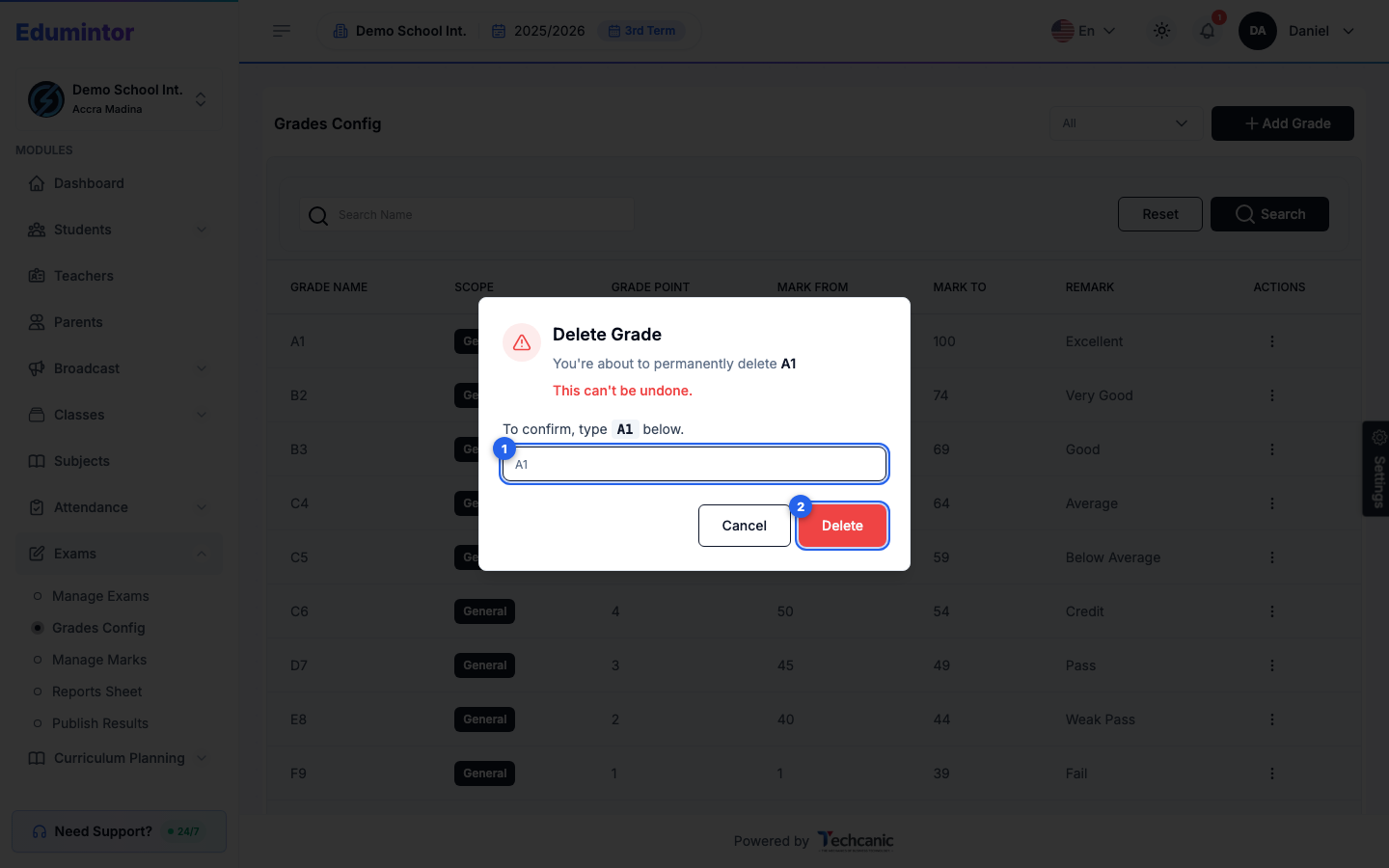
In the confirmation, type the grade name exactly as shown (for example A1) — the Delete button turns on once it matches — then click Delete. This can't be undone.
⚠️ Note — Removing a grade band leaves a gap in the mark range it covered. Marks that fall in that range may no longer translate to a letter grade on report sheets until a replacement band is added.