-
Go to User Management → User Roles.
-
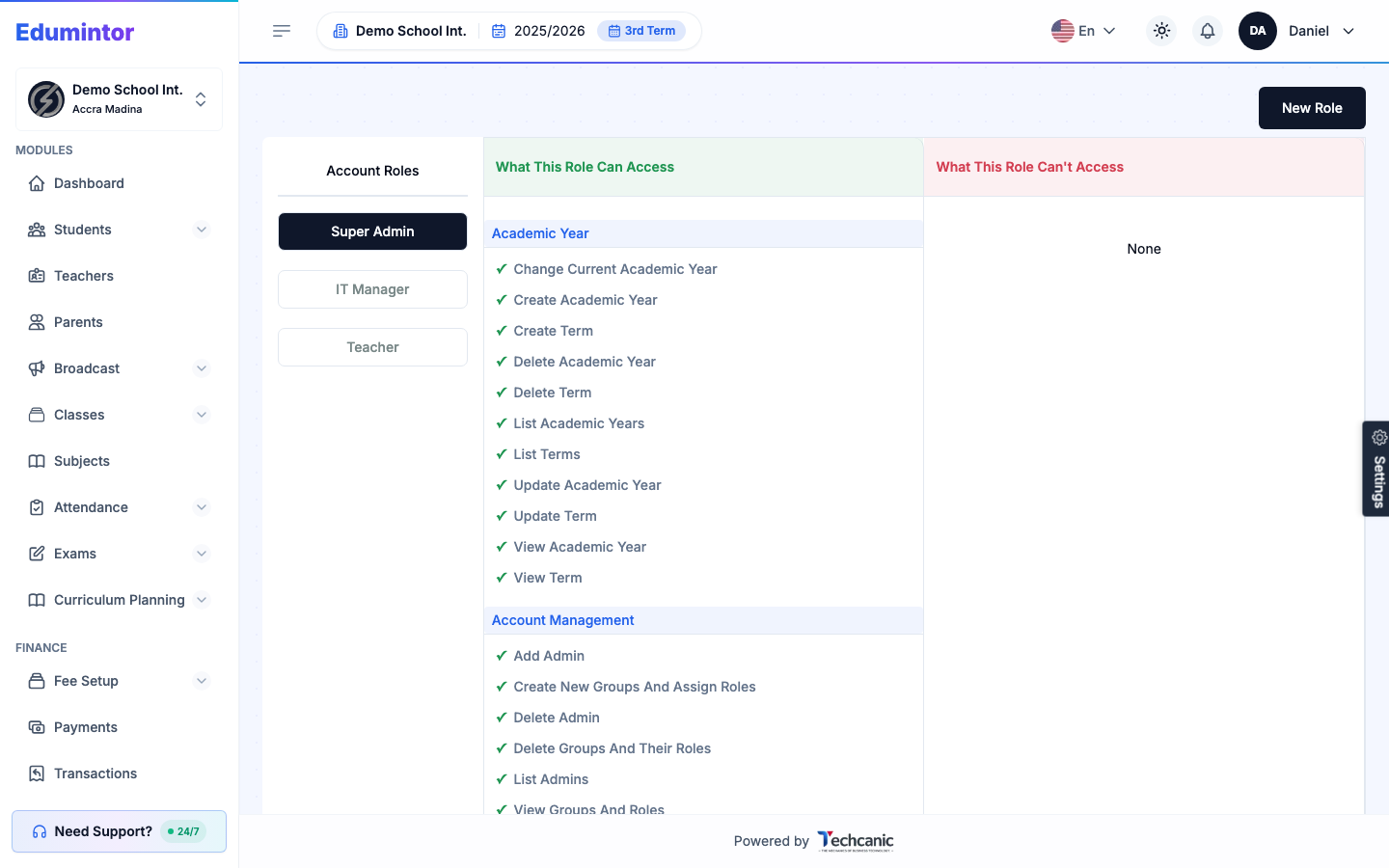
Select any role from the list to see exactly what it can and can't access, split into two columns and grouped by module.
-
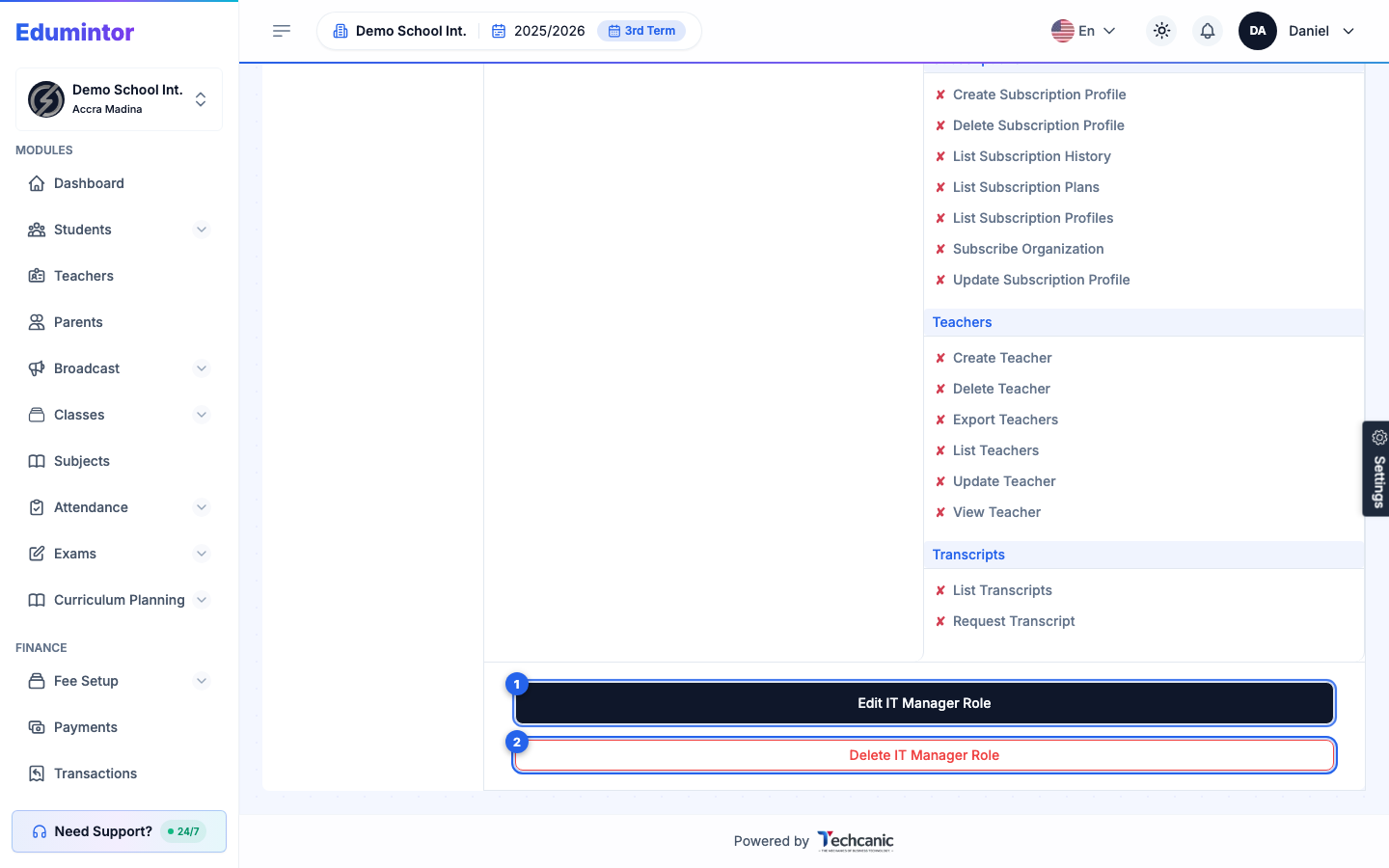
For a custom role, scroll to the bottom of the permissions list to find Edit [Role Name] Role and Delete [Role Name] Role.
-
Choosing Edit turns the list into checkboxes — adjust the role's name, rank, or permissions, then save.
-
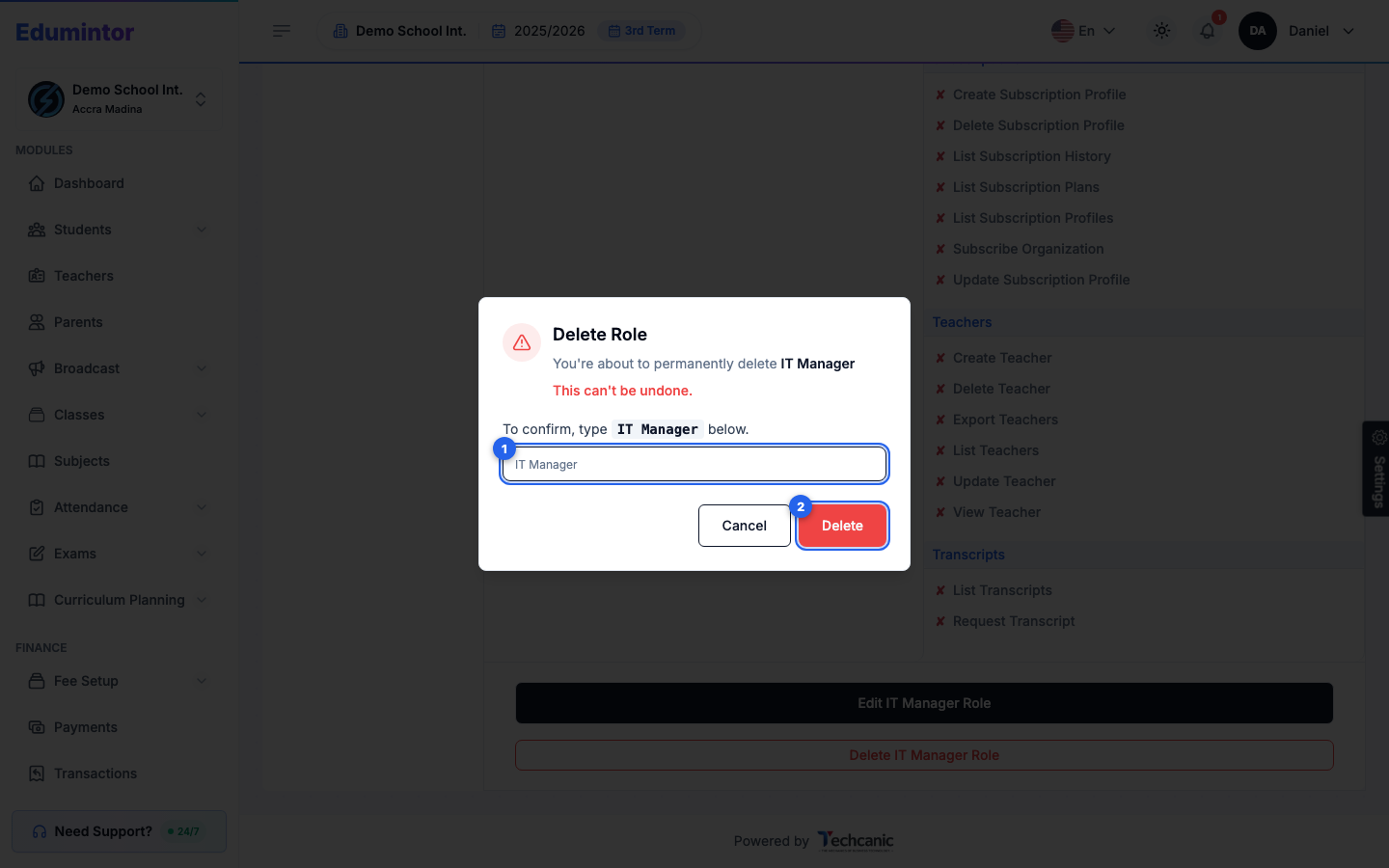
Choosing Delete opens a confirmation. In the confirmation, type the role's name exactly as shown (for example IT Manager) — the Delete button turns on once it matches — then click Delete. This can't be undone.
⚠️ Note — Edit and Delete only appear for custom roles. Built-in roles (e.g. Super Admin, Teacher) can be viewed but not edited or deleted.