-
Go to App Settings → Academic Years.
-
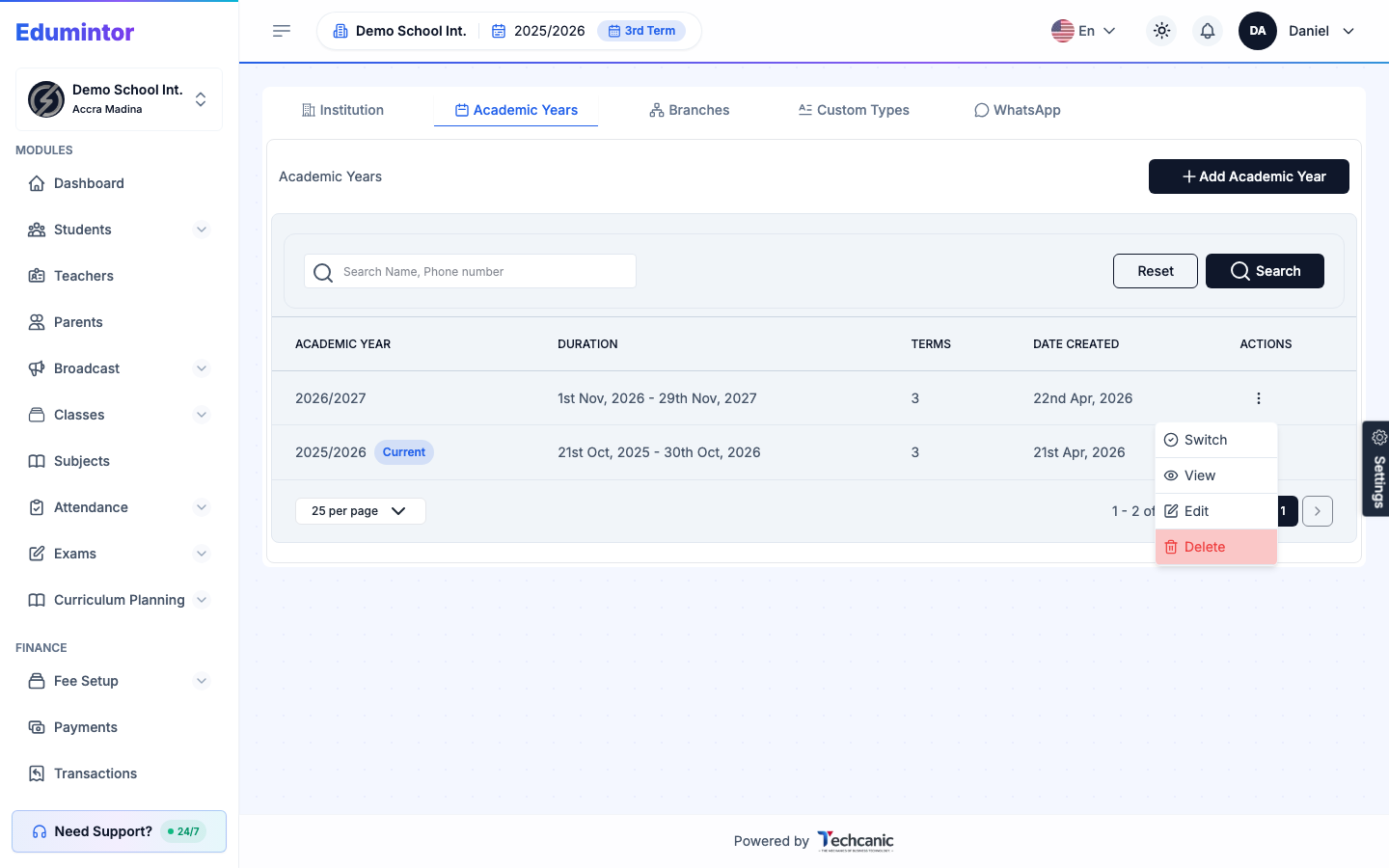
Find the academic year you want to make current, then click its ⋮ menu.
-
Choose Switch.
-
Confirm the switch.
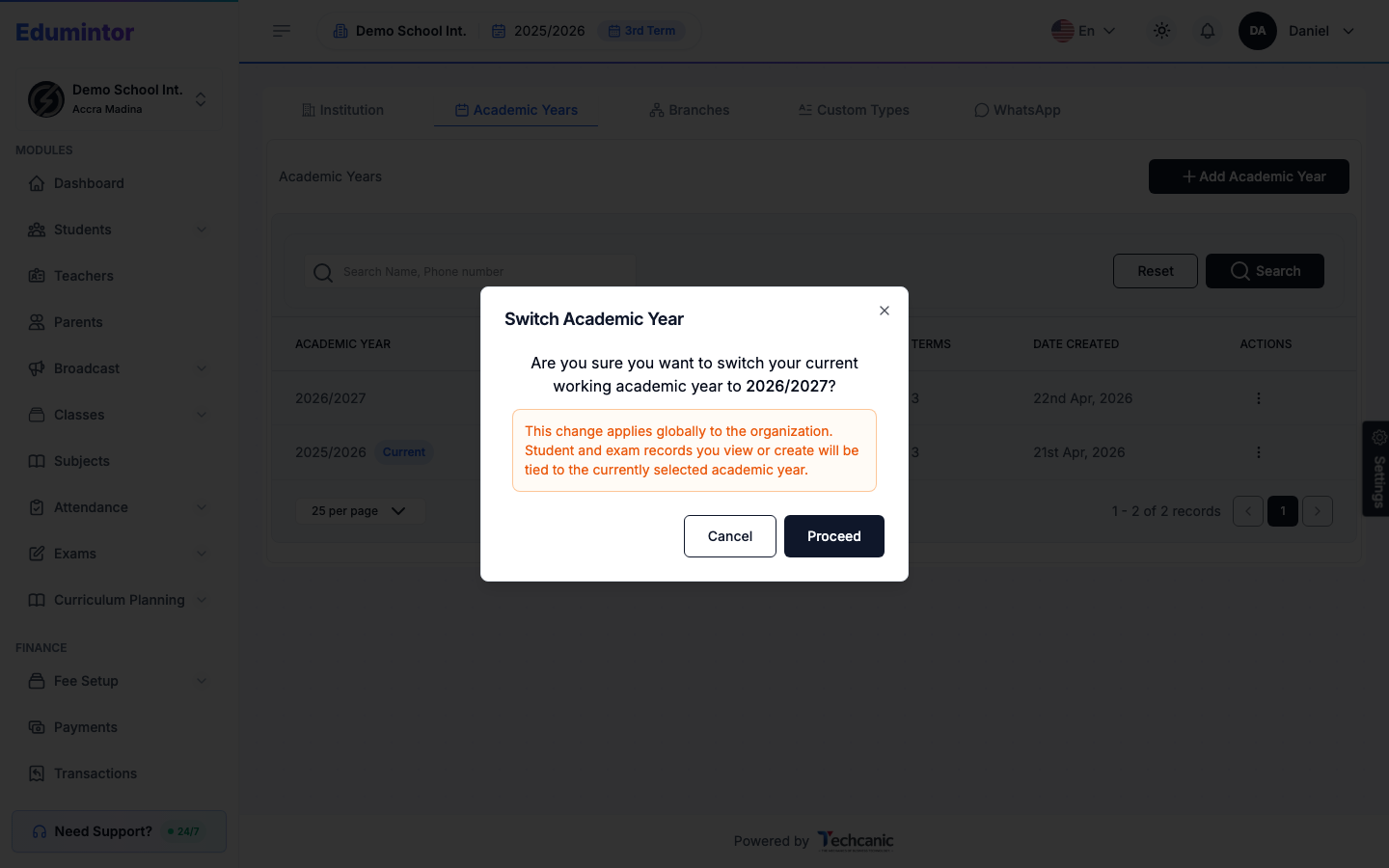
⚠️ Note — This change applies globally to the organization, not just your own view. Every student and exam record you view or create afterward is tied to the newly selected academic year. Switch doesn't appear on the year that's already current.