-
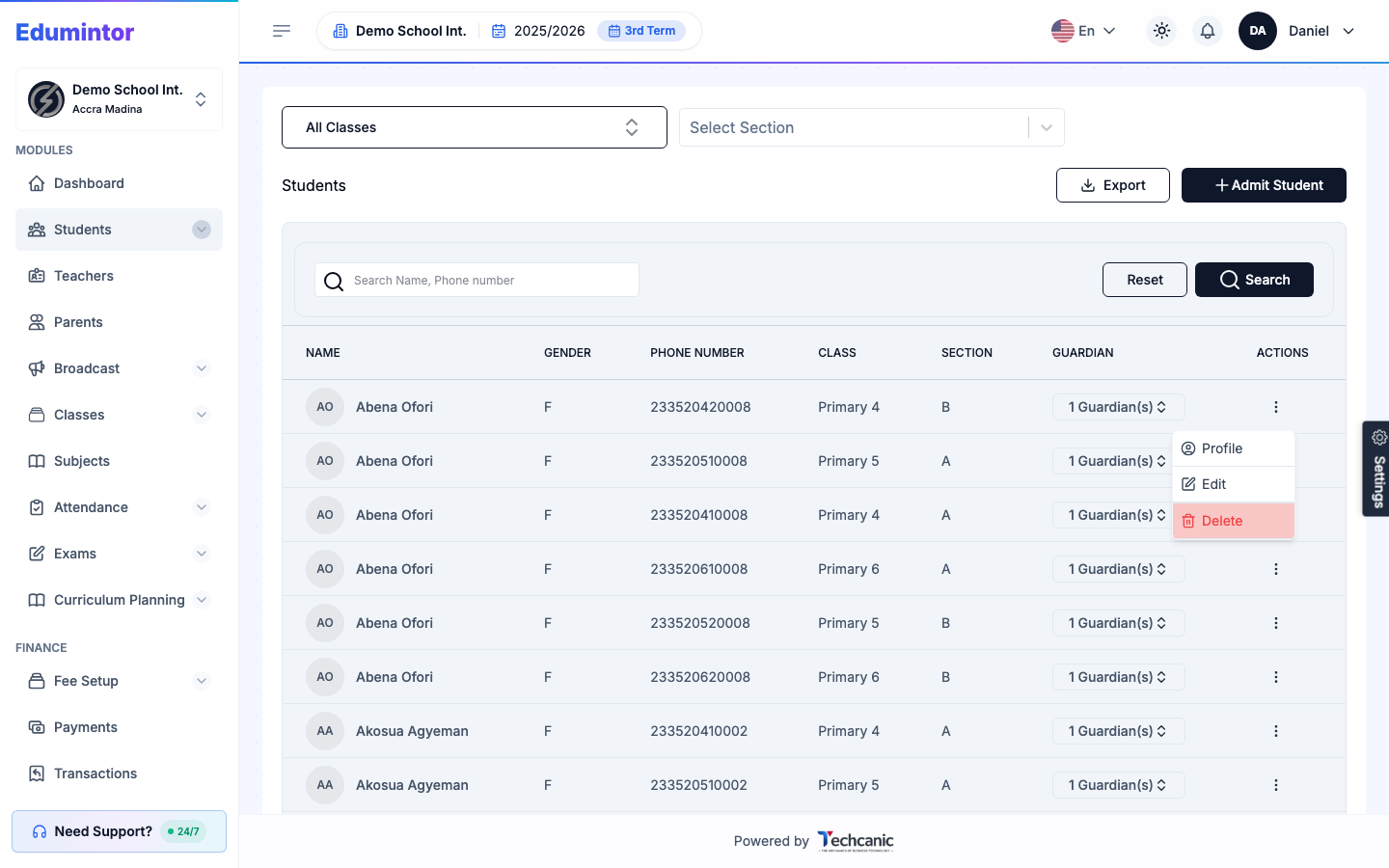
Go to Students → Students Information. Find the student in the list, click the ⋮ menu at the end of their row, then choose Profile.
-
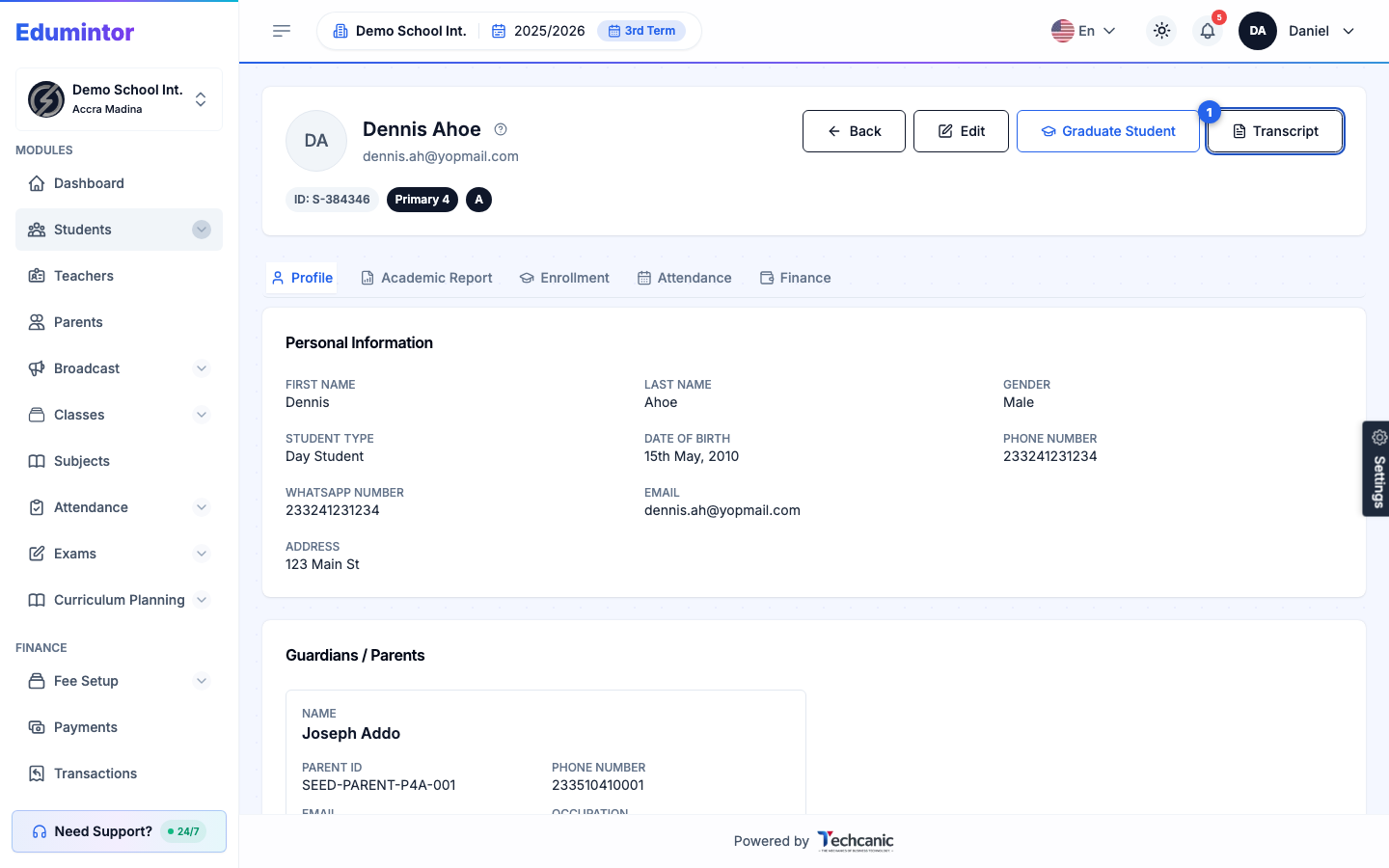
On the student's profile, open More Actions in the top-right and choose Transcript.
-
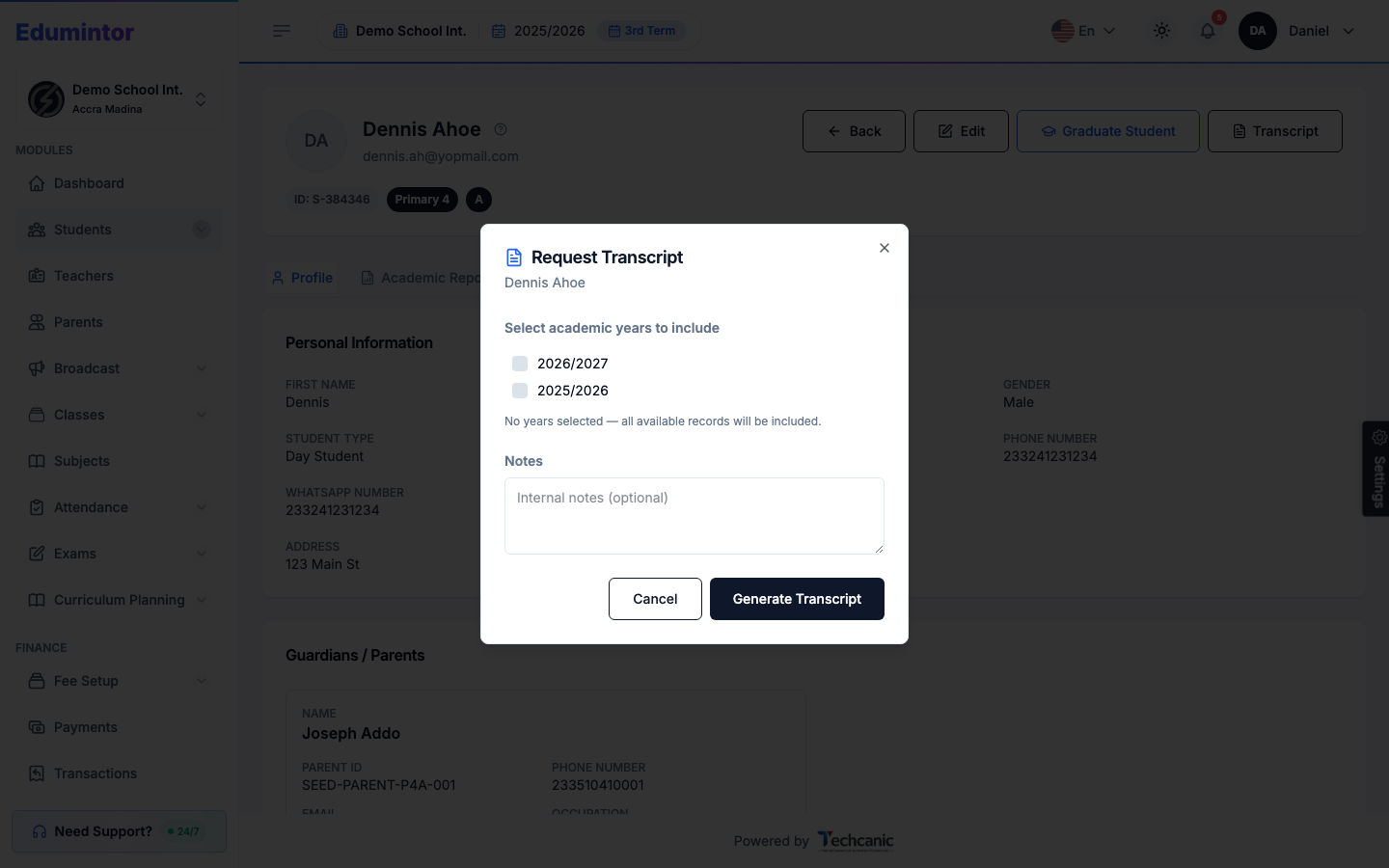
Optionally tick specific academic years to include, and add internal notes. Leave no years selected to include all available records.
-
Click Generate Transcript. Edumintor pulls from the student's recorded term grades and shows a Ready status with a verification code you can copy, plus a Download PDF button.
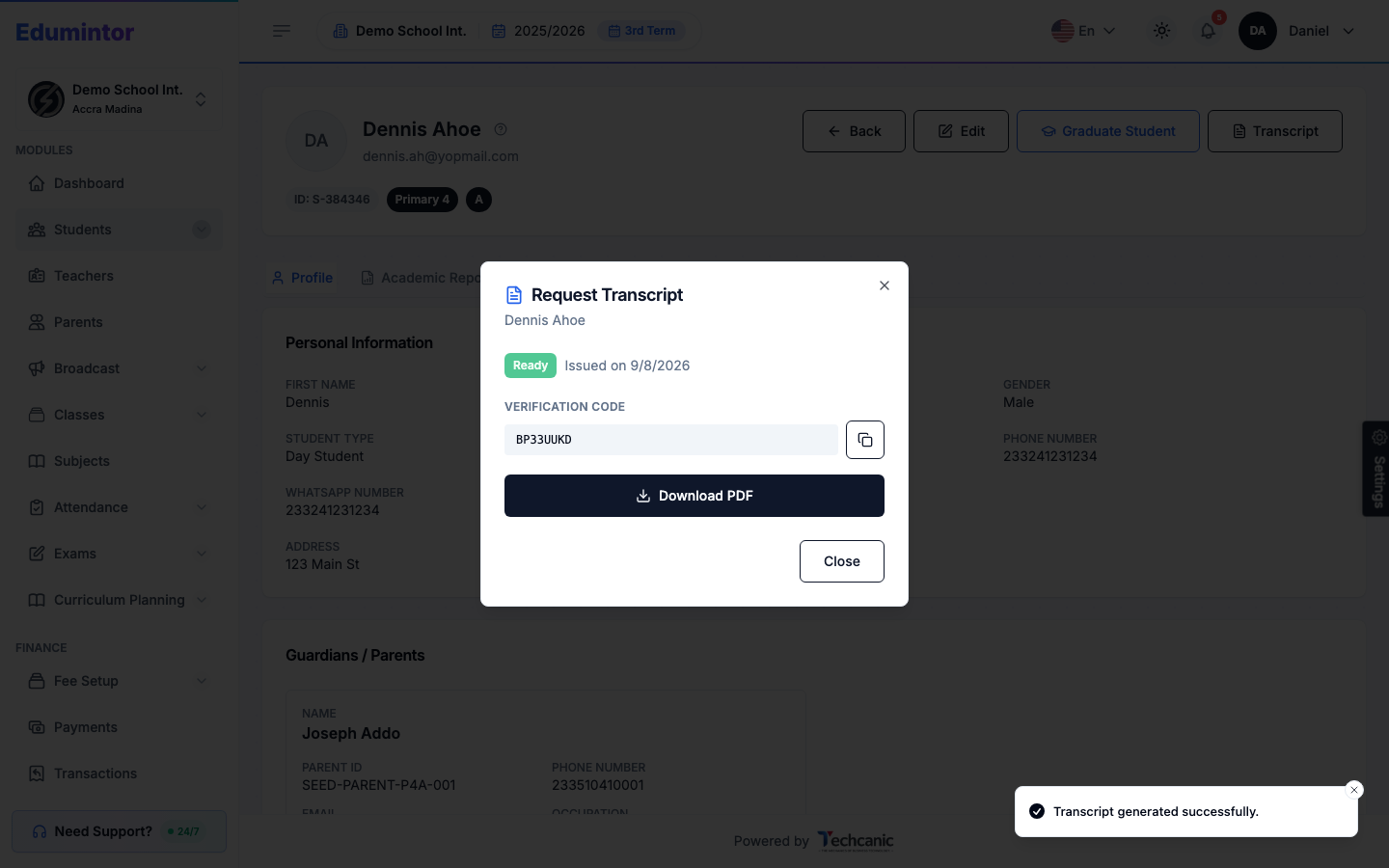
⚠️ Note — Each request creates a new transcript record with its own verification code. Requesting again for the same student doesn't update the previous one — both stay listed separately.
-
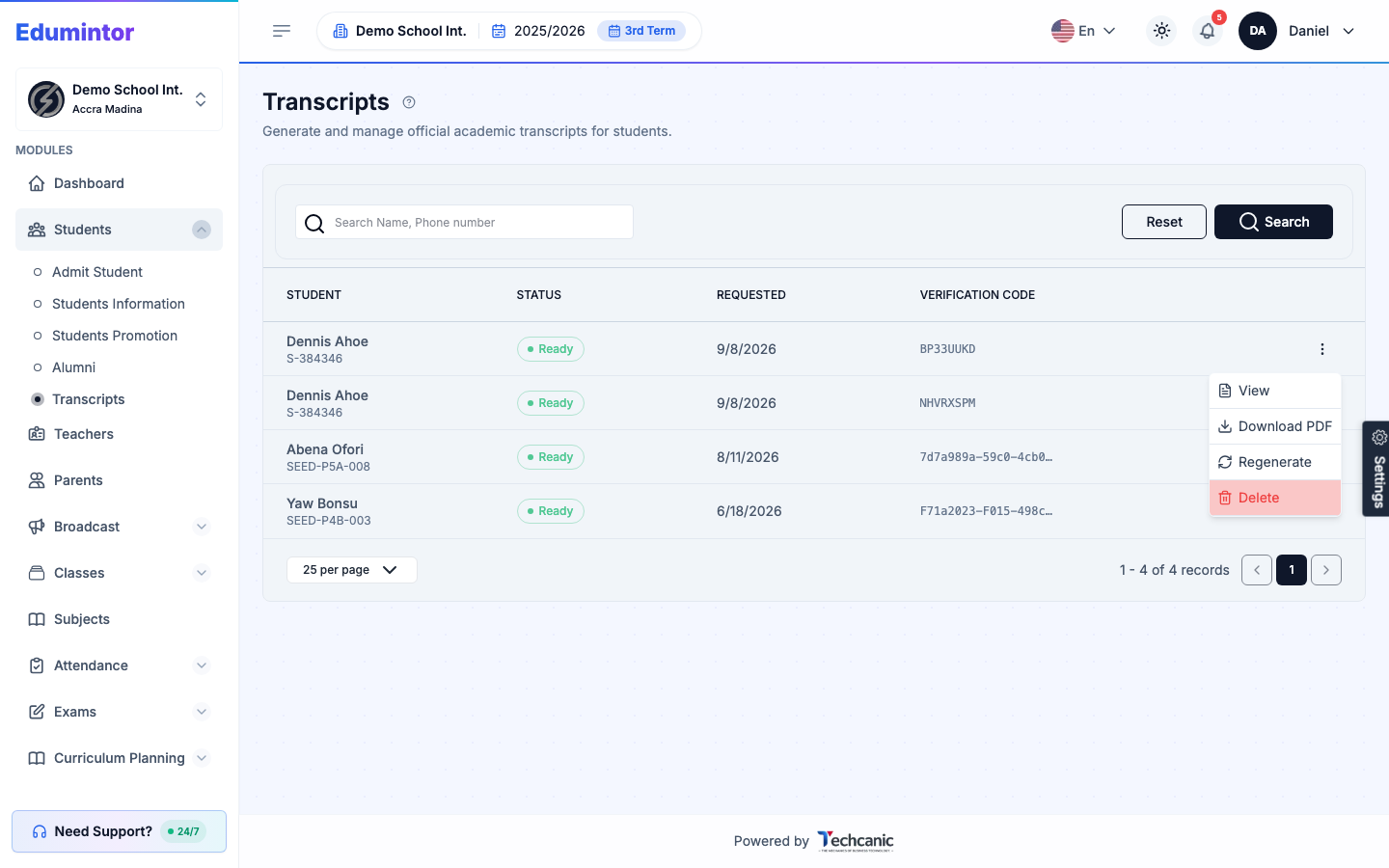
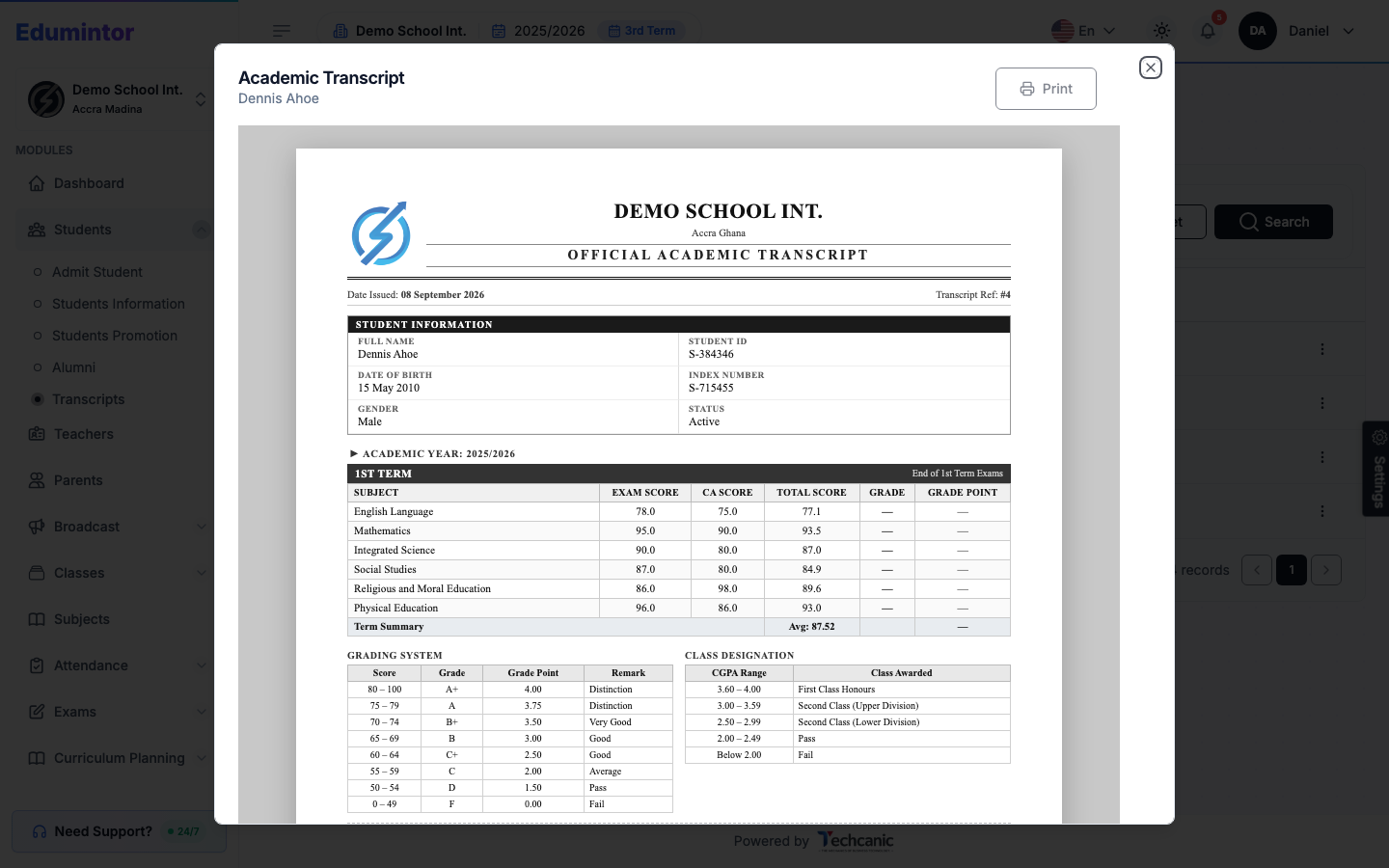
To manage transcripts you've already generated across all students, go to Students → Transcripts. Search by student name or phone number, then use the row menu to View the document, Download PDF, Regenerate, or Delete. Delete asks you to type the student's name before it removes the transcript.