Watch the video walkthrough
Use this instead of Students Promotion when a group of students has finished their final year — graduating removes them from active enrollment and moves them to Alumni, rather than moving them into a class that doesn't exist.
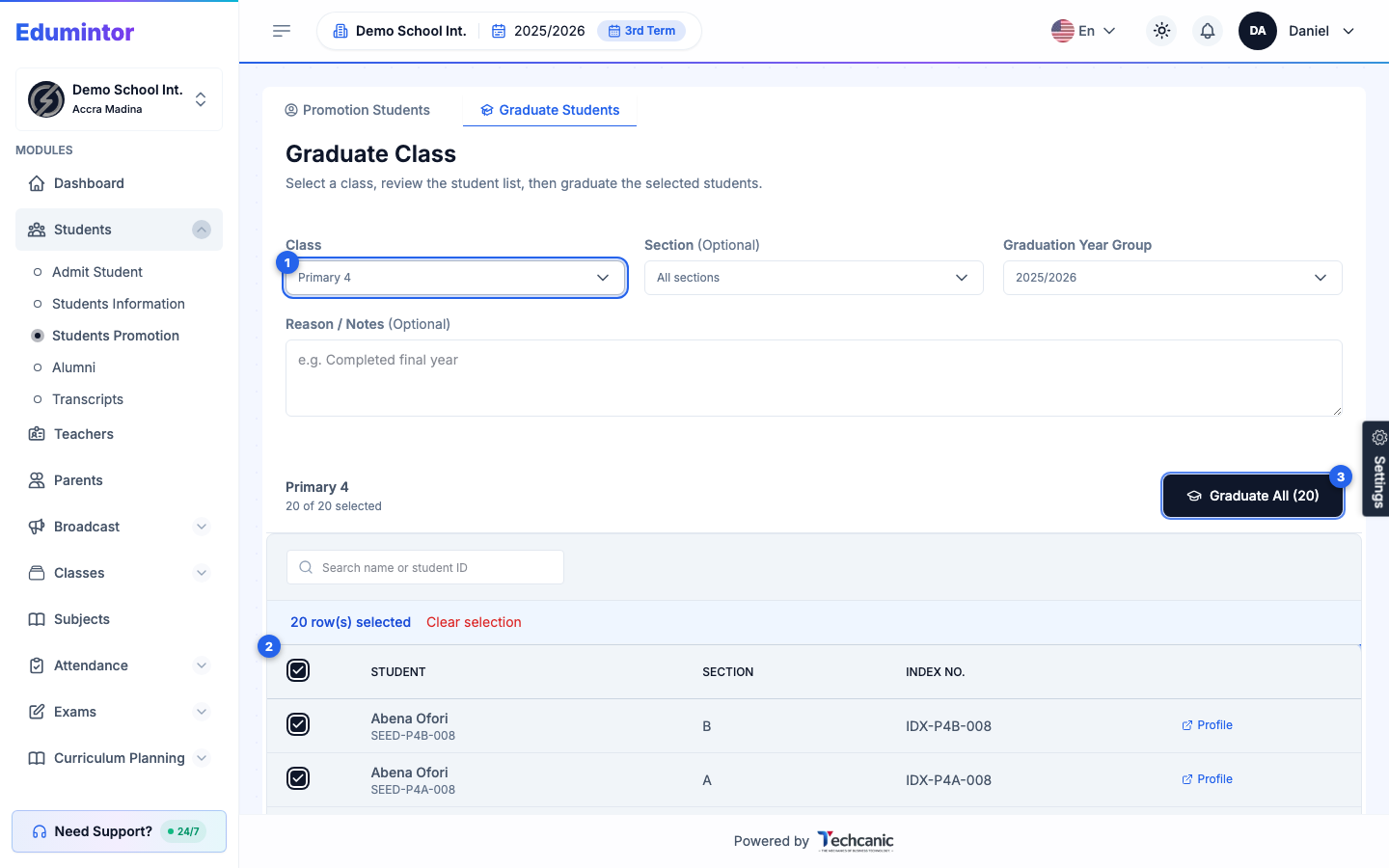
- Go to Students → Students Promotion, then switch to the Graduate Students tab.
- Choose the Class to graduate, and optionally a Section to narrow it down.
- Review the Graduation Year Group (defaults to the current academic year) and add an optional Reason / Notes.
- The student list loads with everyone pre-selected — uncheck any student you want to keep enrolled.
- Click Graduate All (N).
- In the confirmation dialog, type GRADUATE exactly to enable the button, then click Graduate All (N) again to confirm.
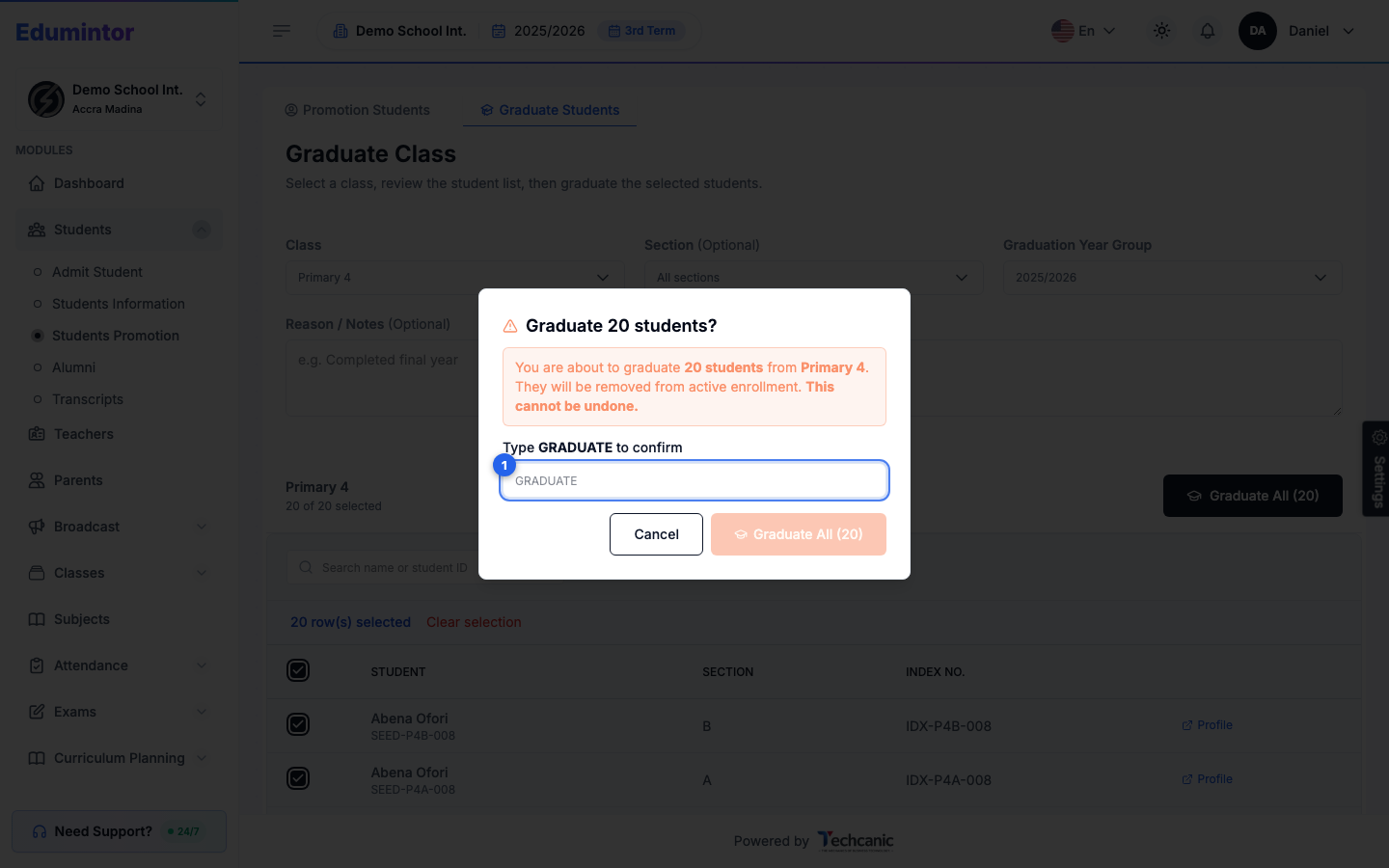
⚠️ Note — This cannot be undone. Graduated students are removed from active enrollment and appear under Students → Alumni; their historical records (grades, attendance) are preserved there.