Watch the video walkthrough
Instead of editing each student record individually, promote (or repeat) a whole group at once.
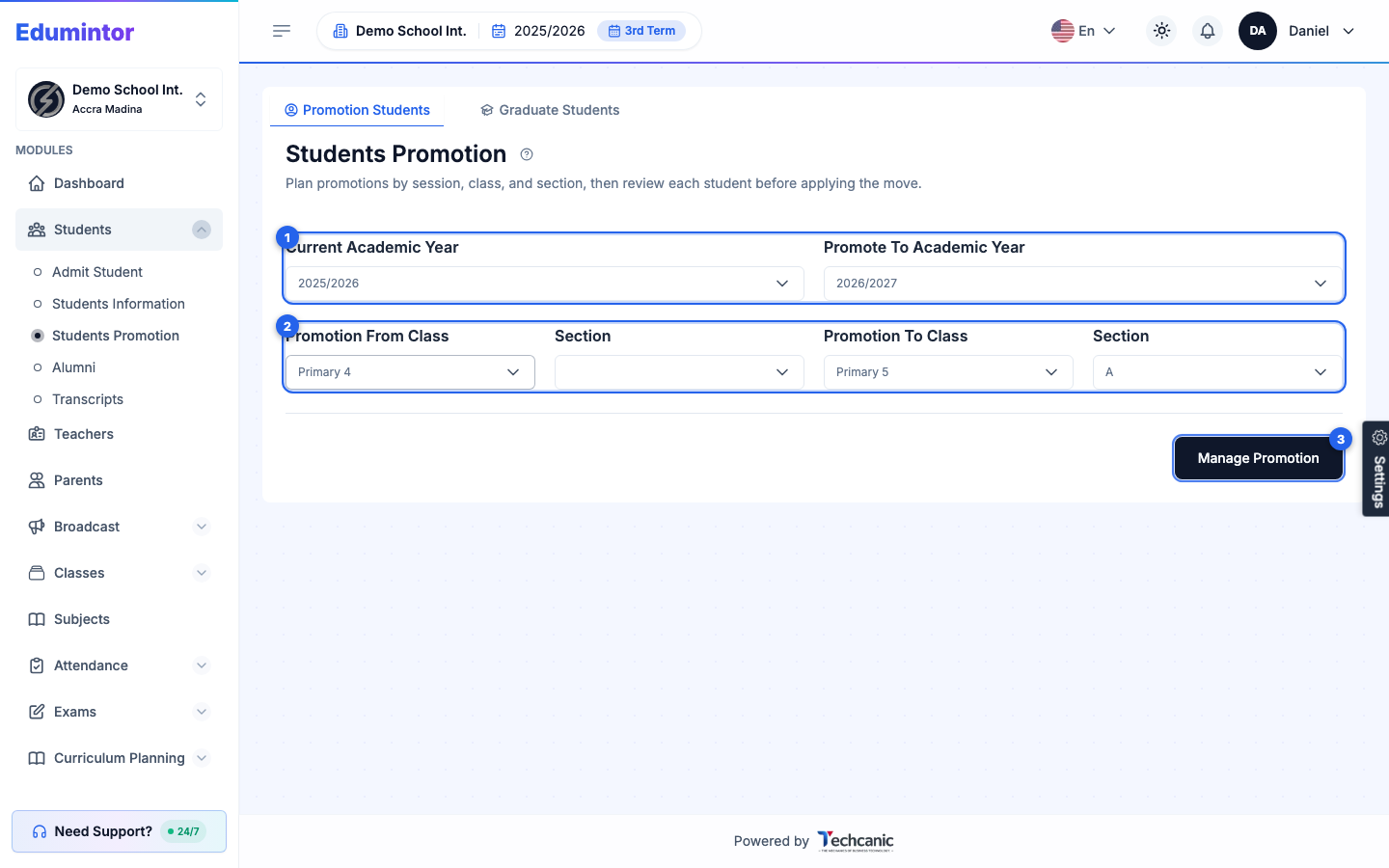
- Go to Students → Students Promotion (the Promotion Students tab is selected by default).
- Choose the Current Academic Year and the Promote To Academic Year.
- Choose the Promotion From Class and, optionally, its Section. Then choose the Promotion To Class and its Section — this only offers classes ranked the same (for a repeat) or one rank higher (for a promotion).
- Click Manage Promotion to load the matching student list below.
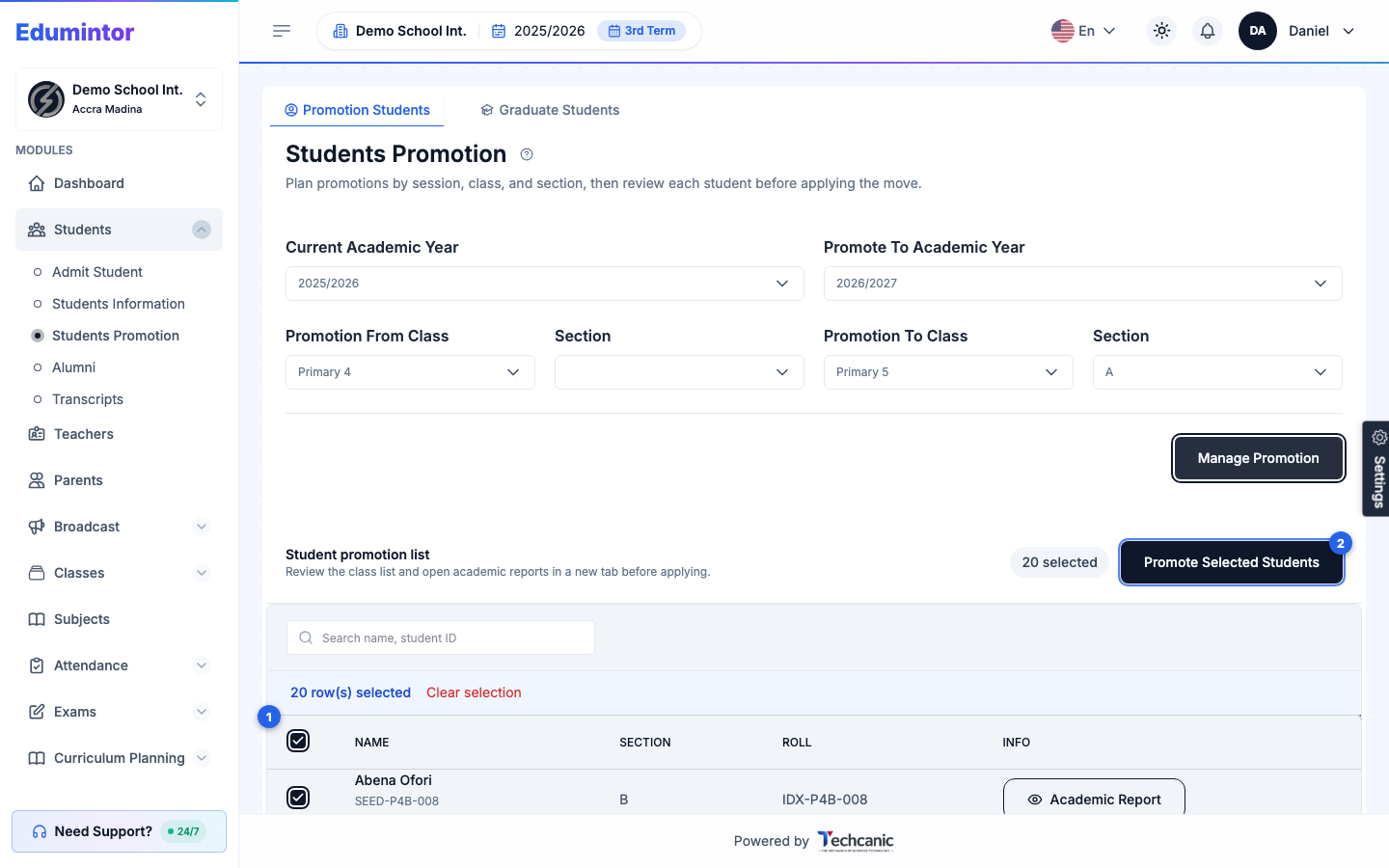
- The student list loads with everyone pre-selected — uncheck any student who shouldn't move (for example, one who's repeating instead). Use Academic Report to review a student in a new tab before deciding.
- Click Promote Selected Students.
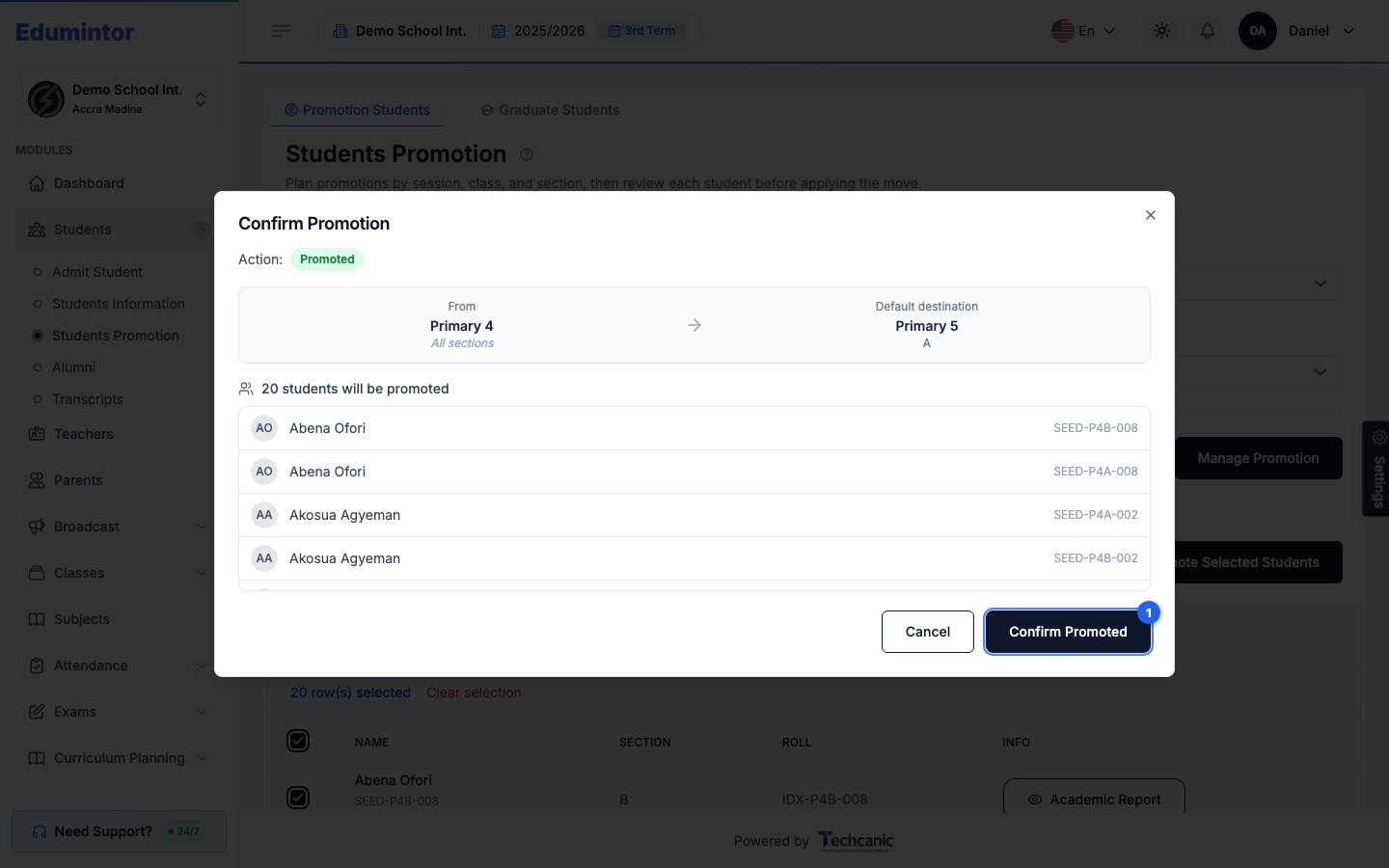
- In the Confirm Promotion dialog, review the From/To summary and the student list, then click Confirm Promoted (or Confirm Repeated, if the destination class has the same rank as the source).
💡 Tip — Use the Graduate Students tab on the same page for your final-year students instead of promoting them into a class that doesn't exist.