-
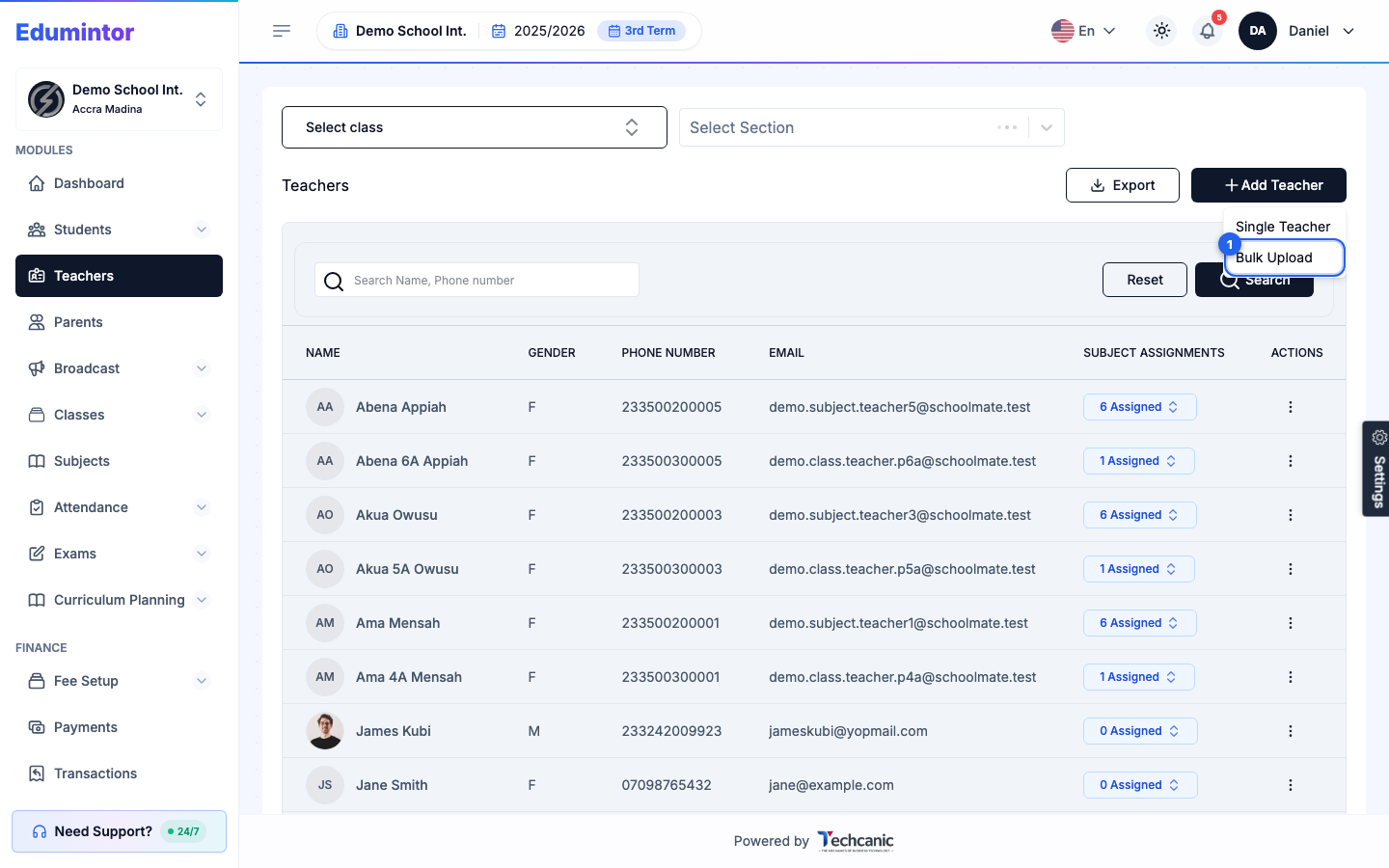
Go to Teachers in the sidebar, click Add Teacher, and choose Bulk Upload from the dropdown.
-
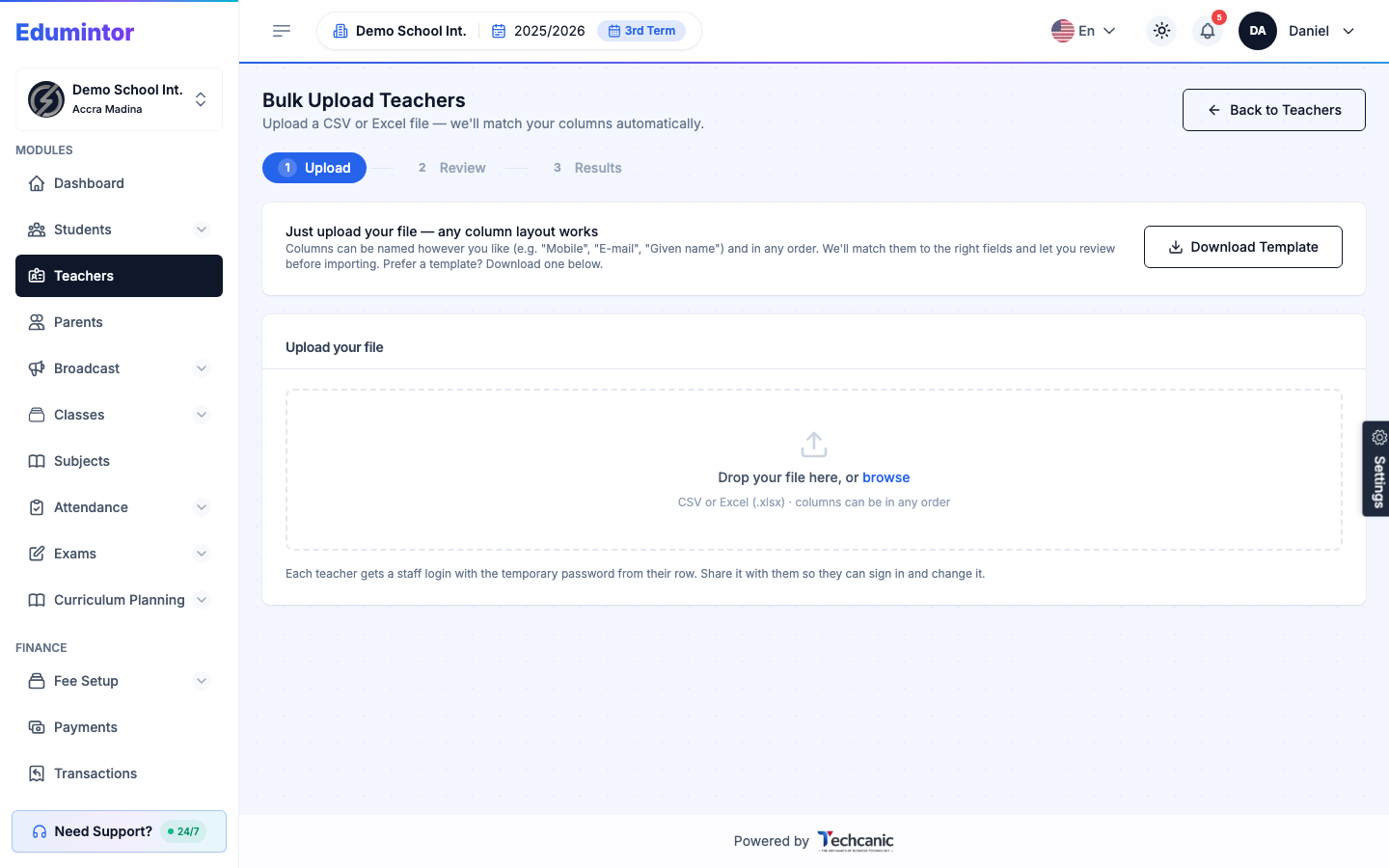
Drag in a CSV or Excel file. Columns can be named however you like, in any order — Edumintor matches them automatically and lets you review the mapping before committing. Download the template first if you're unsure of the expected columns.
-
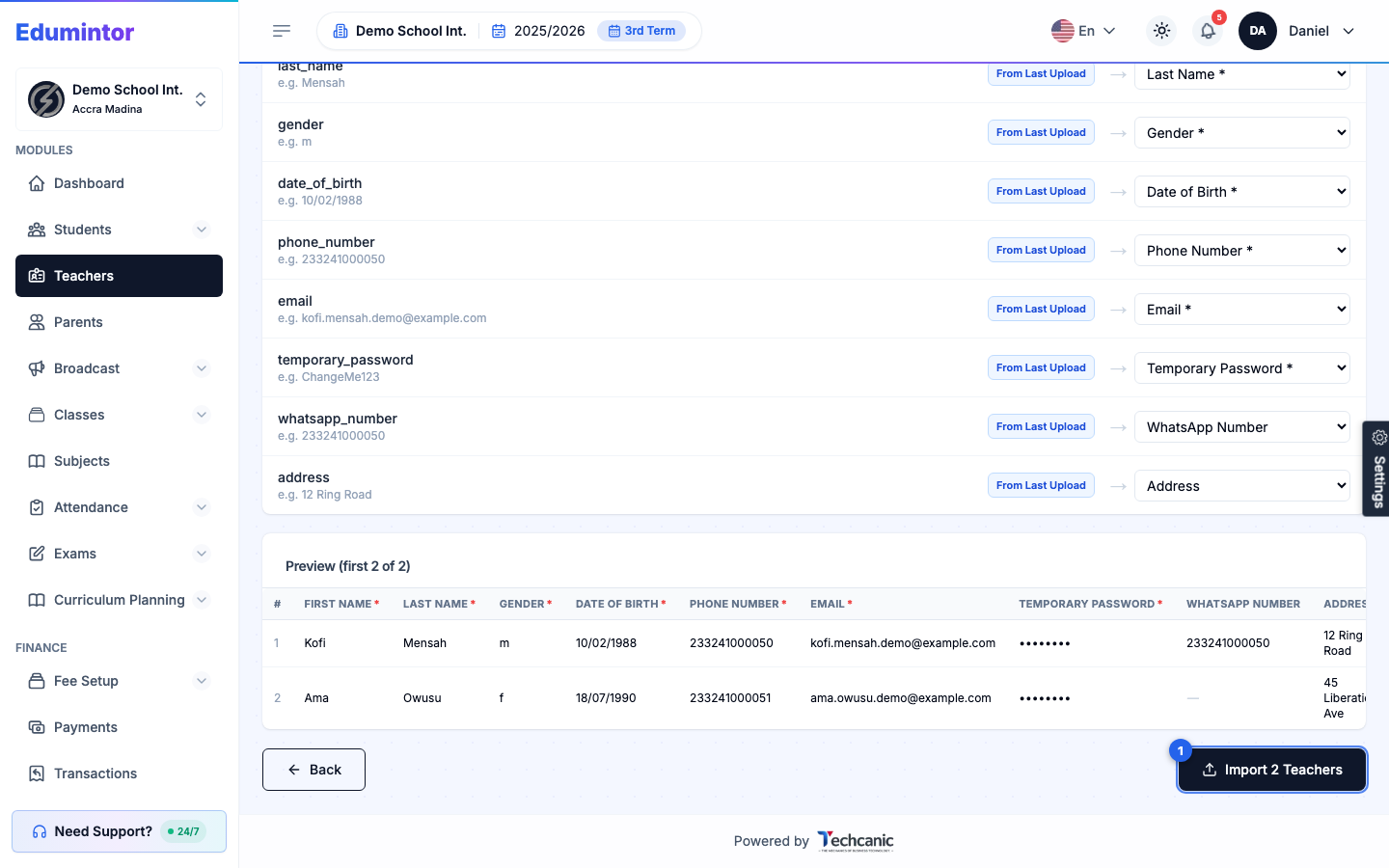
Review the column mapping and the preview table, then click Import [N] Teachers.
The import then runs as a background job — you don't need to keep the page open.
-
You'll get an in-app notification when it finishes.
-
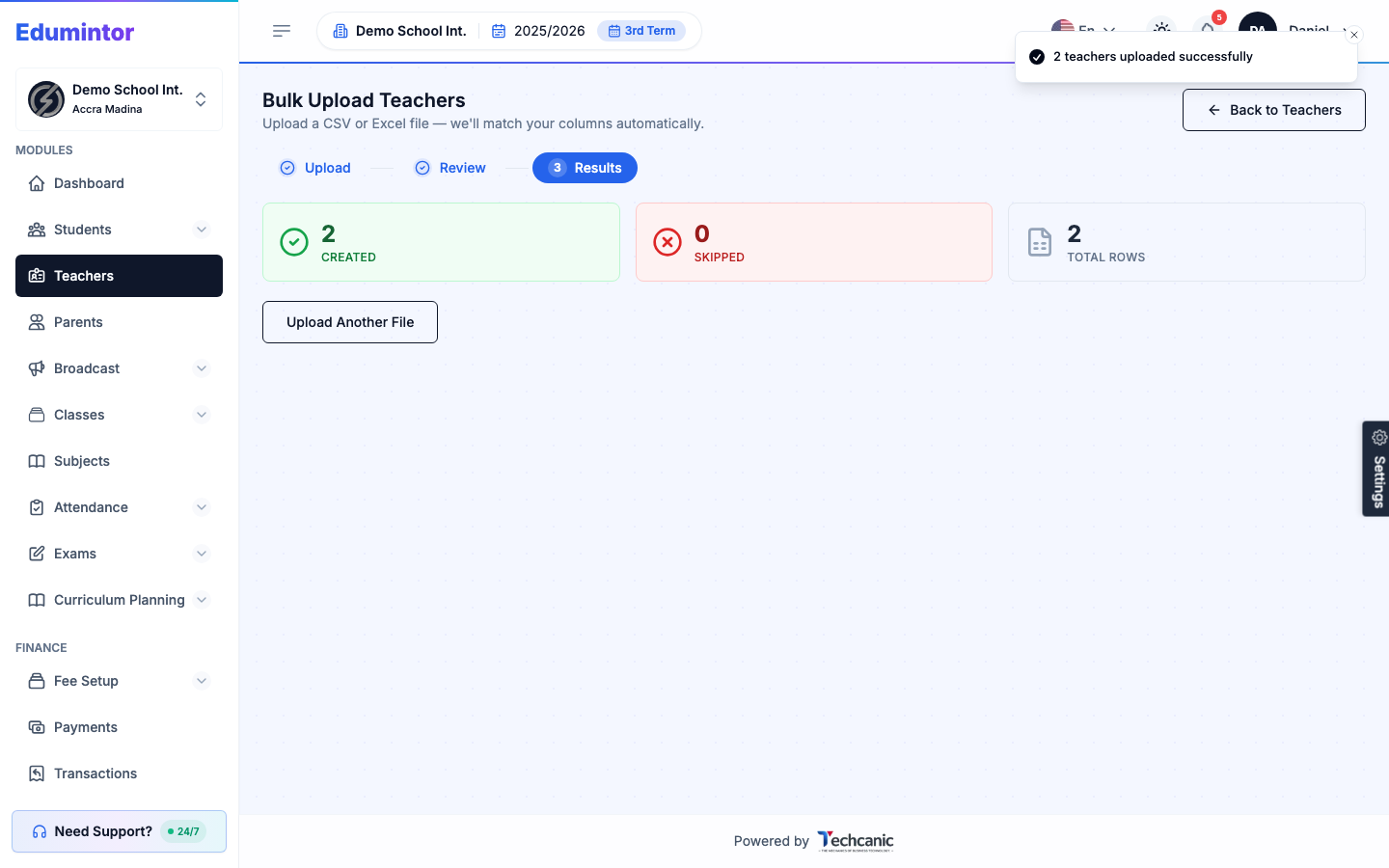
Fix any row-level errors in your source file and re-upload just the problem rows — successfully-imported rows won't be duplicated.
⚠️ Note — Every uploaded teacher needs a Temporary Password column. Each teacher gets a staff login using that password, so share it with them securely — they should change it after their first sign-in.
⚠️ Note — Edumintor validates that email addresses use a real, deliverable domain. Placeholder domains like
example.comare rejected with an "email domain does not accept email" error — use real addresses (or a disposable-but-valid domain) in your source file.