-
Go to Automations and open the relevant tab (Attendance Triggers, Fee Reminders, Payment Receipts, or Scheduled Reports).
-
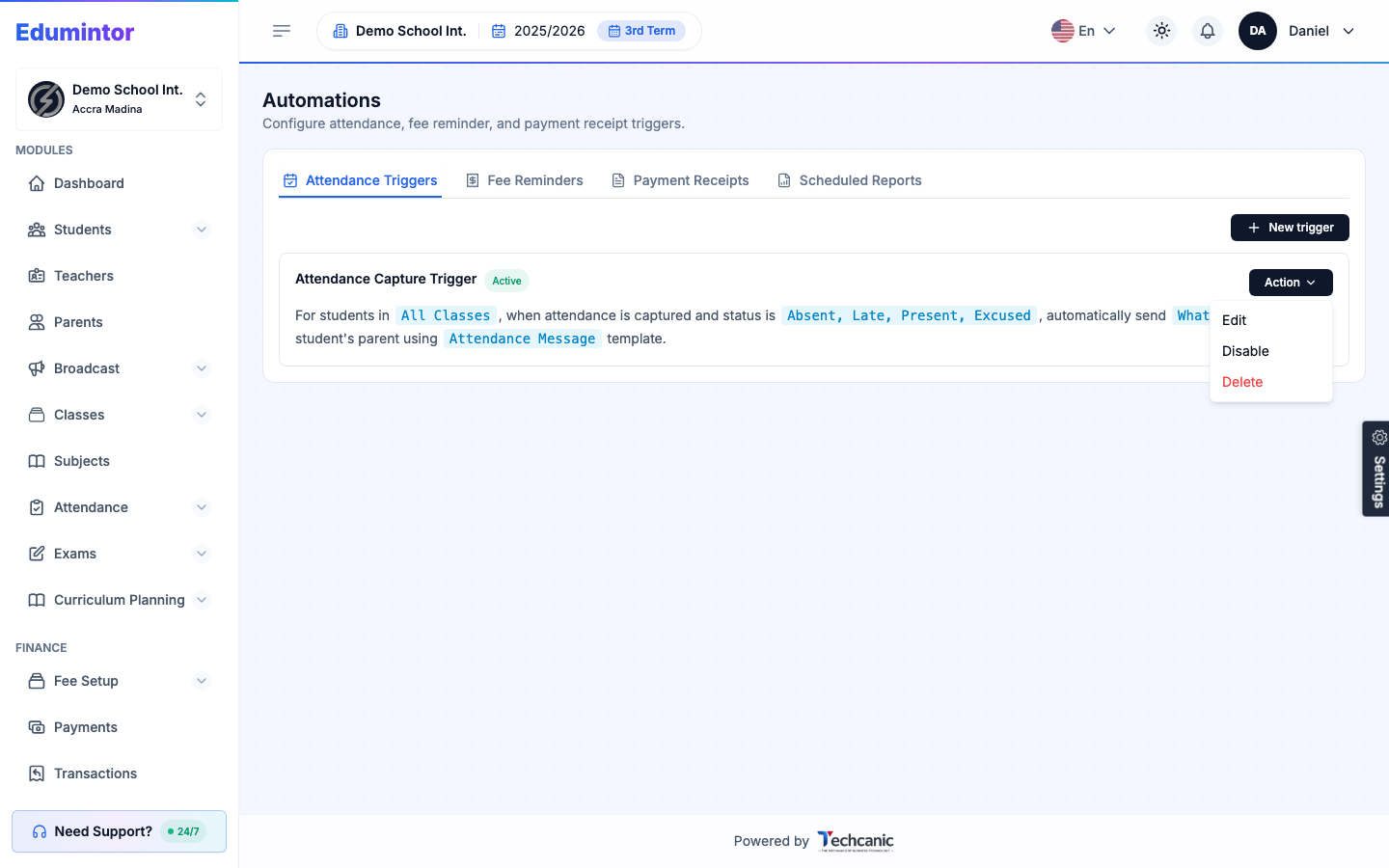
Find the trigger, then click Action.
-
Choose Edit to change its classes, conditions, channel, timing, recipients, or template.
-
Choose Disable to pause it without deleting it — an inactive trigger stops firing but keeps its configuration. Choose Enable the same way to turn it back on.
-
Choose Delete to remove it permanently. In the confirmation, type the trigger's name exactly as shown (for example Attendance Capture Trigger) — the Delete button turns on once it matches — then click Delete. This can't be undone.
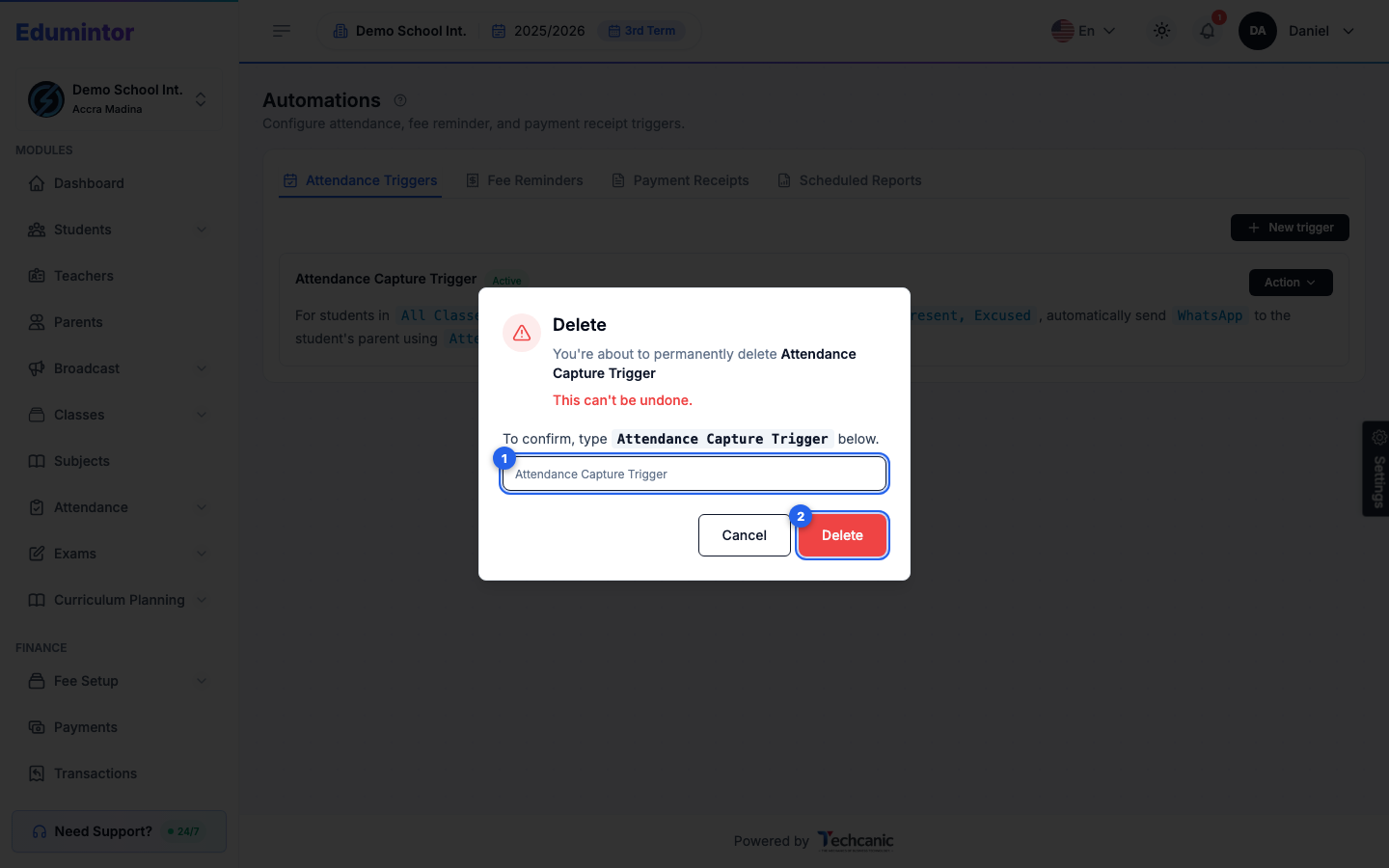
⚠️ Note — On the Attendance Triggers, Fee Reminders, and Payment Receipts tabs, Disable/Enable takes effect immediately, without a confirmation. The Scheduled Reports tab asks you to confirm first. Delete always asks you to type the trigger's name.