-
Go to Classes → Manage Sections.
-
Select the parent class from the class list at the top.
-
Click + Add Section.
-
Enter the Section Name (e.g. "A") and confirm the Class it belongs to.
-
Select a Main Teacher.
-
Under Class Subject Teachers, assign a teacher to each subject for this section.
-
Click Create Section.
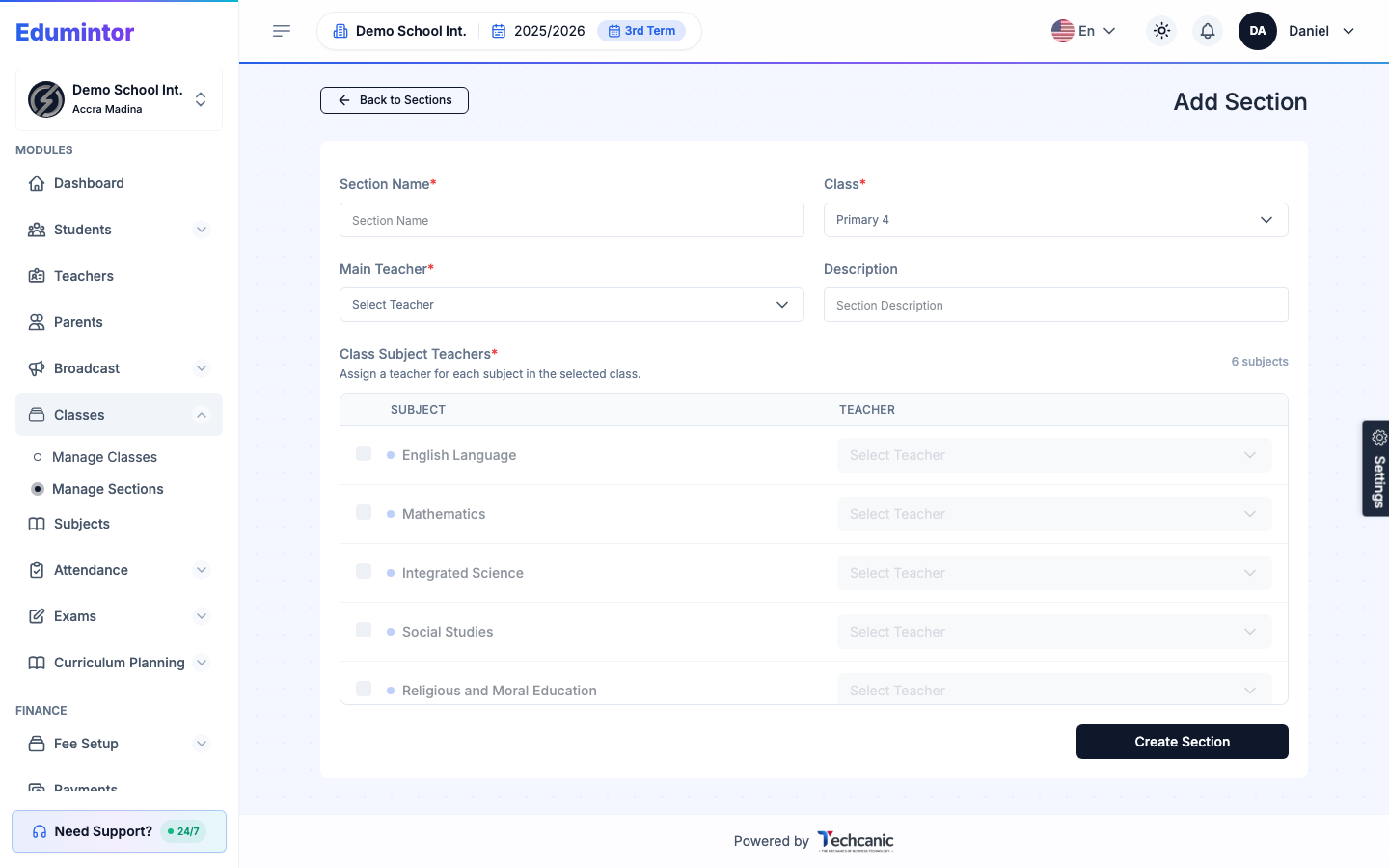
⚠️ Note — Only the subjects you tick need a teacher — leave a subject unticked to skip assigning a teacher to it for now. At least one subject needs a teacher before you can save. The list is pulled from the subjects already assigned to the parent class (see Adding a Class) — if it's empty, assign subjects to the class first.