Use this when a student doesn't offer a particular subject but is still listed on that class's marksheet.
-
Go to Exams → Manage Marks and load the marksheet (see Entering Marks).
-
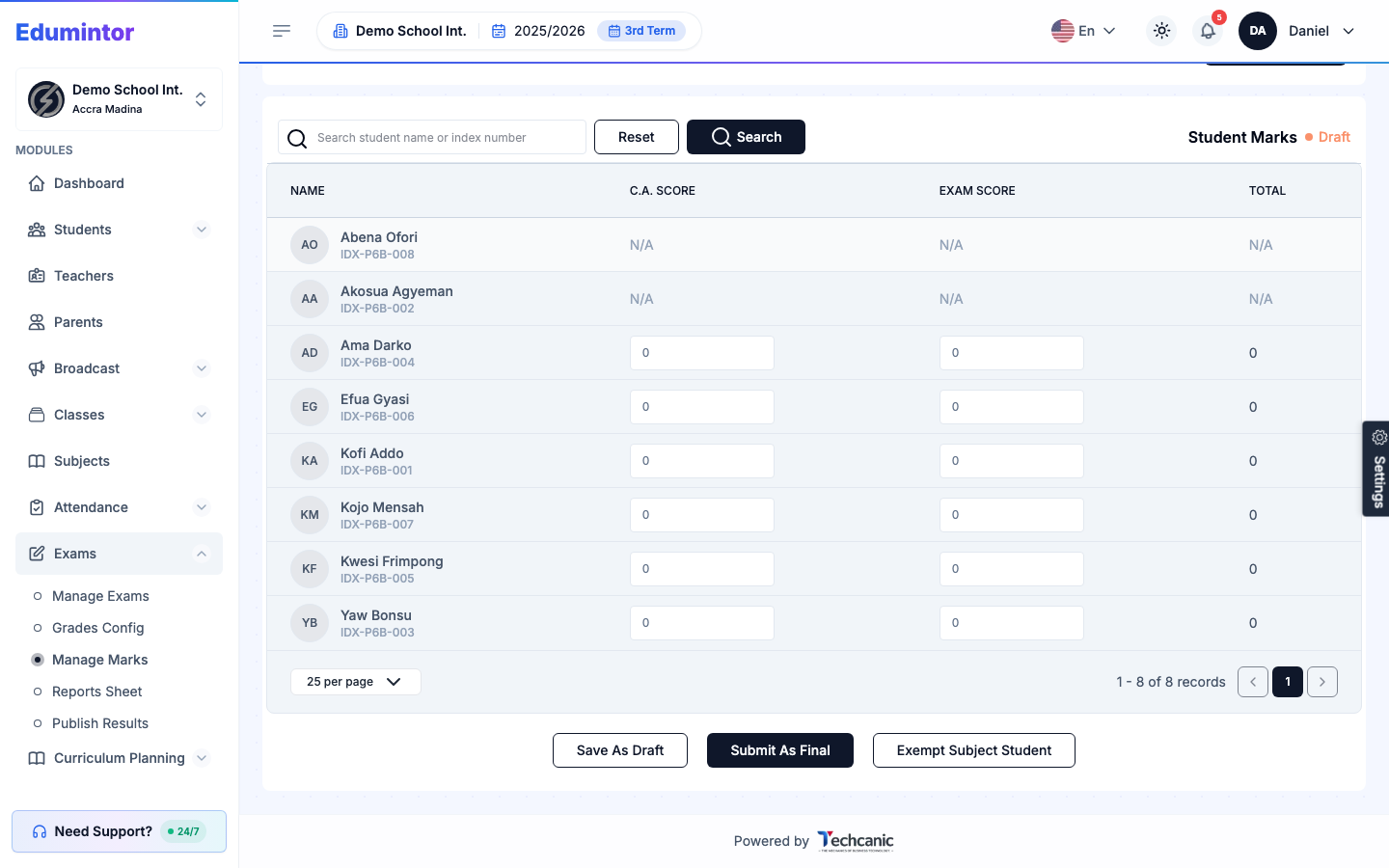
While the marksheet is still a Draft, click Exempt Subject Student next to Save As Draft / Submit As Final.
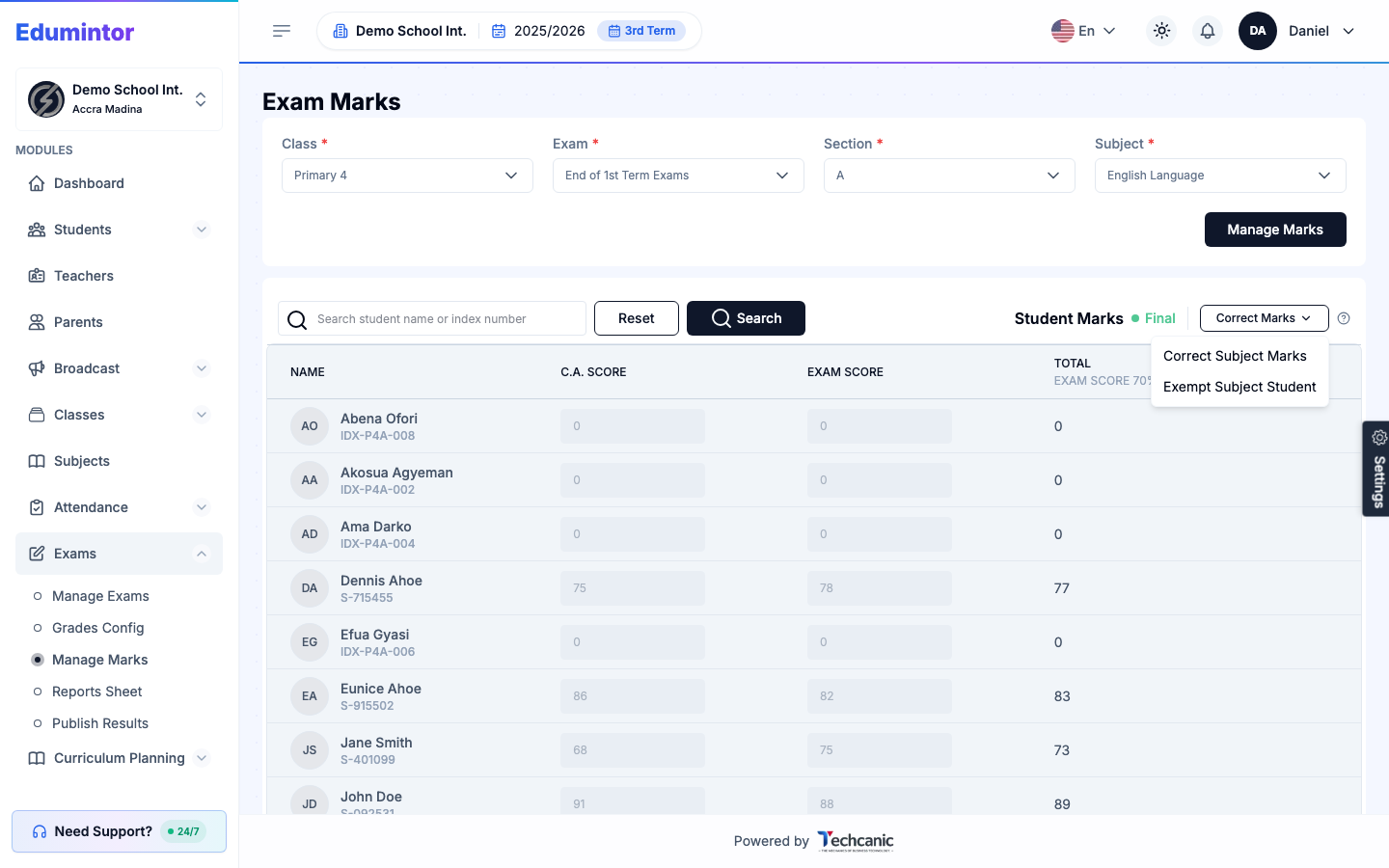
If the marksheet has already been submitted as Final, click Correct Marks instead, then choose Exempt Subject Student from the dropdown.
-
Check the box next to each student who doesn't offer this subject.
-
Click Save Exemptions.
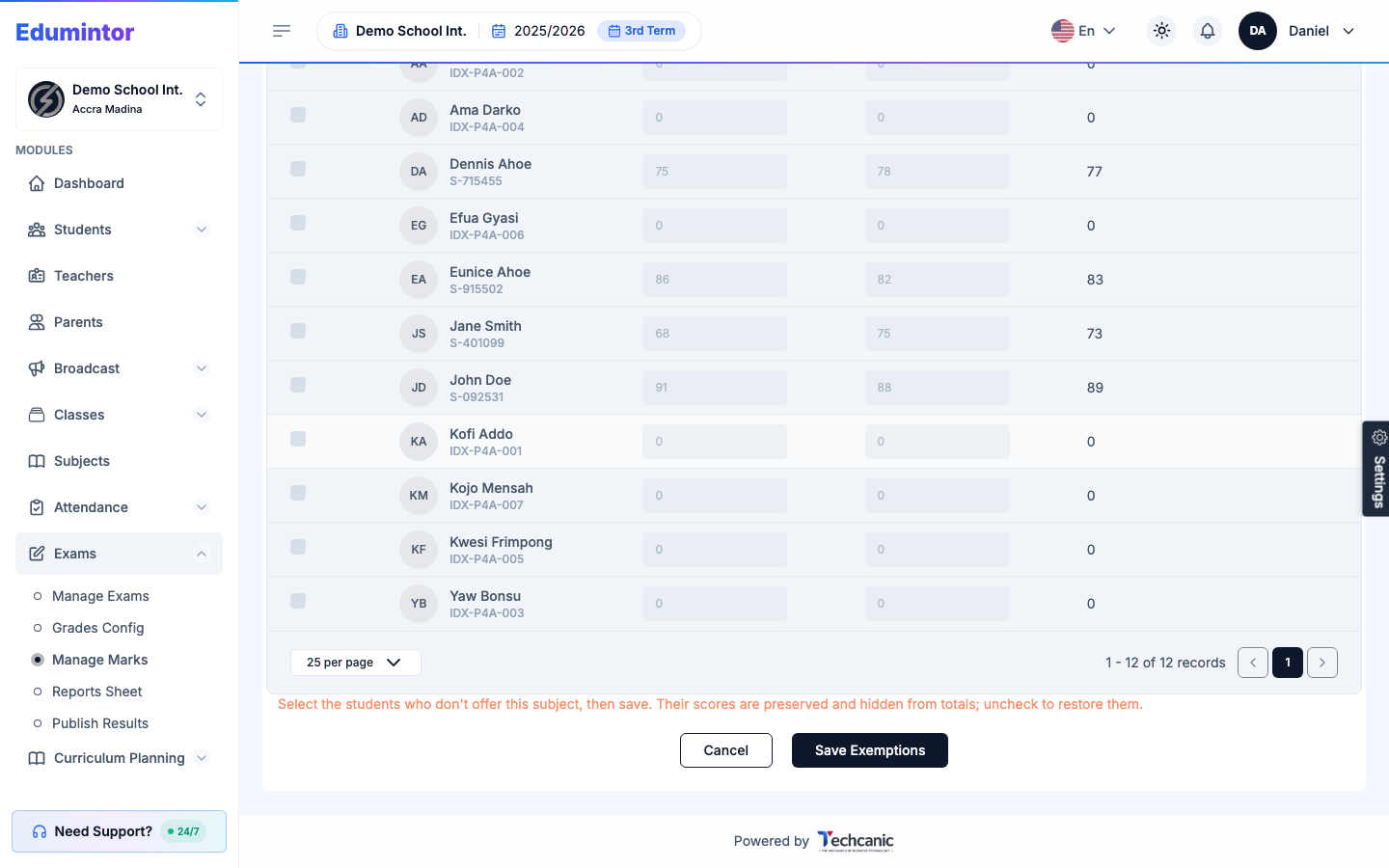
💡 Tip — Exempting a student doesn't delete their existing scores for that subject — they're preserved and hidden from totals. Uncheck the box later to restore them.