If you can't remember your password, you can reset it yourself — no need to wait for an administrator.
-
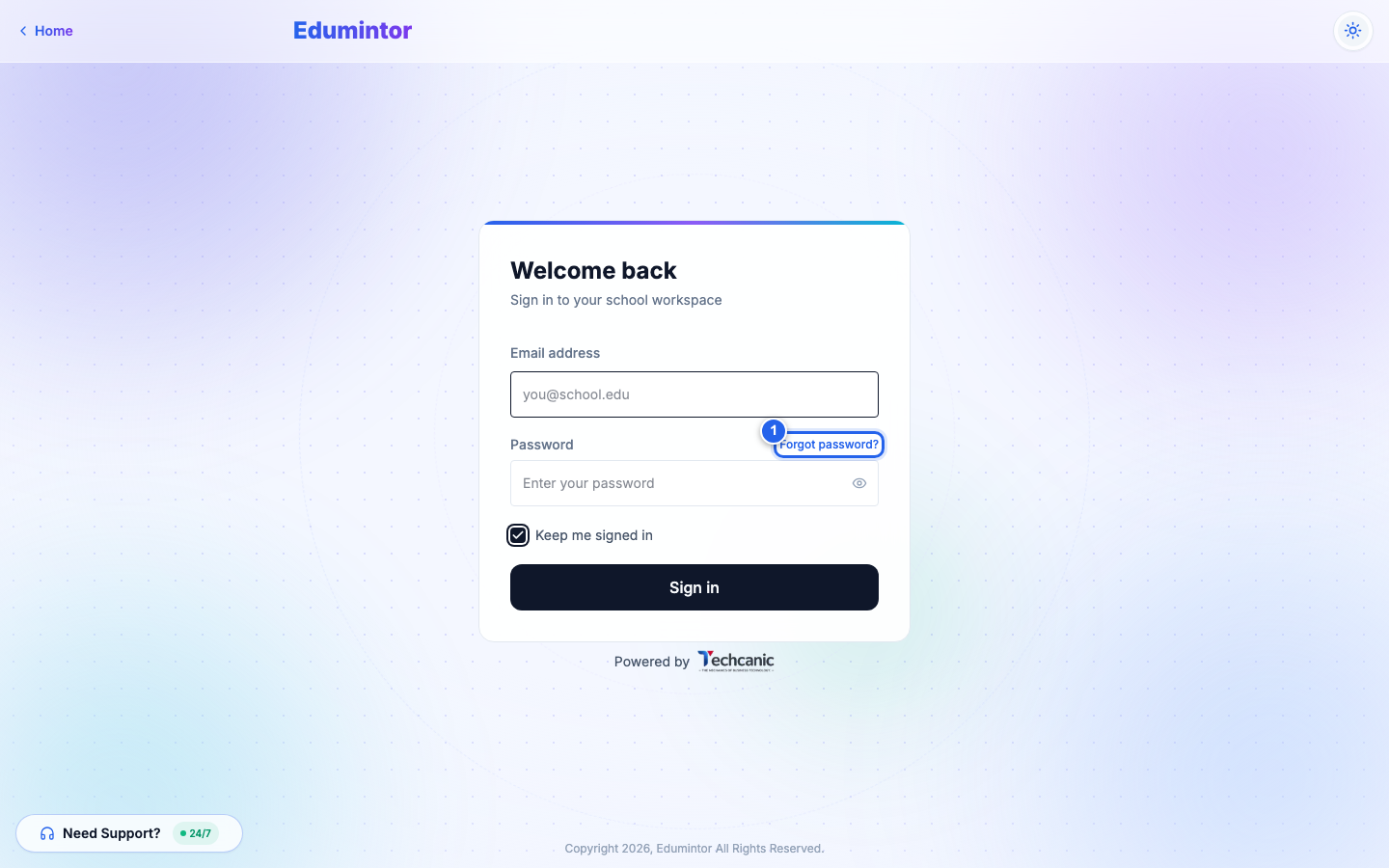
On the sign-in screen, click Forgot password?, next to the Password field.
-
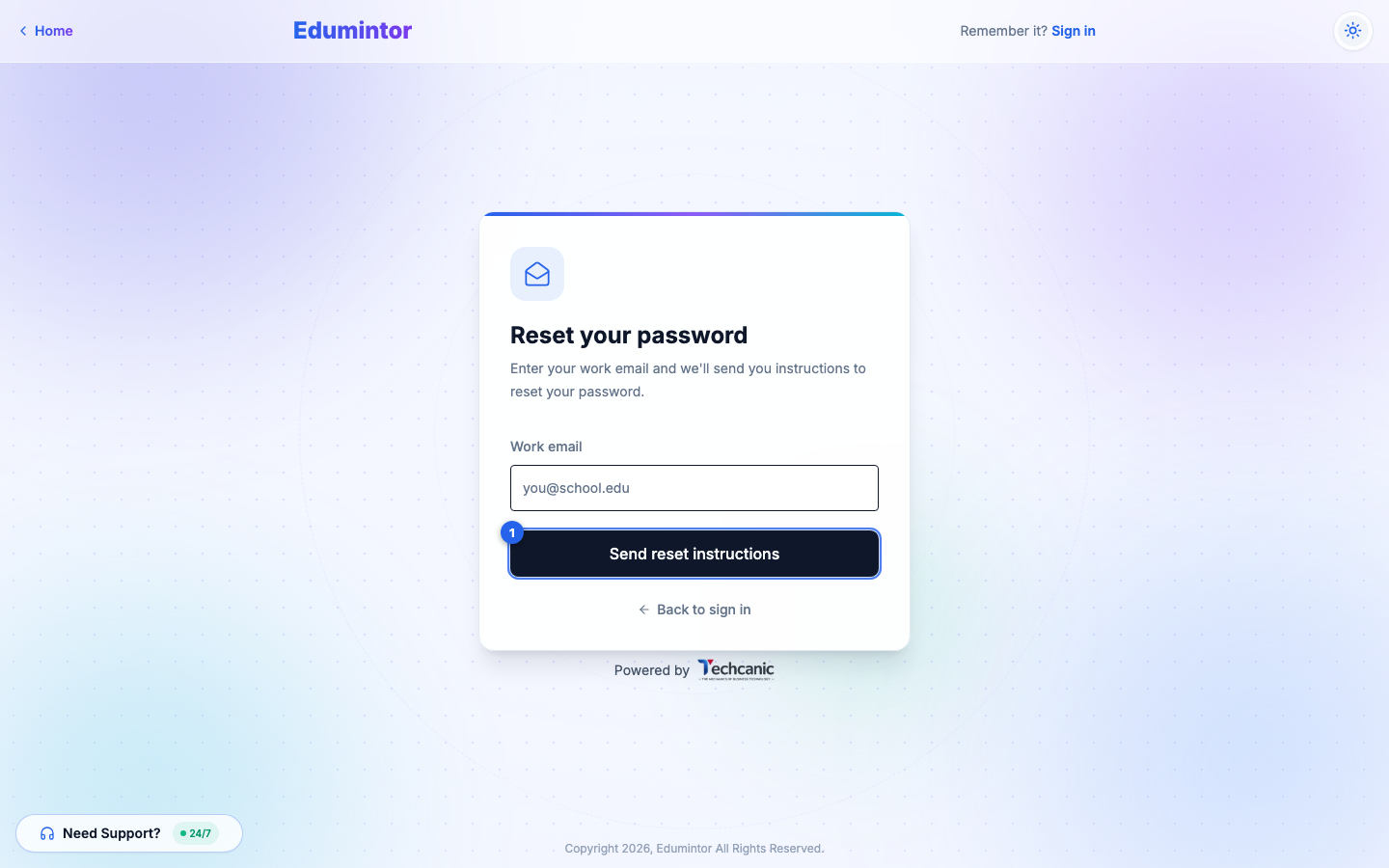
Enter the work email on your account and click Send reset instructions.
-
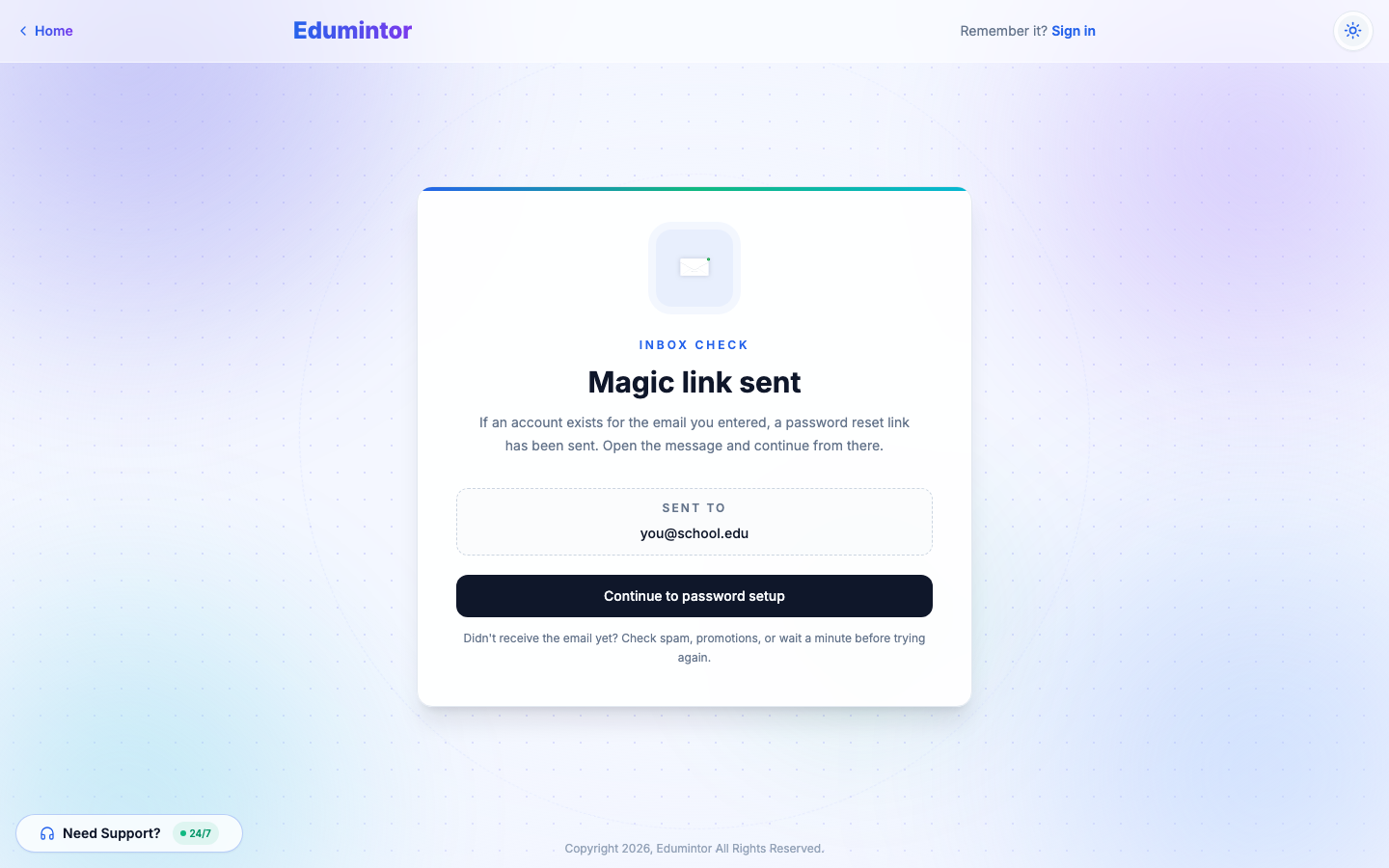
Edumintor shows an Inbox Check — Magic link sent confirmation. If an account exists for that email, a password reset link has been sent to it.
-
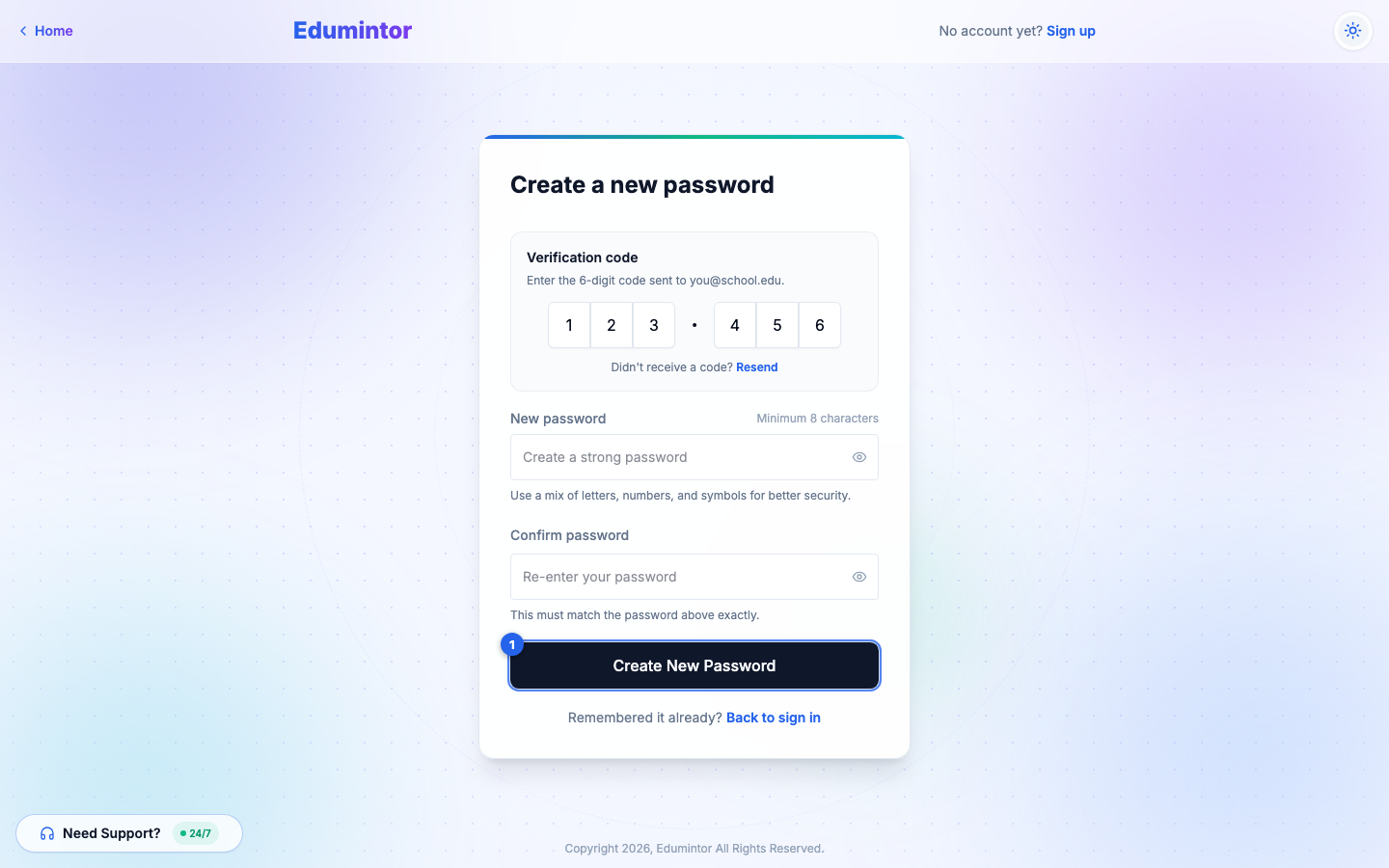
Open the email and click the reset link. It takes you to the Create a new password screen, with the 6-digit verification code from the email already filled in.
-
Enter a new password, confirm it, and click Create New Password.
-
You're taken back to the sign-in screen to log in with your new password.
💡 Tip — Don't see the email within a minute? Check your spam/promotions folder before requesting another one.
⚠️ Note for staff who never set a password — If you're a newly-added Teacher or staff member and have never signed in before, you won't have a password to "forget." Instead, look for the password setup email sent when your account was created. If you can't find it, ask your school's Admin to resend it (see Resending a Teacher's Login Setup Email).