Every account in Edumintor is exactly one of the following:
| Role | Access |
|---|---|
| Super Admin | Full access across the organization and all branches. The account that owns the school, created during provisioning. |
| Branch Admin | Full access, but limited to one branch. |
| Teacher | Limited to their assigned classes, attendance, exams, and curriculum tools. |
| Parent | Limited to their own linked children ("wards"). |
| Custom role | A Super Admin-defined set of permissions — see Creating a Custom Role. |
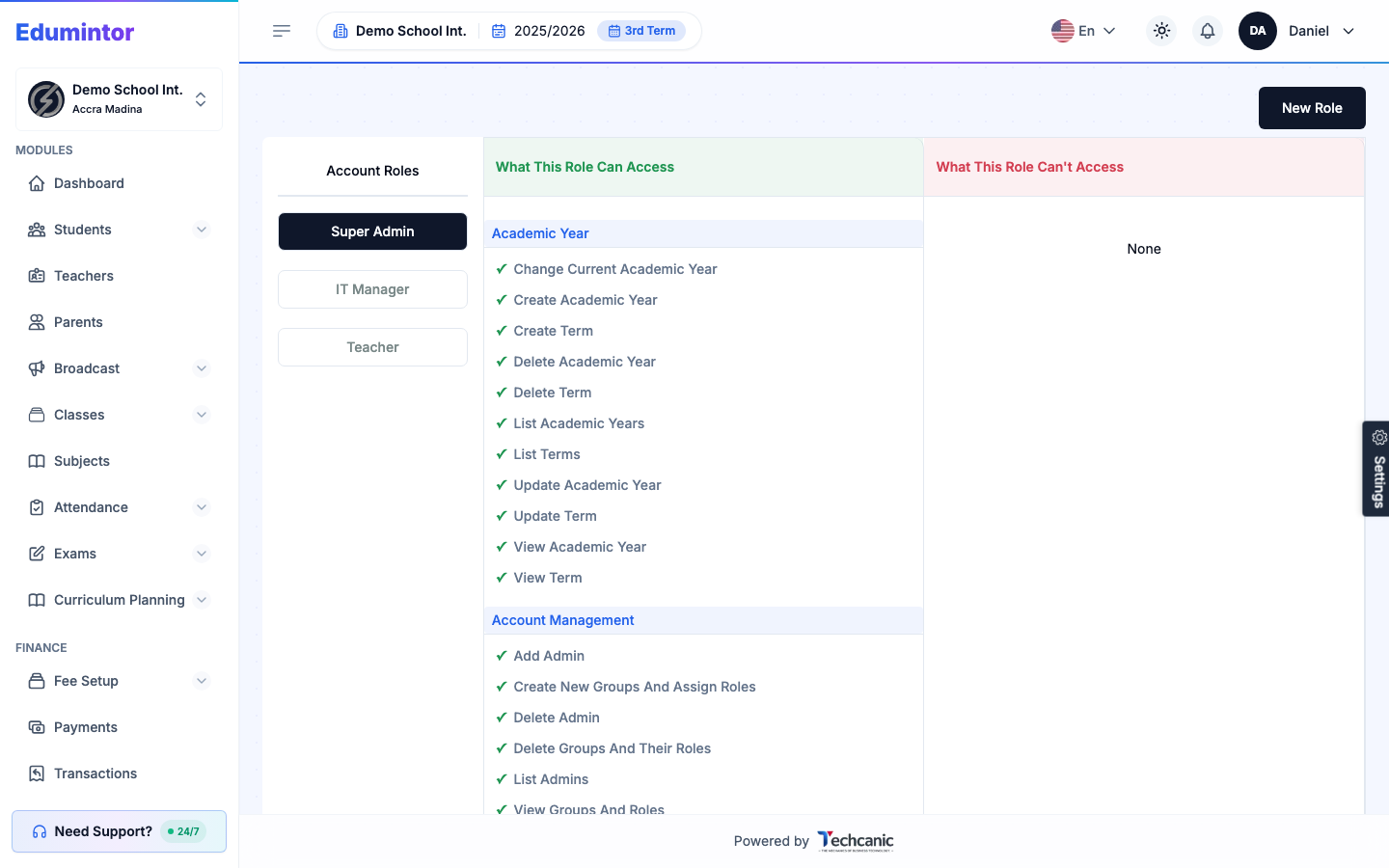
- To see exactly what a role can and can't do, go to User Management → User Roles.
- Select any role from the list on the left.
- The two panels on the right show What This Role Can Access and What This Role Can't Access, grouped by module.
⚠️ Note — The menus you see only show what your role has permission for, but the app independently enforces every permission behind the scenes. Hiding a menu item is a convenience for you, not the actual security boundary.