-
Go to App Settings → Academic Years.
-
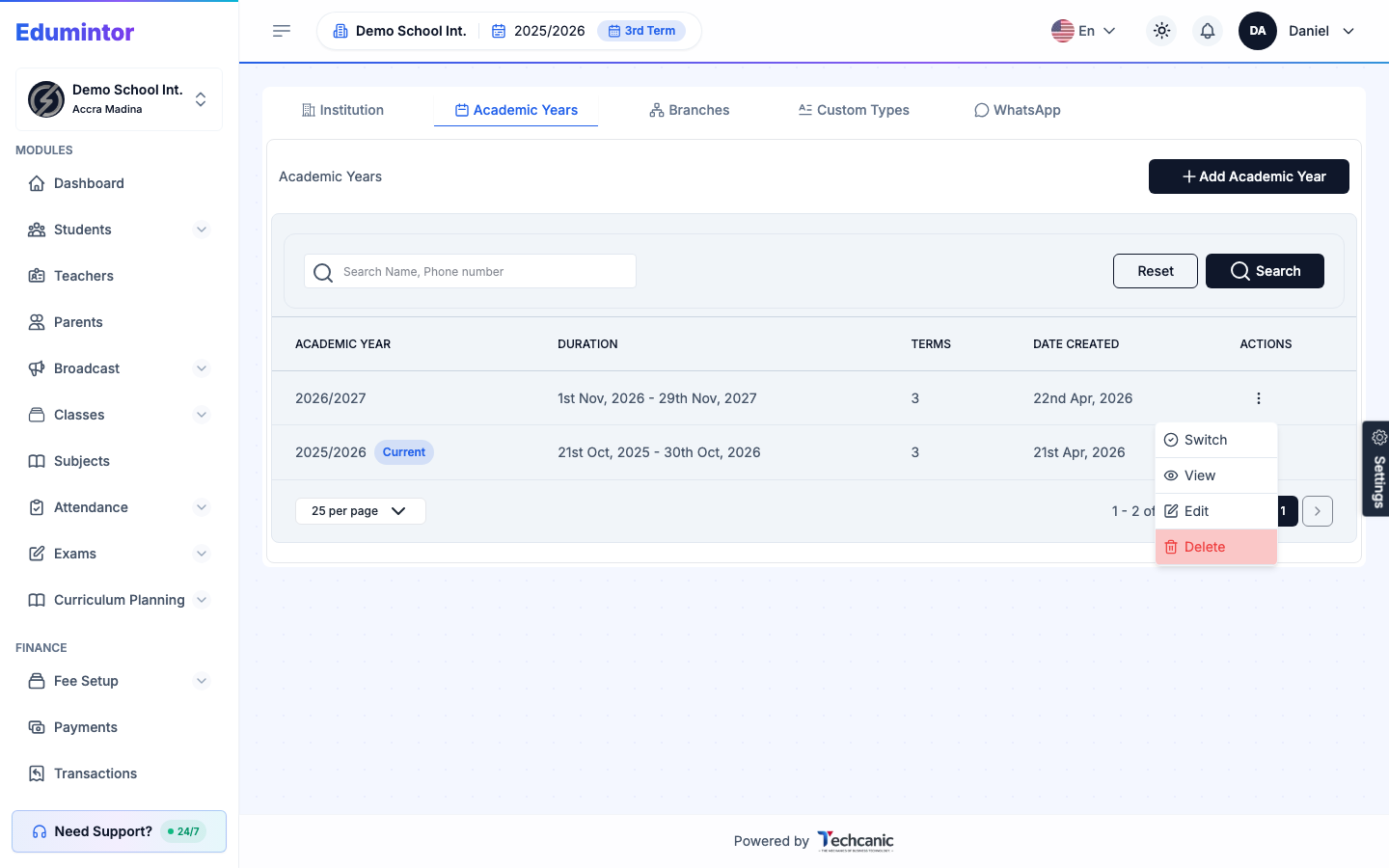
Find the academic year in the list, then click the ⋮ menu at the end of its row.
-
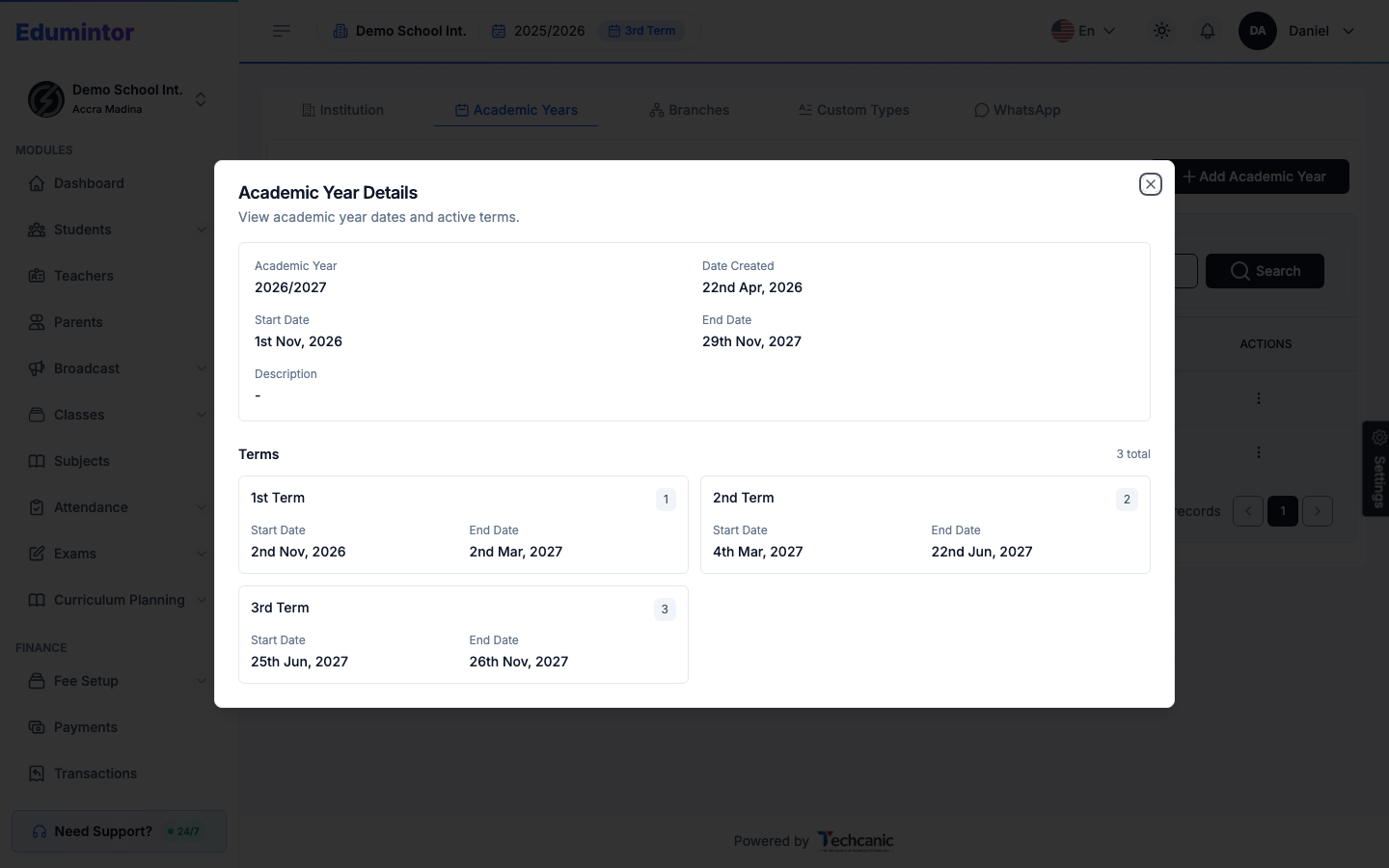
Choose View to see its dates and every term inside it.
-
Choose Edit to update its name, dates, or terms.
-
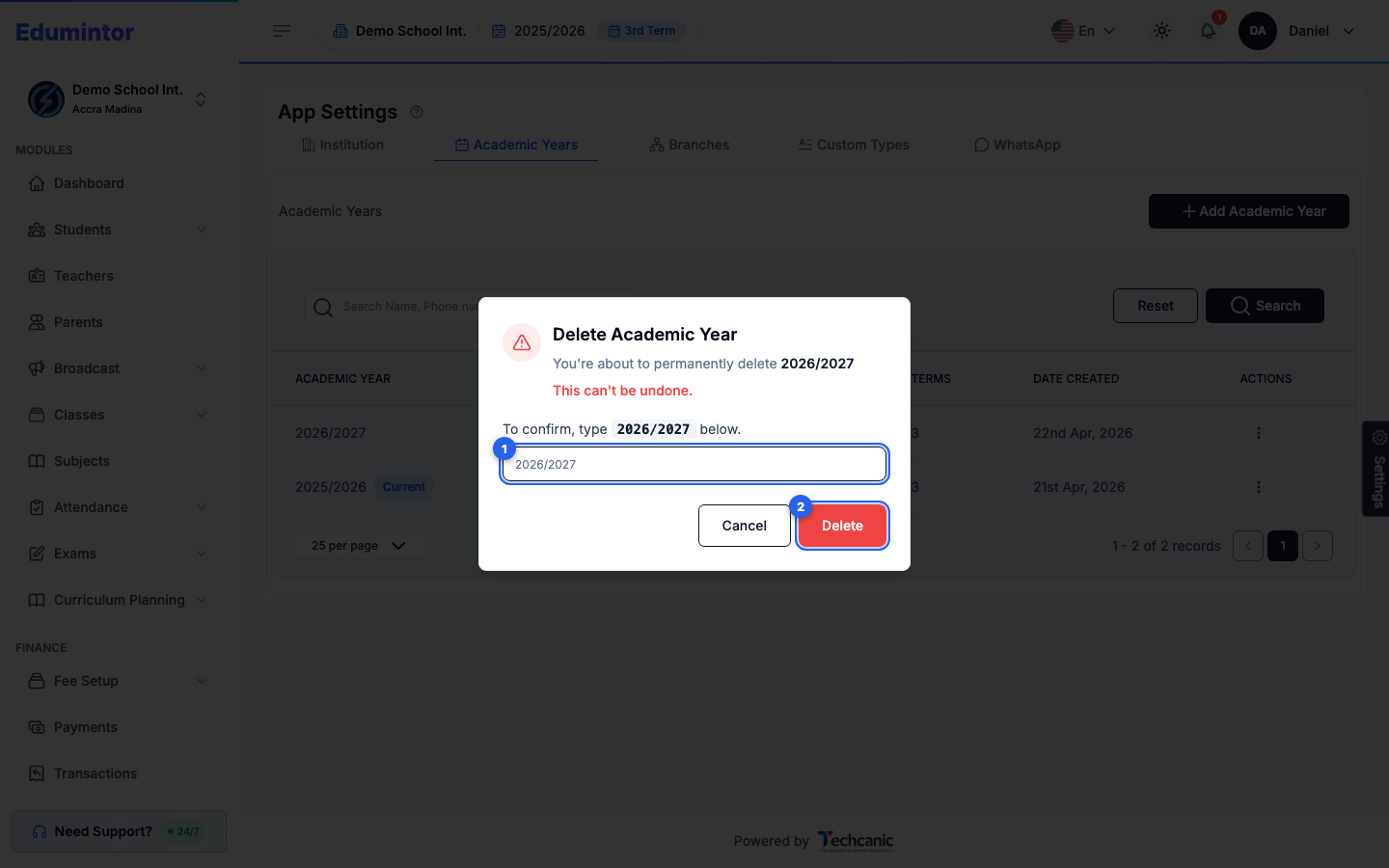
Choose Delete to remove it. In the confirmation, type the year's name exactly as shown (for example 2026/2027) — the Delete button turns on once it matches — then click Delete. This can't be undone.
To change which academic year is active organization-wide, see Switching the Current Academic Year instead.