Watch the video walkthrough
-
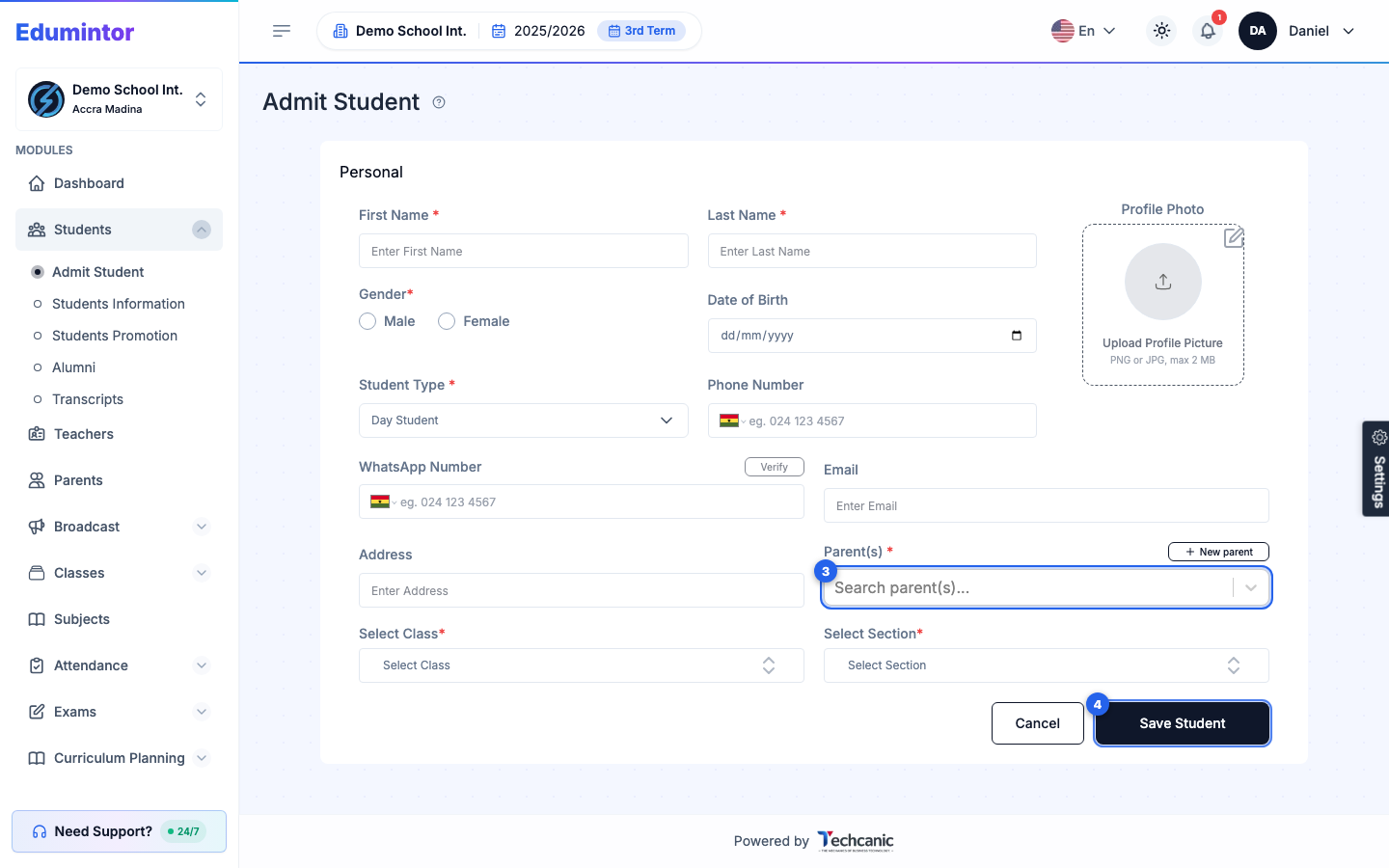
Go to Students → Admit Student.
-
Fill in the student's Personal details: first/last name, gender, date of birth, student type (Day or Boarding), and contact info.
-
Optionally upload a profile photo.
-
Under Parent(s), search for and select the student's parent. This field is required. If the parent isn't in Edumintor yet, create them without leaving the form:
-
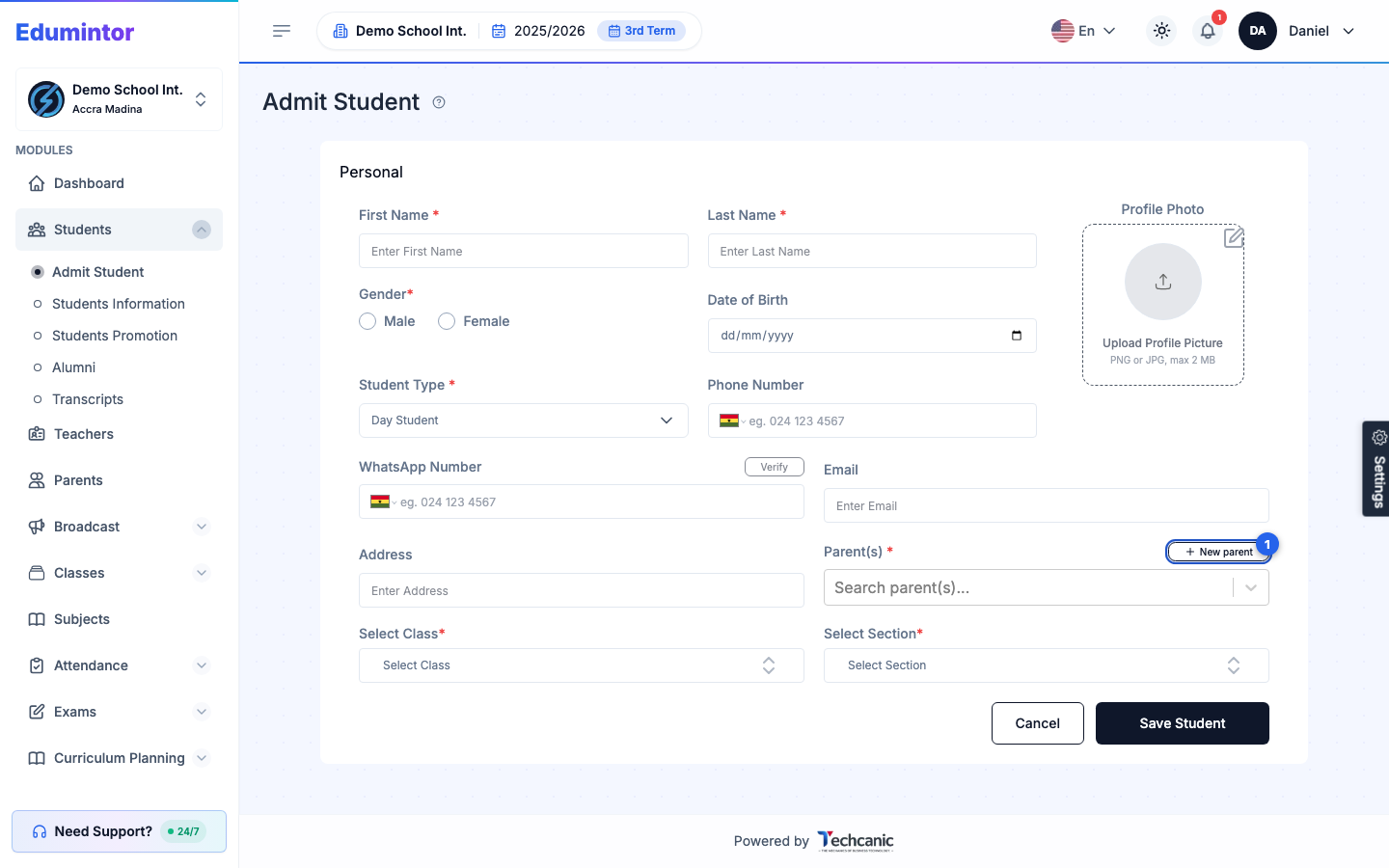
Click New parent next to the Parent(s) label.
-
In the Add Parent window, fill in the parent's details (the same fields as Adding a Parent, including portal login access) and click Save Parent.
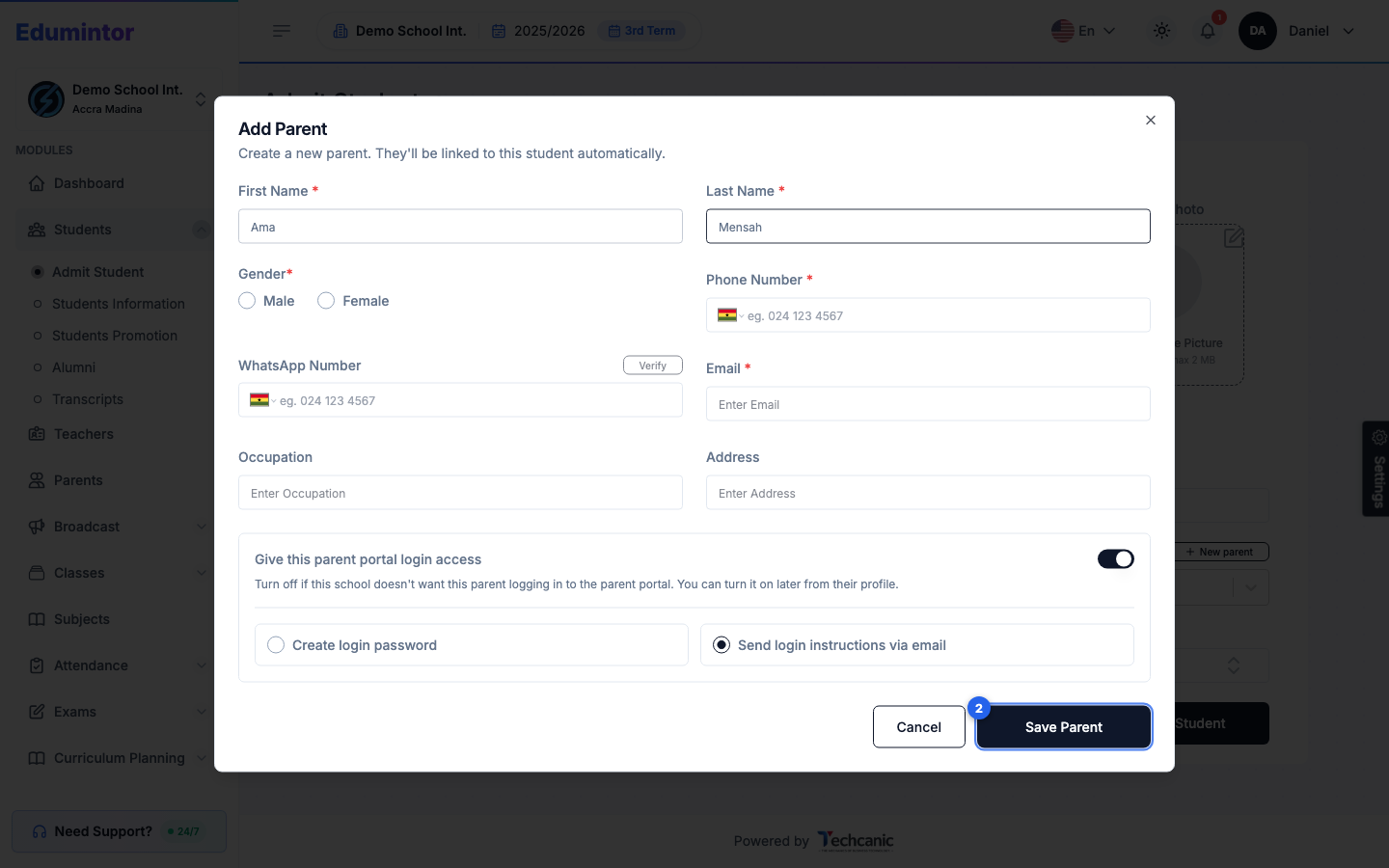
The window closes and the new parent is selected in Parent(s) automatically — everything you'd already typed for the student stays in place.
-
-
Select the student's Class and Section.
-
Click Save Student.