Linking a parent to a student is a two-part job: first you create the parent, then you pick that parent on the student's record. The Add Parent form has no student field — the link is always made from the student's side, under Parent(s).
Part 1 — Add the parent
-
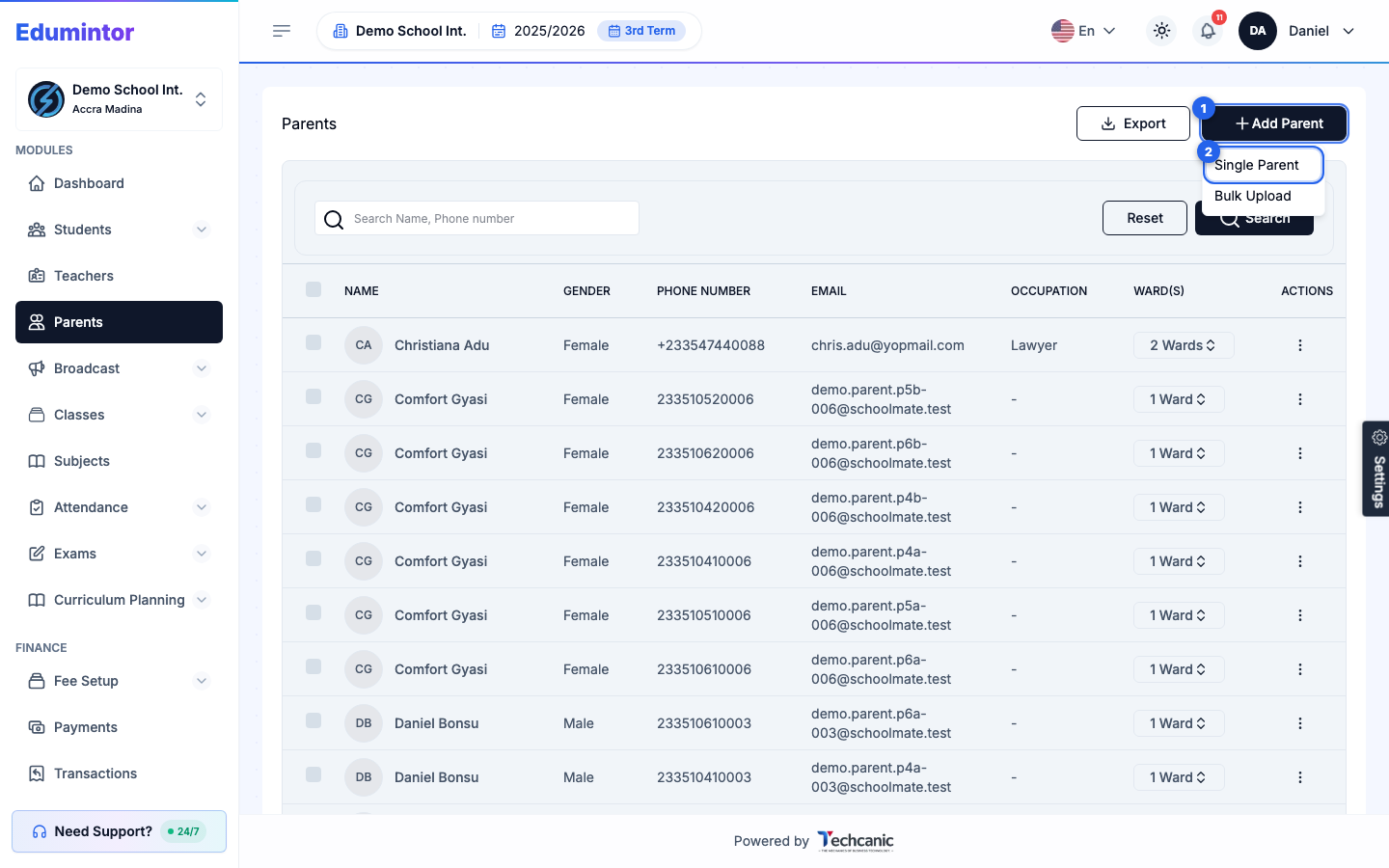
Go to Parents in the sidebar, click Add Parent, and choose Single Parent.
-
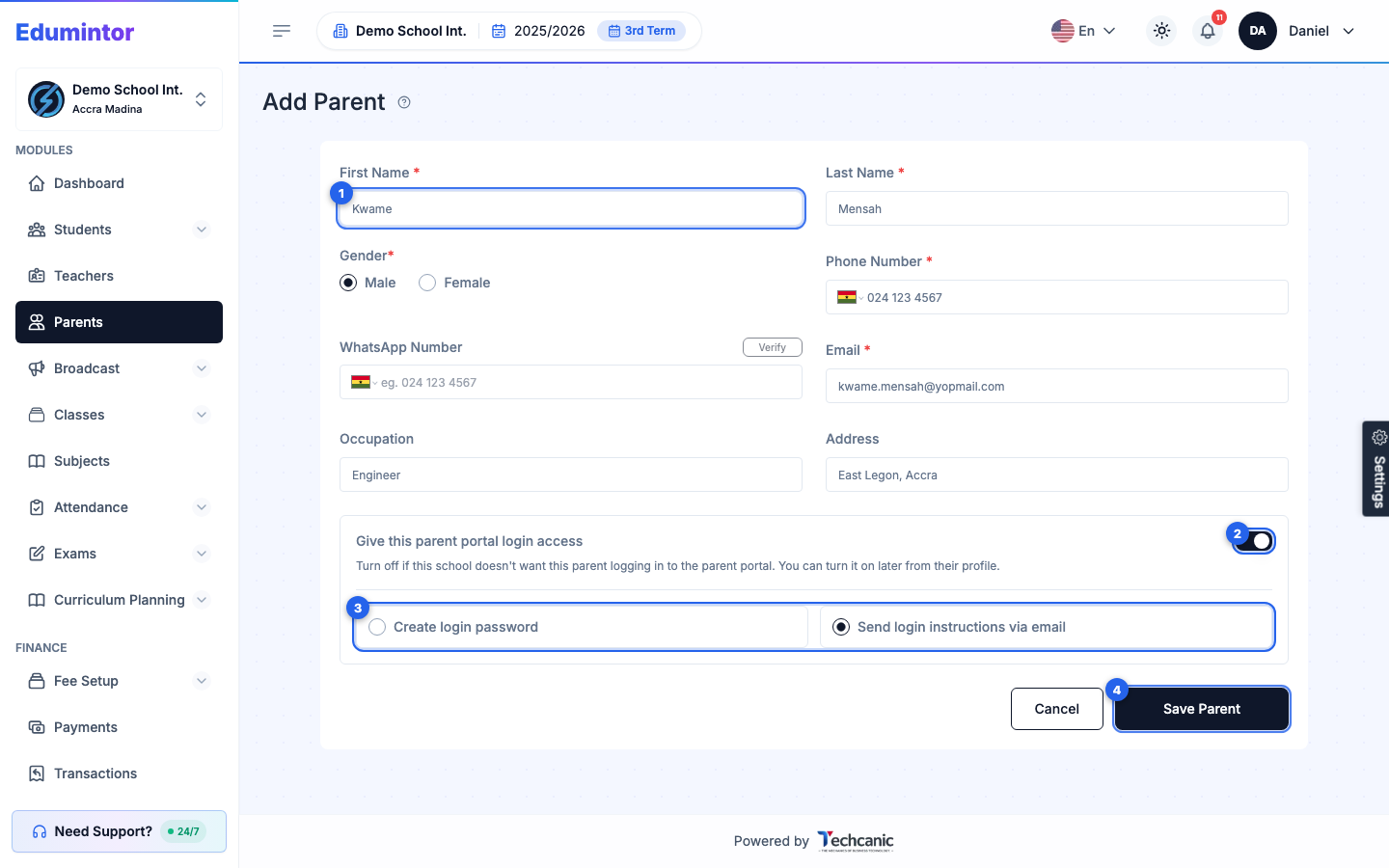
Fill in the parent's details. First Name, Last Name, and Gender are always required; WhatsApp Number, Occupation, and Address are optional.
-
Decide whether this parent should be able to sign in to the parent portal, using the Give this parent portal login access switch (on by default). While it's on, Phone Number and Email are required too.
-
With login access on, choose how they get their password:
- Send login instructions via email (the default) — Edumintor emails the parent a link to set their own password.
- Create login password — you type a password (at least 8 characters) and confirm it, then share it with the parent yourself.
-
Click Save Parent.
💡 Tip — If you turn login access off, the parent is saved without a portal account. You can switch it on later from Edit on their profile — see Sending a Parent's Login Setup Email.
Part 2 — Link the parent to their child
-
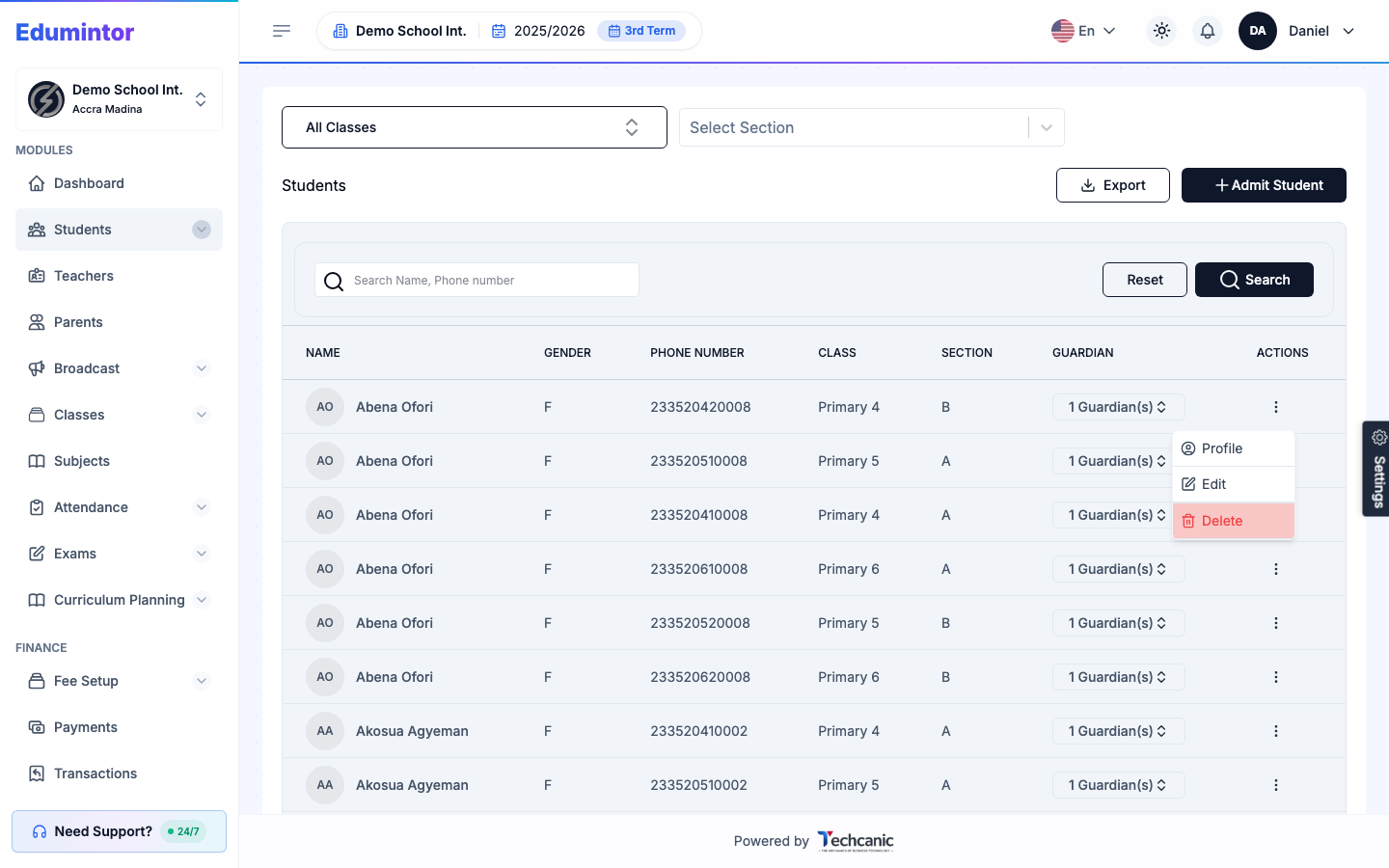
Go to Students → Students Information, find the student, click the ⋮ menu at the end of their row, and choose Edit.
-
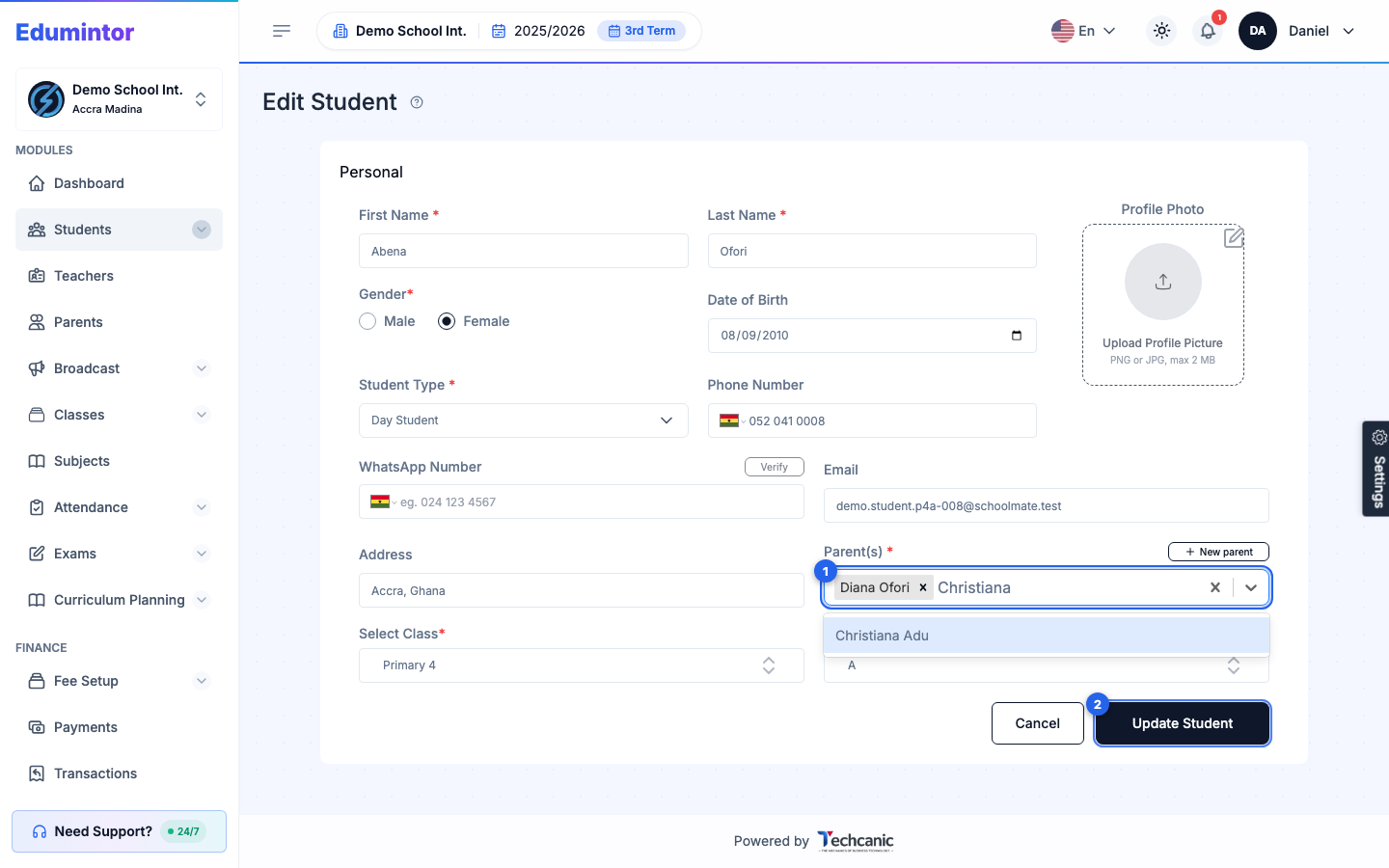
In the Parent(s) field, start typing the parent's name and select them from the results. Any parents already linked stay in the field — a student can have more than one.
-
Click Update Student.
Admitting a brand-new student? The same Parent(s) field is on the Admit Student form, and it's required there. If the parent doesn't exist yet, you don't need to do Part 1 separately — click New parent next to the field to create the parent in a pop-up, and they're linked automatically. See Adding a Student.
⚠️ Note — The Parent(s) search only shows each parent's name. If two parents share a name, open Parents first and check which one is correct (for example, by phone number) before linking.
Check the link
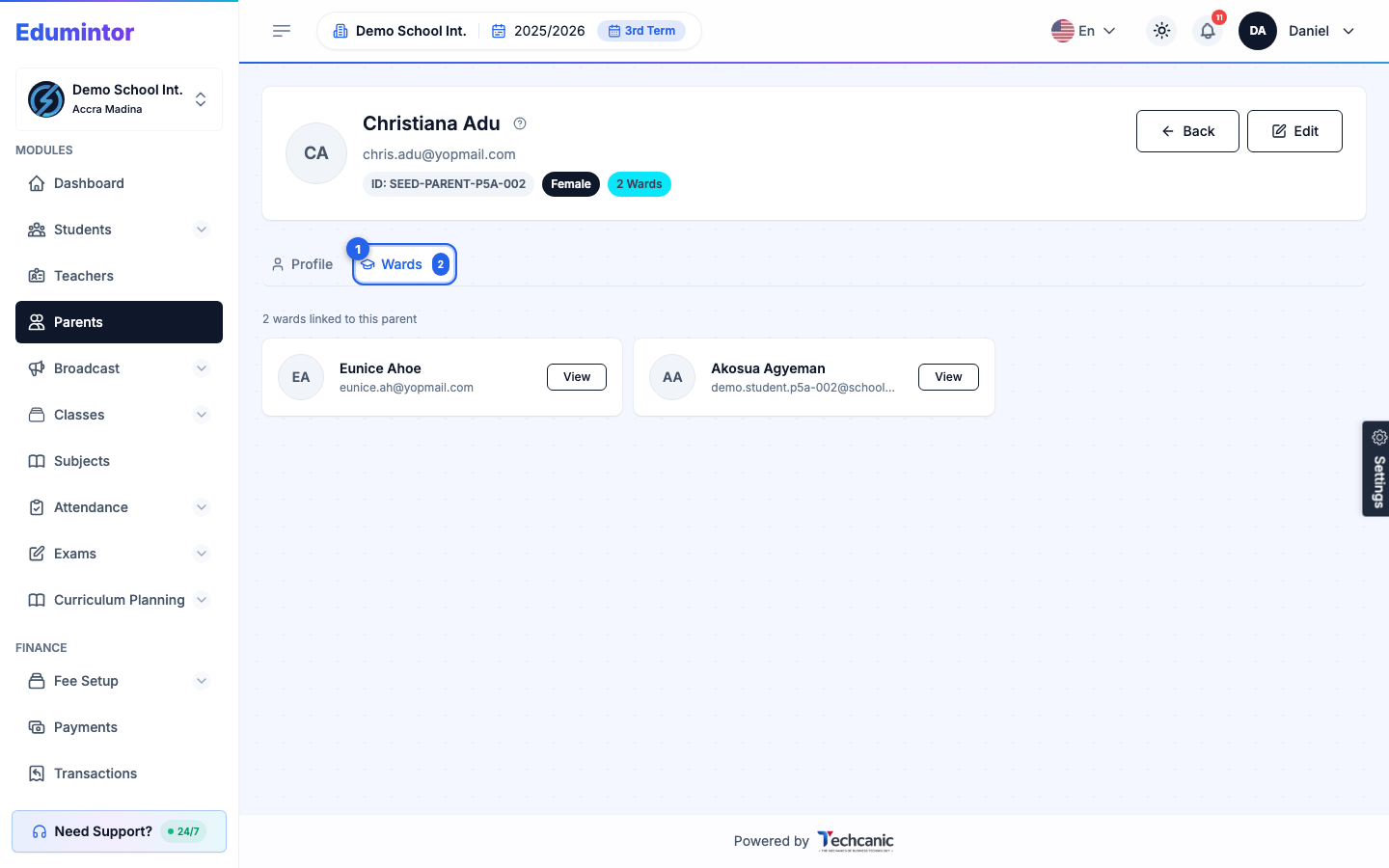
Open the parent from Parents (⋮ → View) and select the Wards tab. Every student linked to them is listed there, and the header shows the ward count. The student's own profile shows the same link under Guardians / Parents.
💡 Tip — One parent can be linked to several children, and each child can have several guardians. Adding many parents at once? Use Bulk-Uploading Parents, then link them to students through Bulk-Uploading Students using the parent's email or phone number.