-
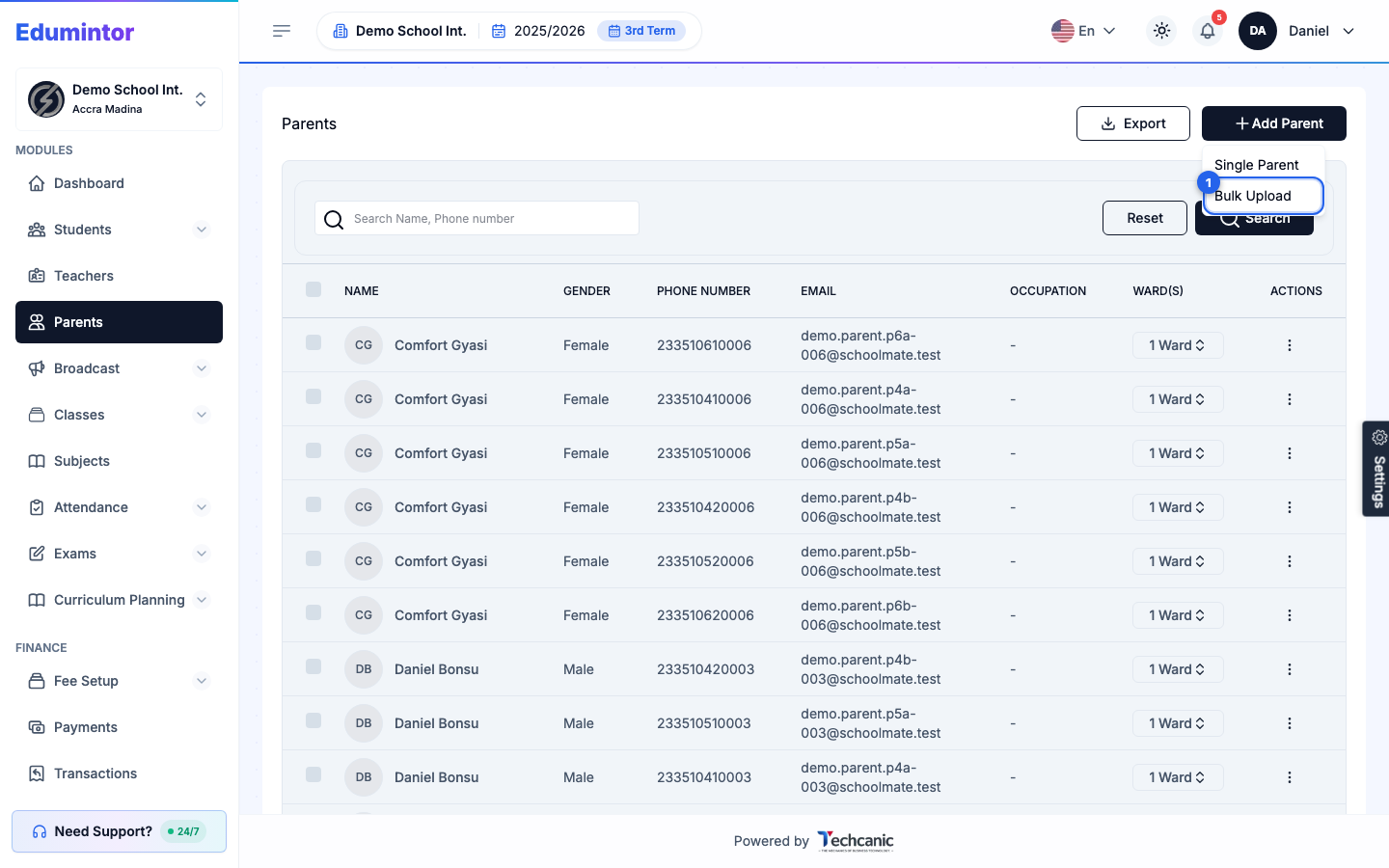
Go to Parents in the sidebar, click Add Parent, and choose Bulk Upload from the dropdown.
-
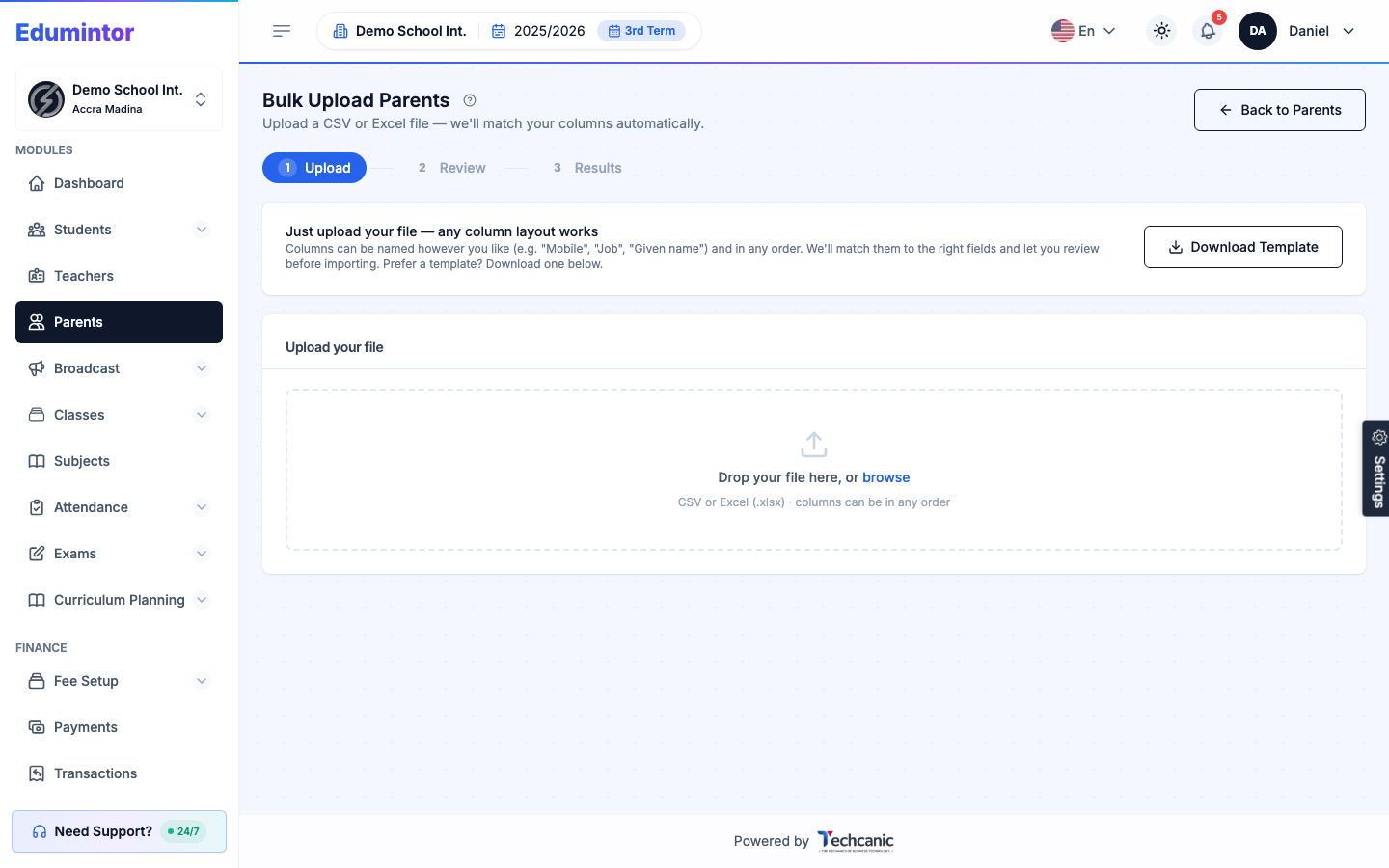
Drag in a CSV or Excel file. Columns can be named however you like, in any order — Edumintor matches them automatically and lets you review the mapping before committing. Download the template first if you're unsure of the expected columns.
-
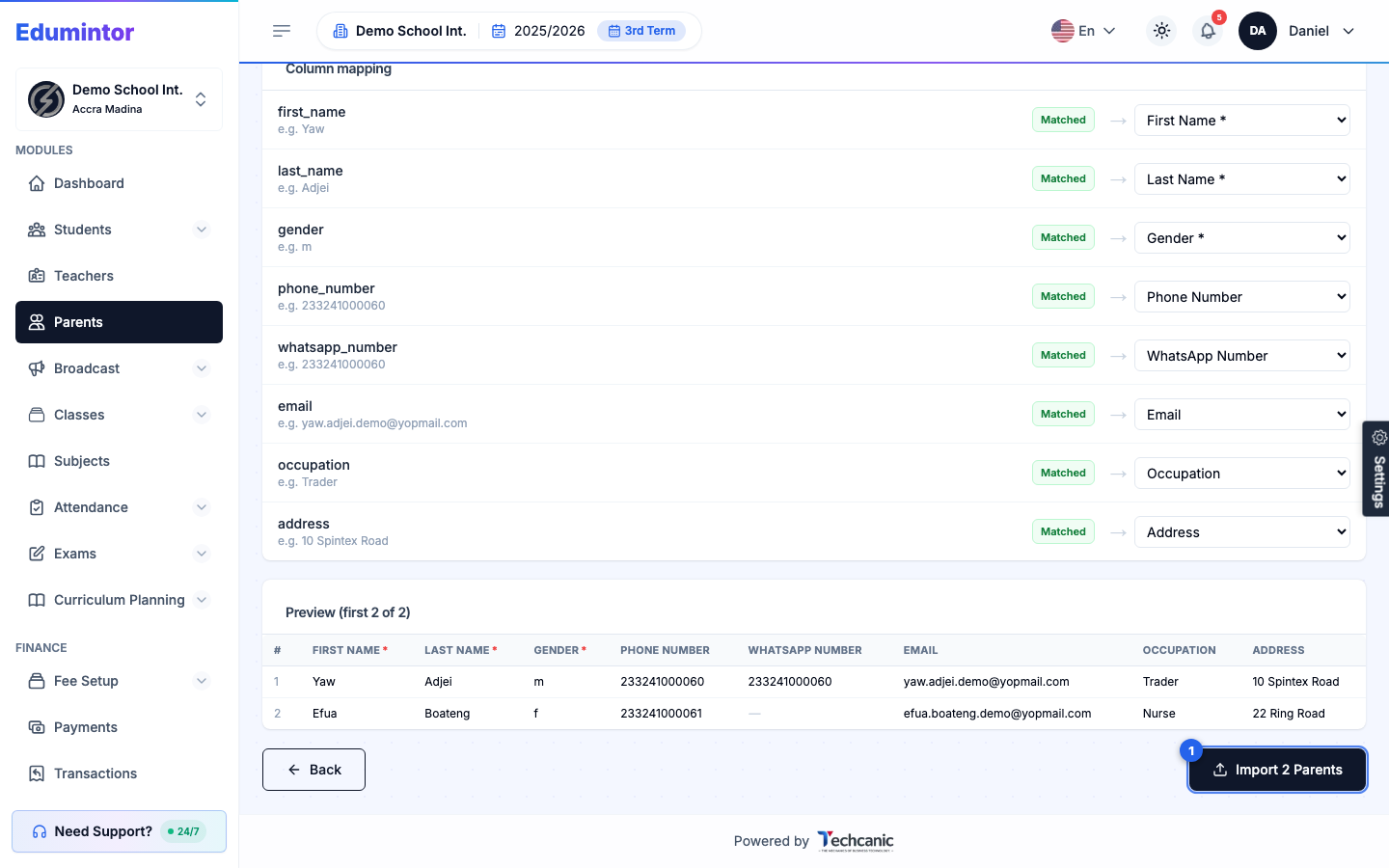
Review the column mapping and the preview table, then click Import [N] Parents.
-
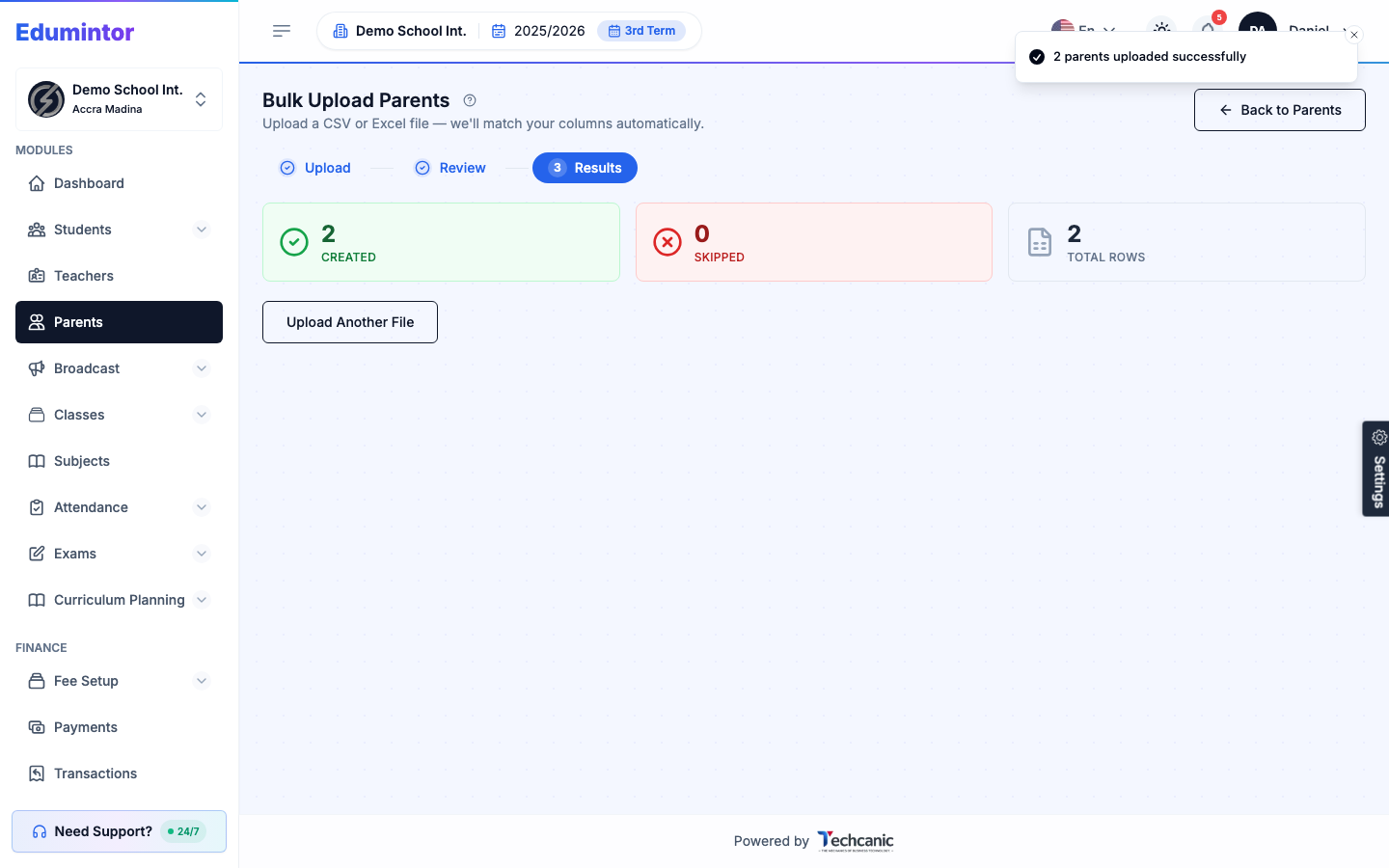
Edumintor creates each parent record right away and shows how many were created.
-
Fix any row-level errors in your source file and re-upload just the problem rows — successfully-imported rows won't be duplicated.
⚠️ Note — Unlike bulk-uploading teachers, this does not create a login for each parent. Bulk upload only creates the parent records. To give a parent access to the app, open their profile and use Sending a Parent's Login Setup Email individually.
💡 Tip — To link a bulk-uploaded parent to their child, upload the students afterward via Bulk-Uploading Students and include a column with the parent's email or phone number — Edumintor matches it to the parent you just created.