Watch the video walkthrough
-
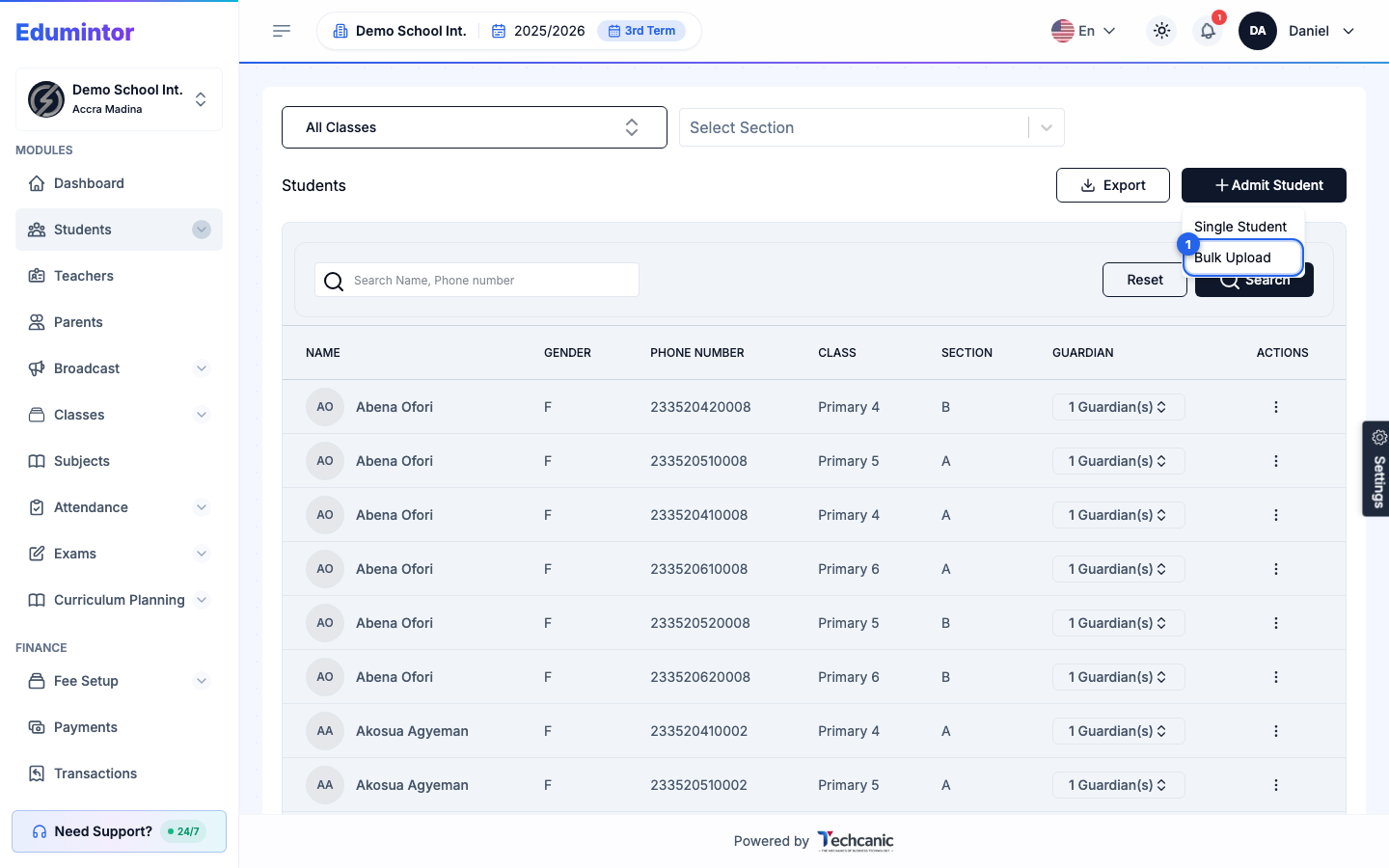
Go to Students in the sidebar, then click Admit Student and choose Bulk Upload from the dropdown.
-
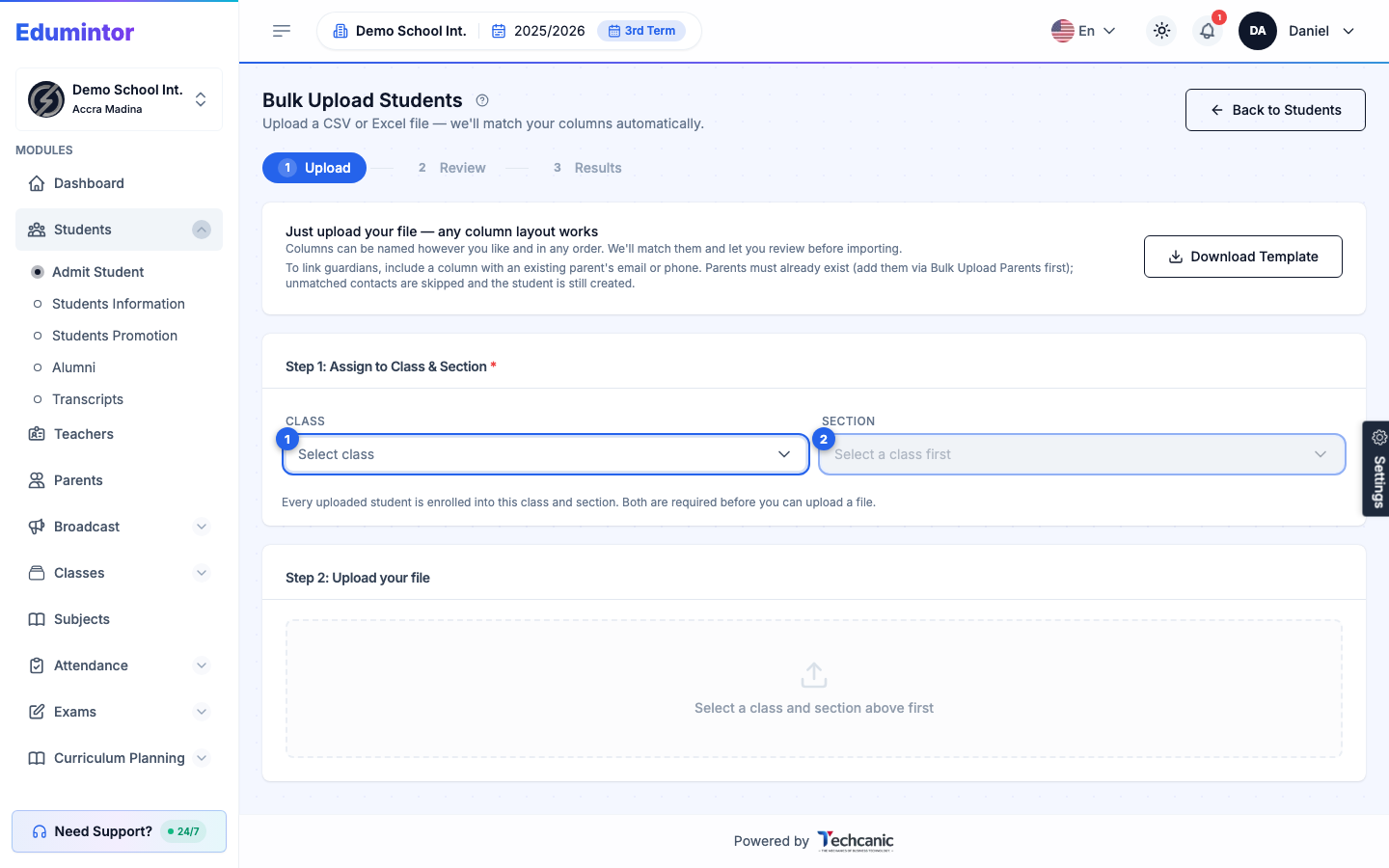
Step 1 — Assign to Class & Section: choose the class and section every uploaded student will be enrolled into (both are required before you can upload a file).
-
Step 2 — Upload your file: drag in a CSV or Excel file. Columns can be named however you like, in any order — Edumintor matches them automatically and lets you review the mapping before committing. Download the template first if you're unsure of the expected columns.
-
Review the column mapping and the preview table, then confirm.
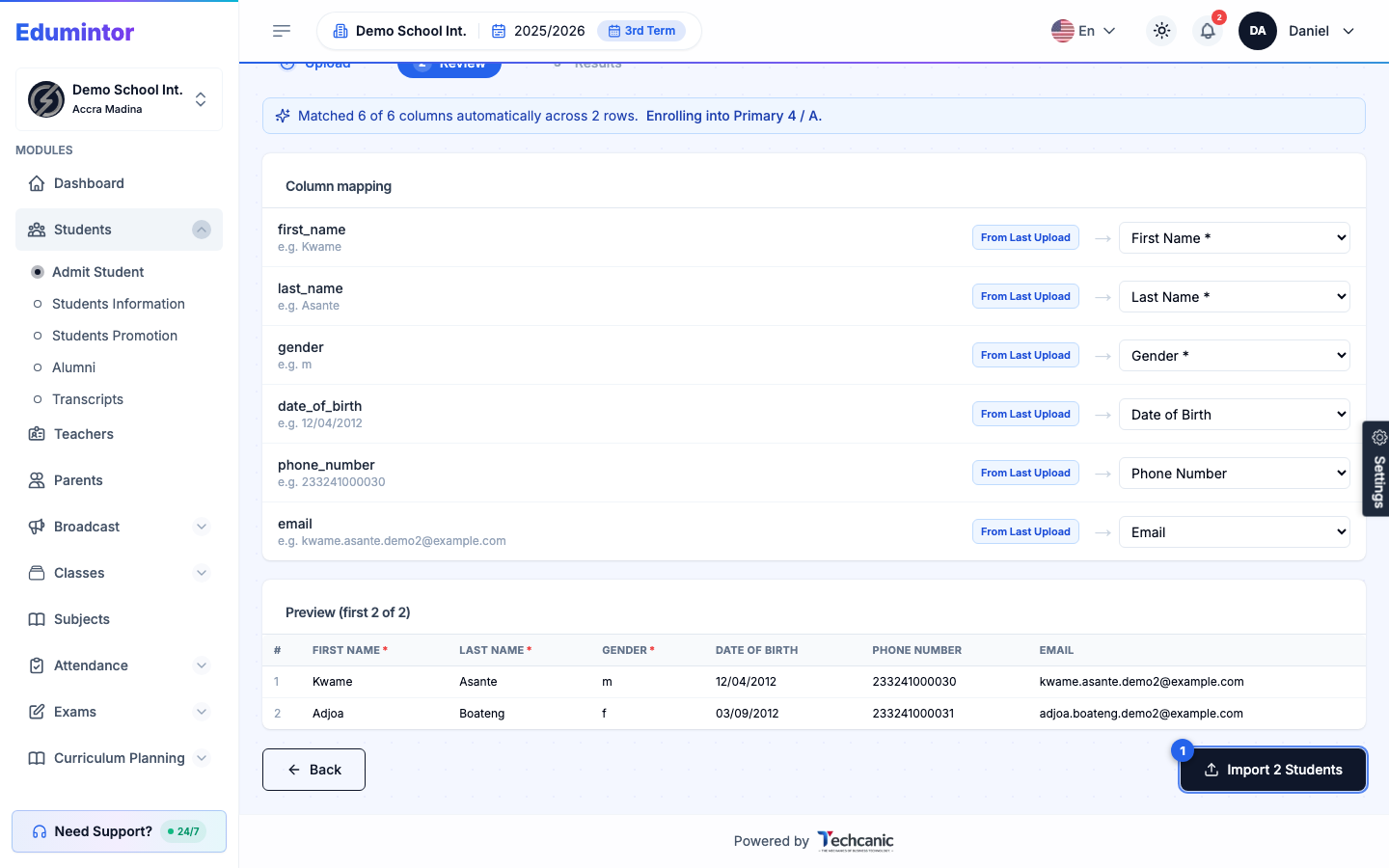
The import then runs as a background job — you don't need to keep the page open.
-
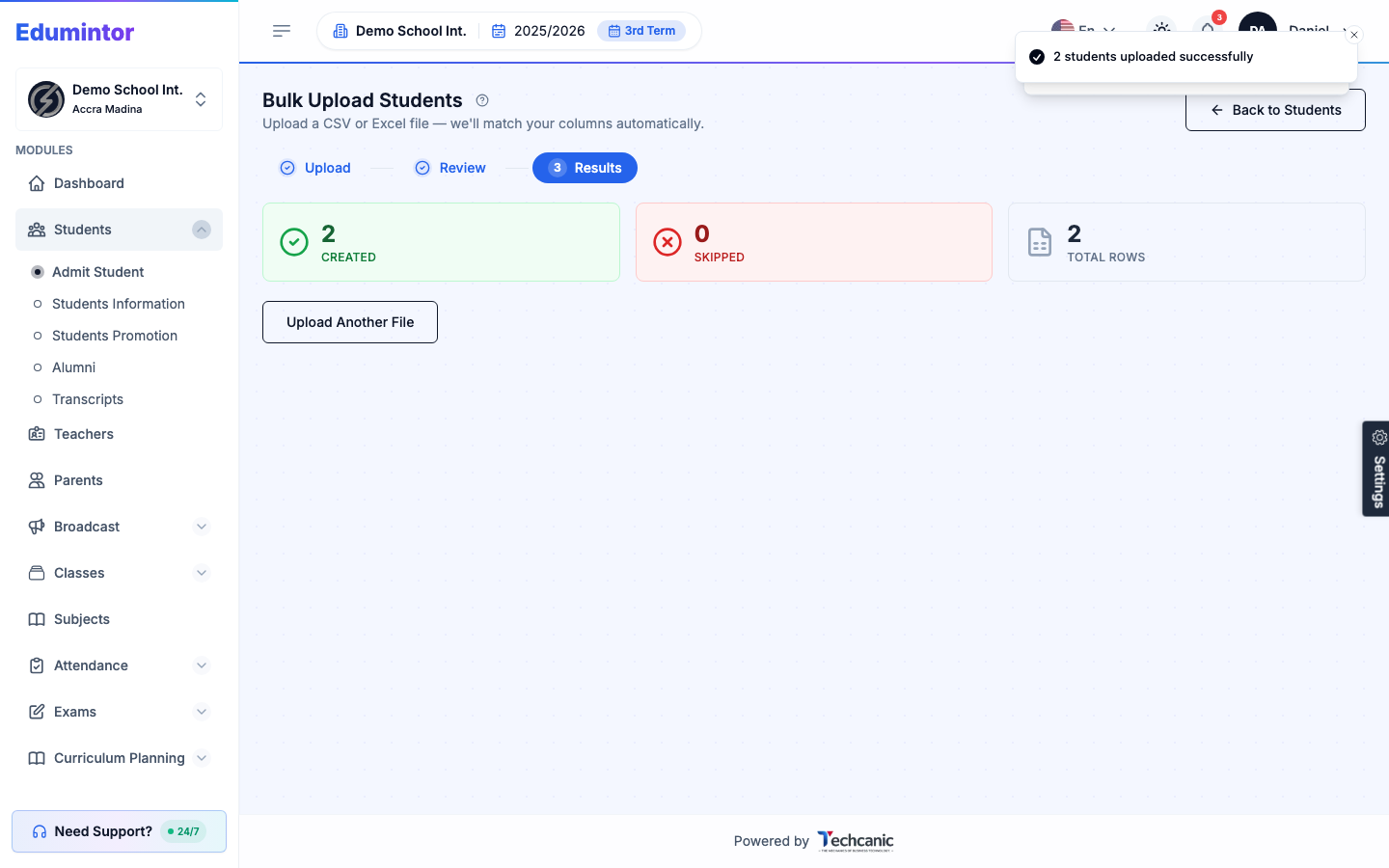
You'll get an in-app notification when it finishes (see Bulk Upload Notifications).
-
Fix any row-level errors or guardian-link warnings in your source file and re-upload just the problem rows — successfully-imported rows won't be duplicated.
💡 Tip — To link guardians during a student bulk upload, include a column with an existing parent's email or phone number. Parents must already exist in the system first — bulk-upload parents separately if needed. The same analyze → confirm → background-processing → notification flow is available for Teachers and Parents too, from their own "Admit → Bulk Upload" pages.
⚠️ Note — A student's phone number and email must be unique. Re-uploading a row for a student who was deleted, or who already exists under a different class, will be skipped with a "already exists" error rather than overwritten.
⚠️ Note — Bulk uploads count against your subscription's student seats. If the file has more rows than the seats you have left, the upload is rejected and nothing is imported — remove some rows or buy extra student seats from the Billing page, then upload again.