Watch the video walkthrough
-
Go to Students → Students Information.
-
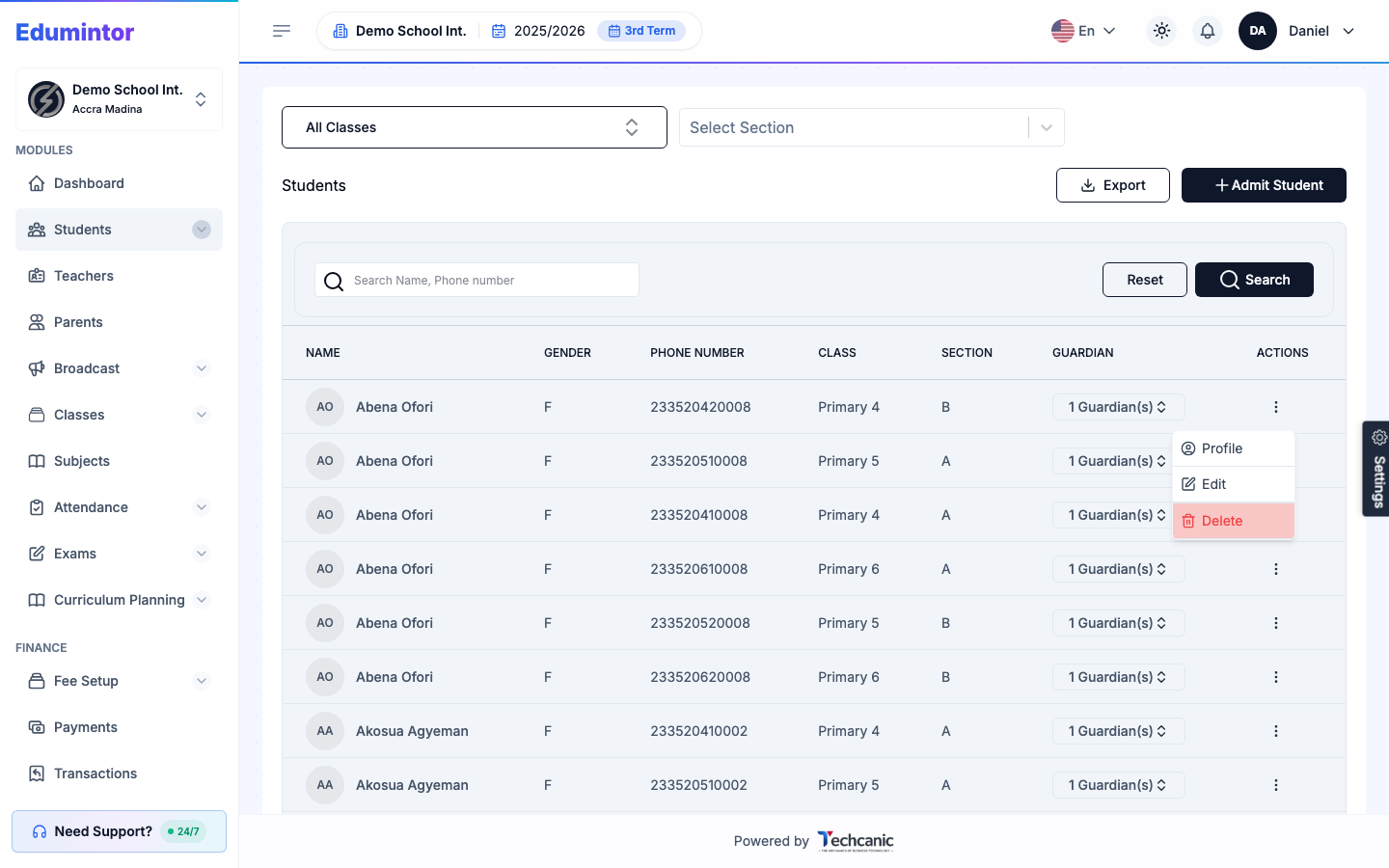
Find the student in the list, then click the ⋮ menu at the end of their row.
-
Choose Delete.
-
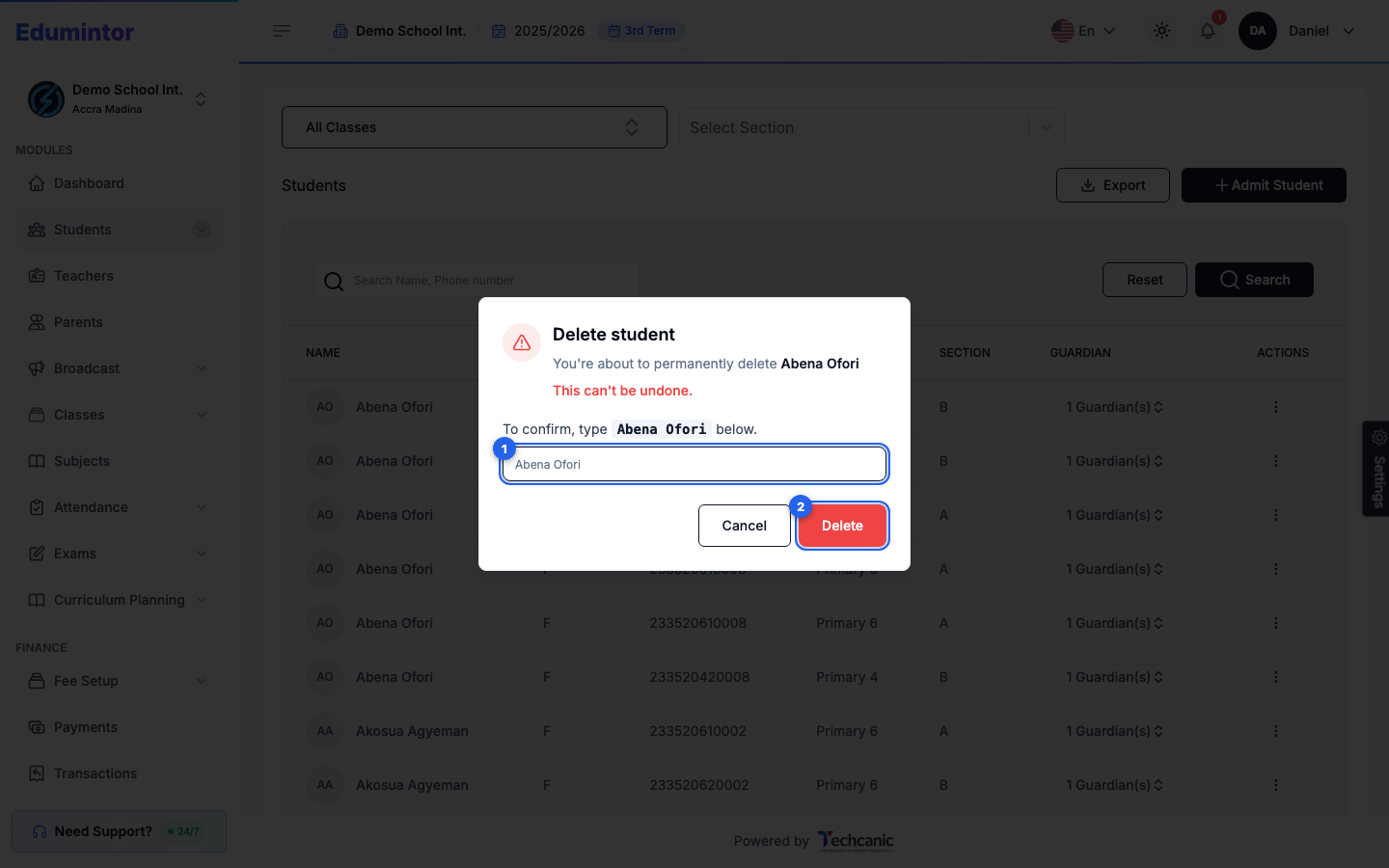
In the confirmation, type the student's name exactly as shown (for example Abena Ofori) — the Delete button turns on once it matches — then click Delete. This can't be undone.
⚠️ Note — Delete is meant for correcting a mistaken entry (e.g. a duplicate or test record), not for students who are leaving the school. For students who've graduated or moved on, use Promoting Students to the Next Class/Year and the Graduate Students tab instead — that keeps their historical records (grades, attendance) intact under Alumni.