-
Go to Finance → Payments.
-
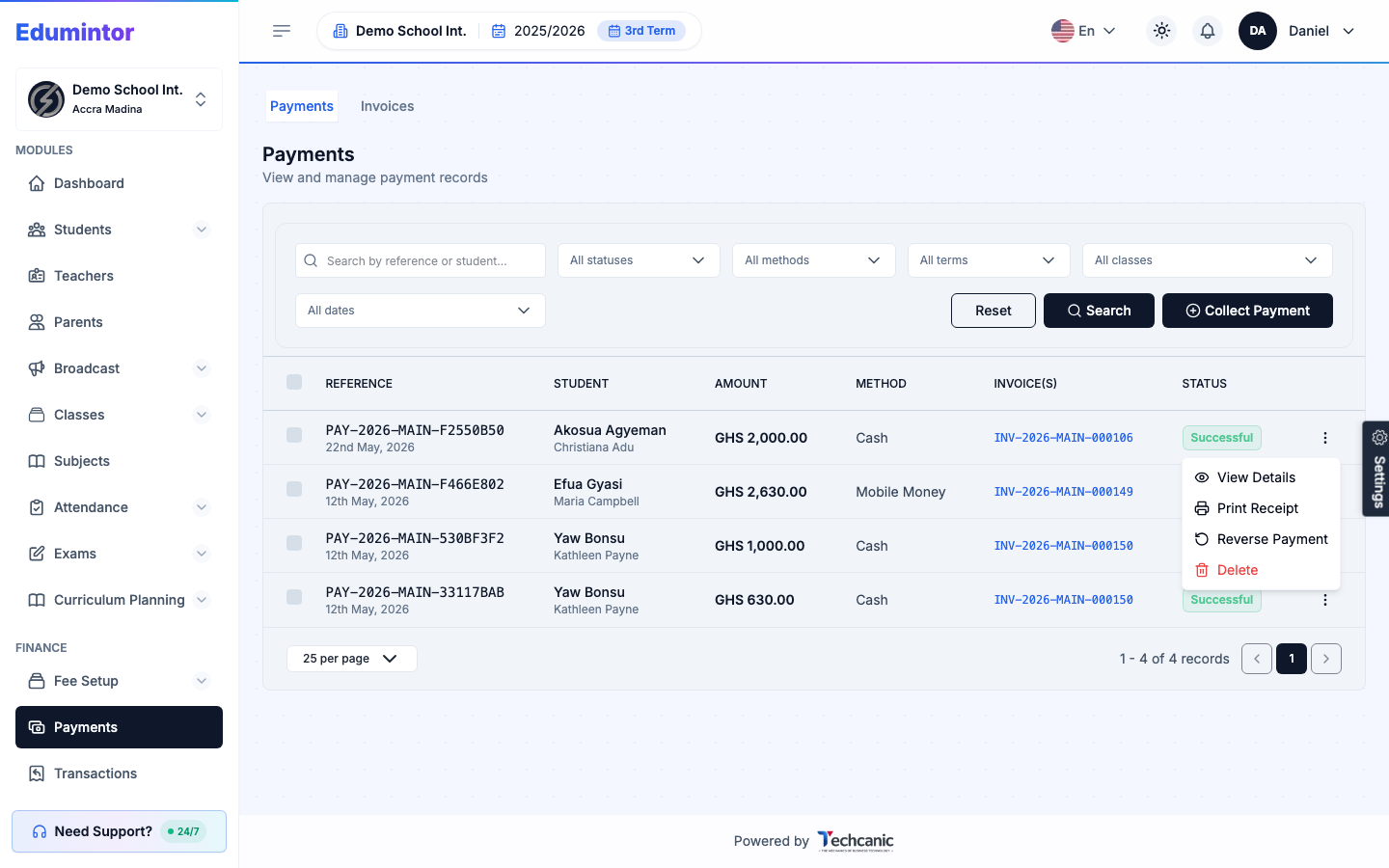
Find the payment in the list, then click the ⋮ menu at the end of its row.
-
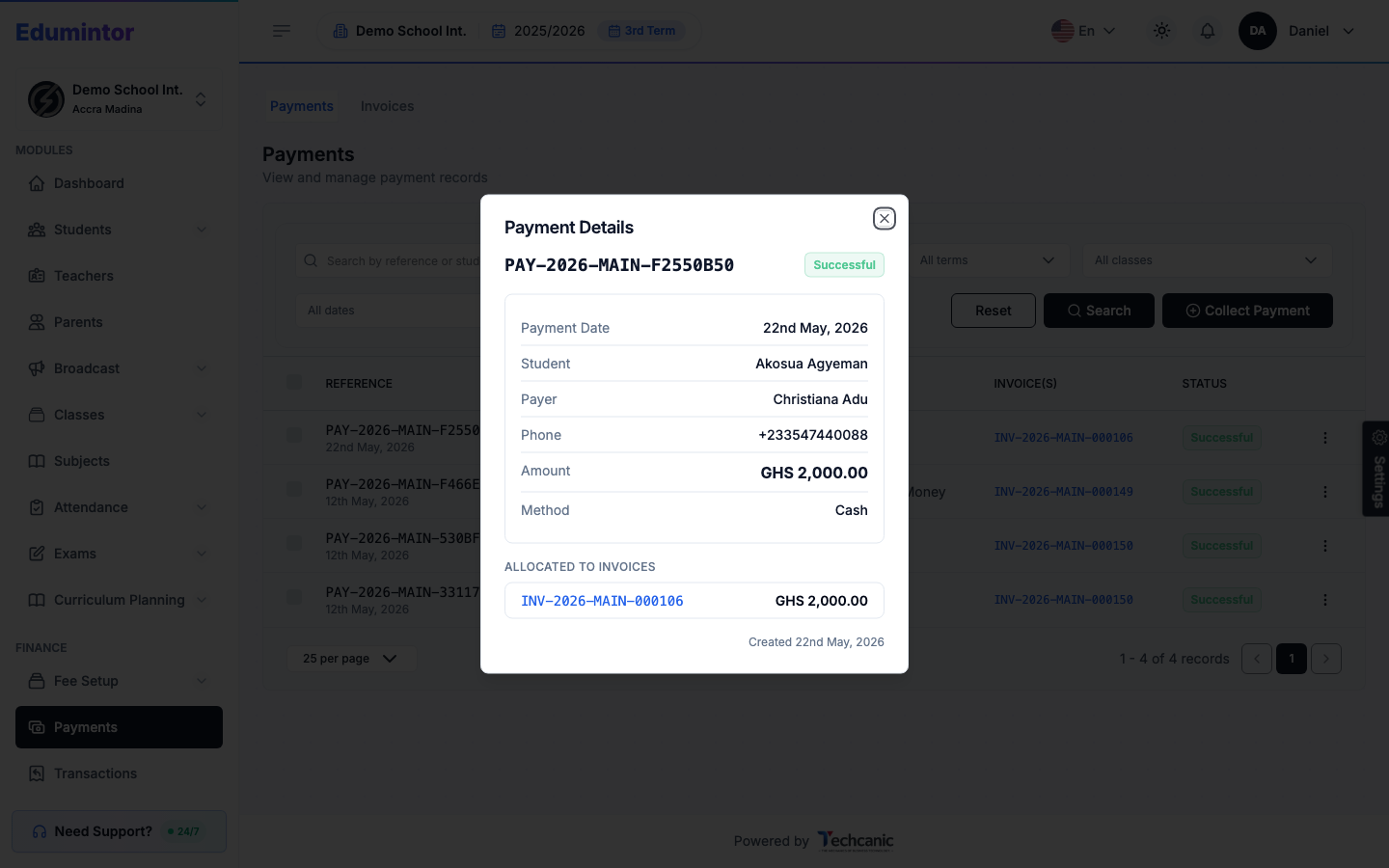
Choose View Details to see the payer, amount, method, and which invoice(s) it's allocated to.
-
Choose Print Receipt to reprint the receipt generated when the payment was recorded.
-
Choose Delete to remove the payment record entirely. In the confirmation, type the payment's reference exactly as shown (for example PAY-2026-MAIN-F2550B50) — or DELETE if the payment has no reference — then click Delete. When you select several payments and delete them together, type DELETE instead.
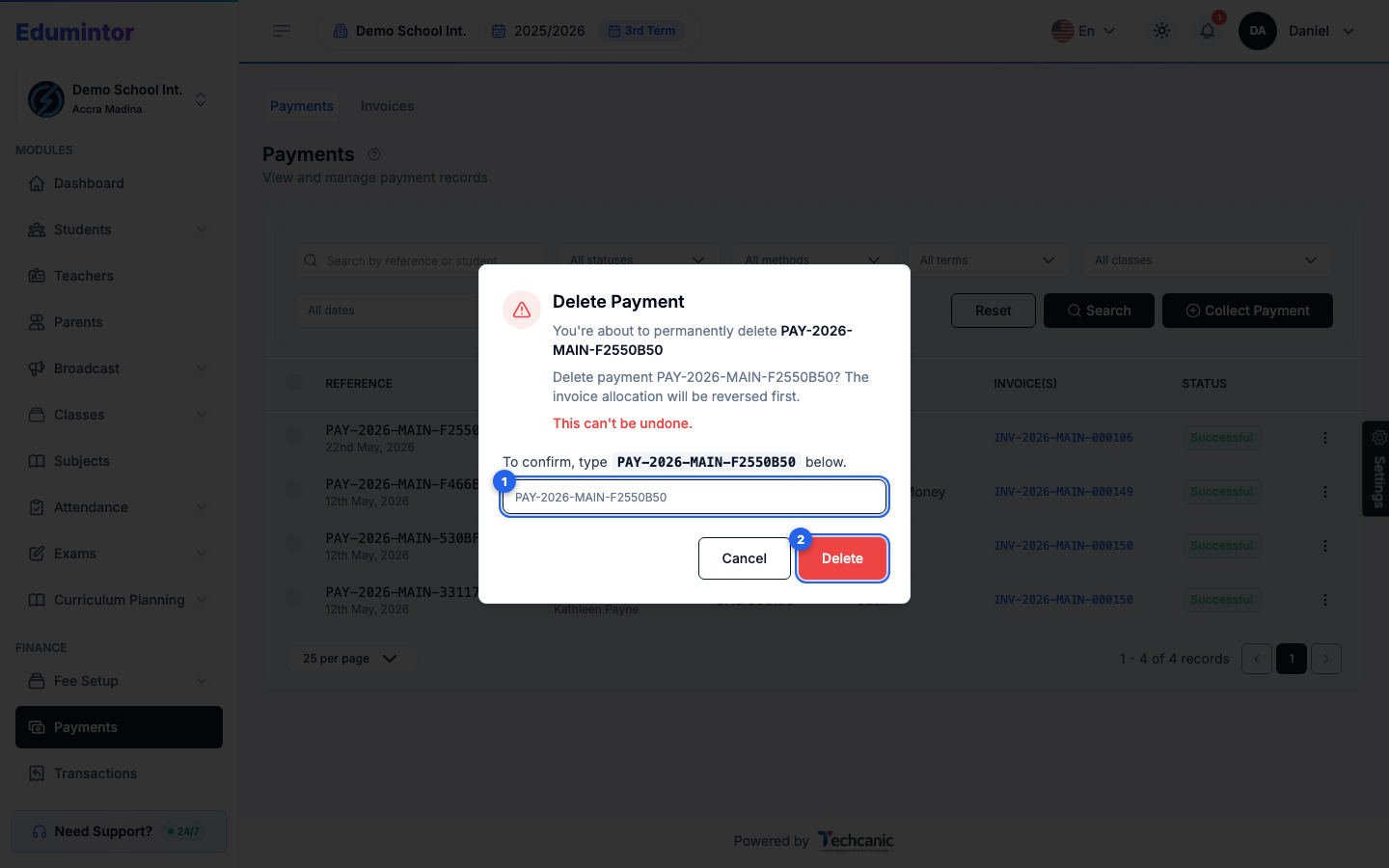
💡 Tip — Deleting a payment automatically reverses its invoice allocation first, restoring the invoice's balance. To keep the payment on record but undo its effect, use Reversing or Refunding a Payment instead.