-
Go to Finance → Payments, then switch to the Invoices tab.
-
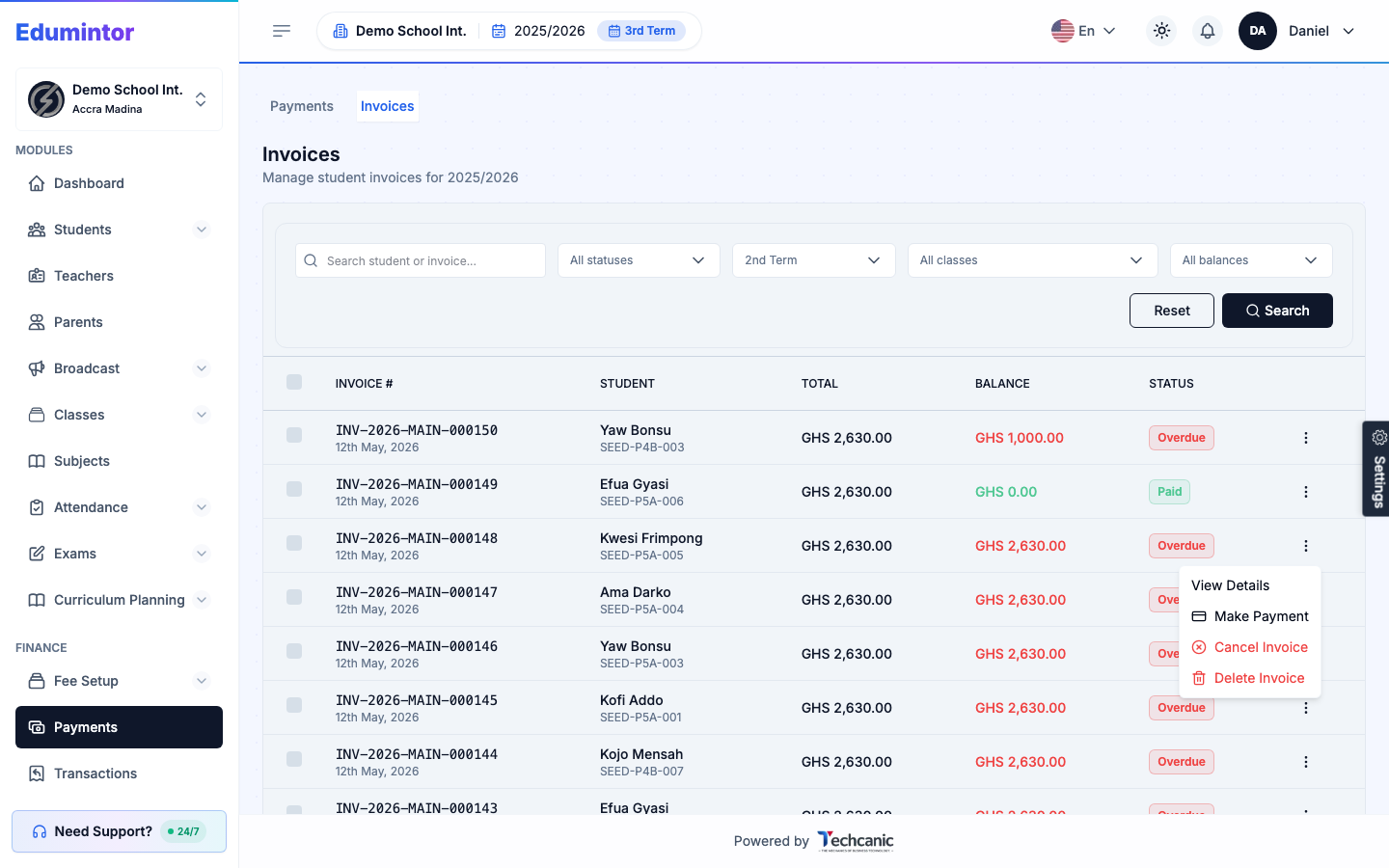
Find the invoice in the list, then click the ⋮ menu at the end of its row.
-
Choose View Details to see its line items, summary, and payment history — and, from there, to Collect Payment, Cancel, or Delete it directly.
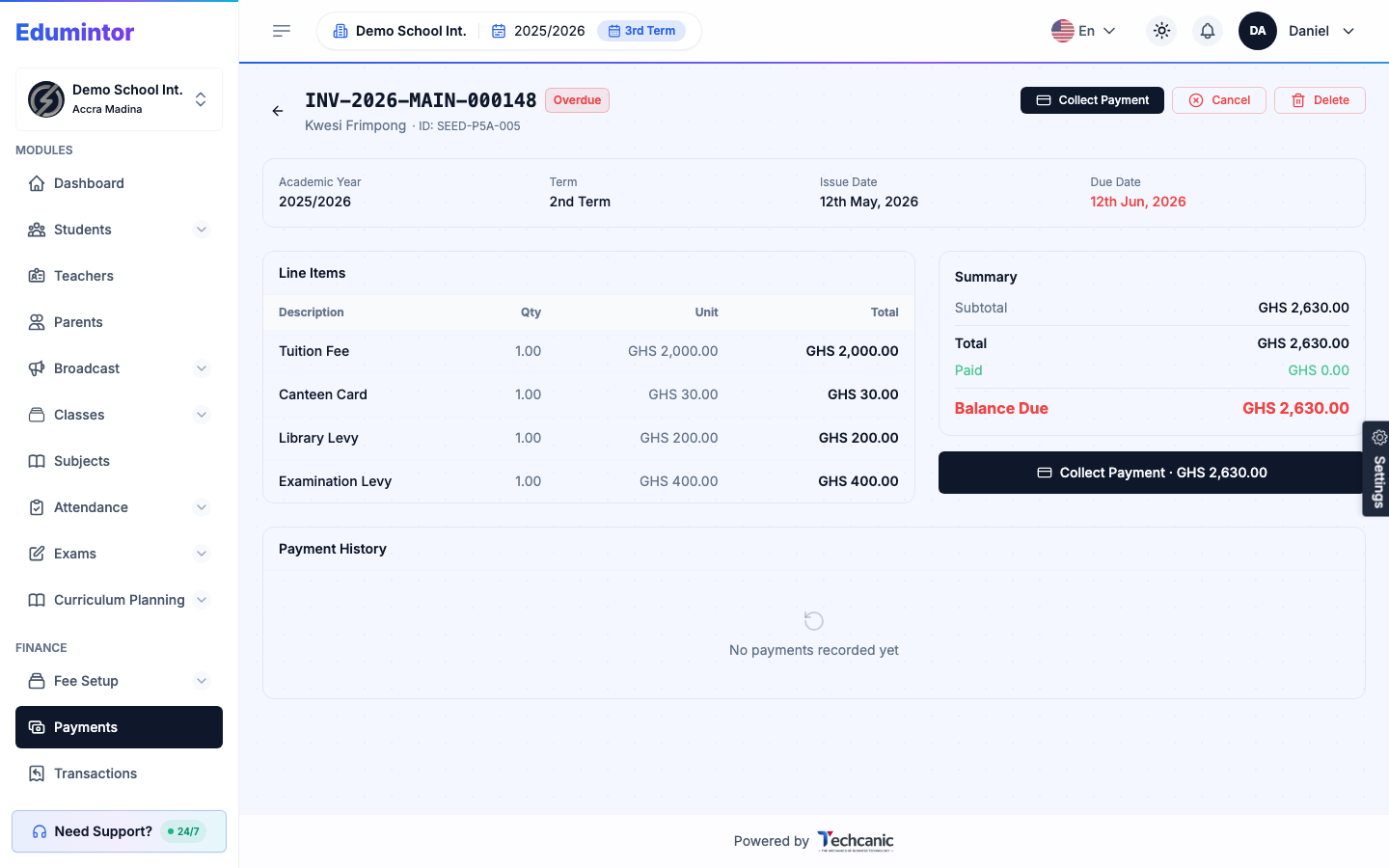
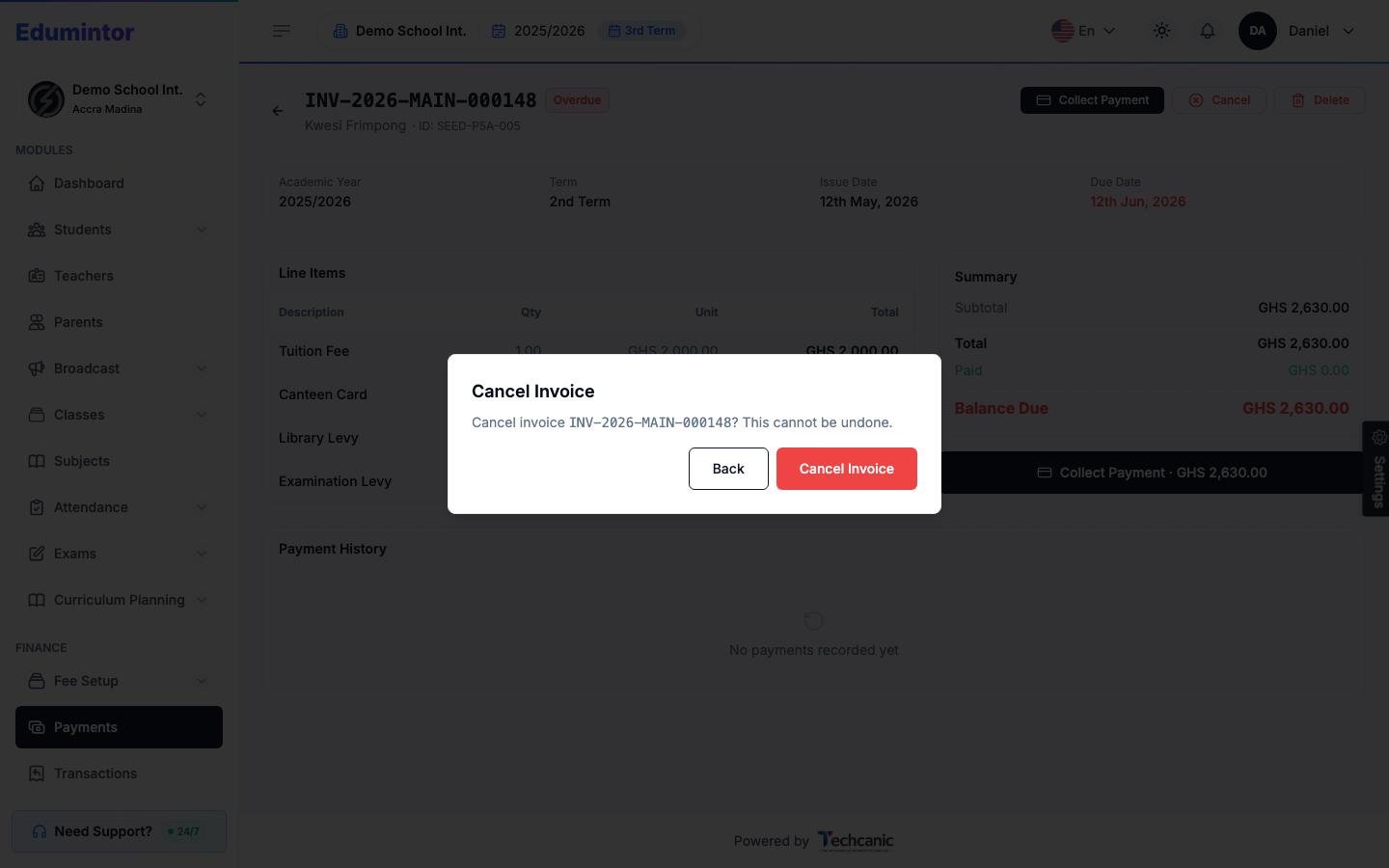
Cancel Invoice voids the invoice without removing its record:
Delete Invoice removes it permanently, but only if it has no payments on it. In the confirmation, type the invoice number exactly as shown — the Delete Invoice button turns on once it matches — then click it. If you select several invoices and delete them together, type DELETE instead; invoices that already have payments are skipped.
💡 Tip — If an invoice already has a payment against it, reverse or delete the payment first before you can delete the invoice itself.